
How to Access Weather Radar Data on Your iPhone
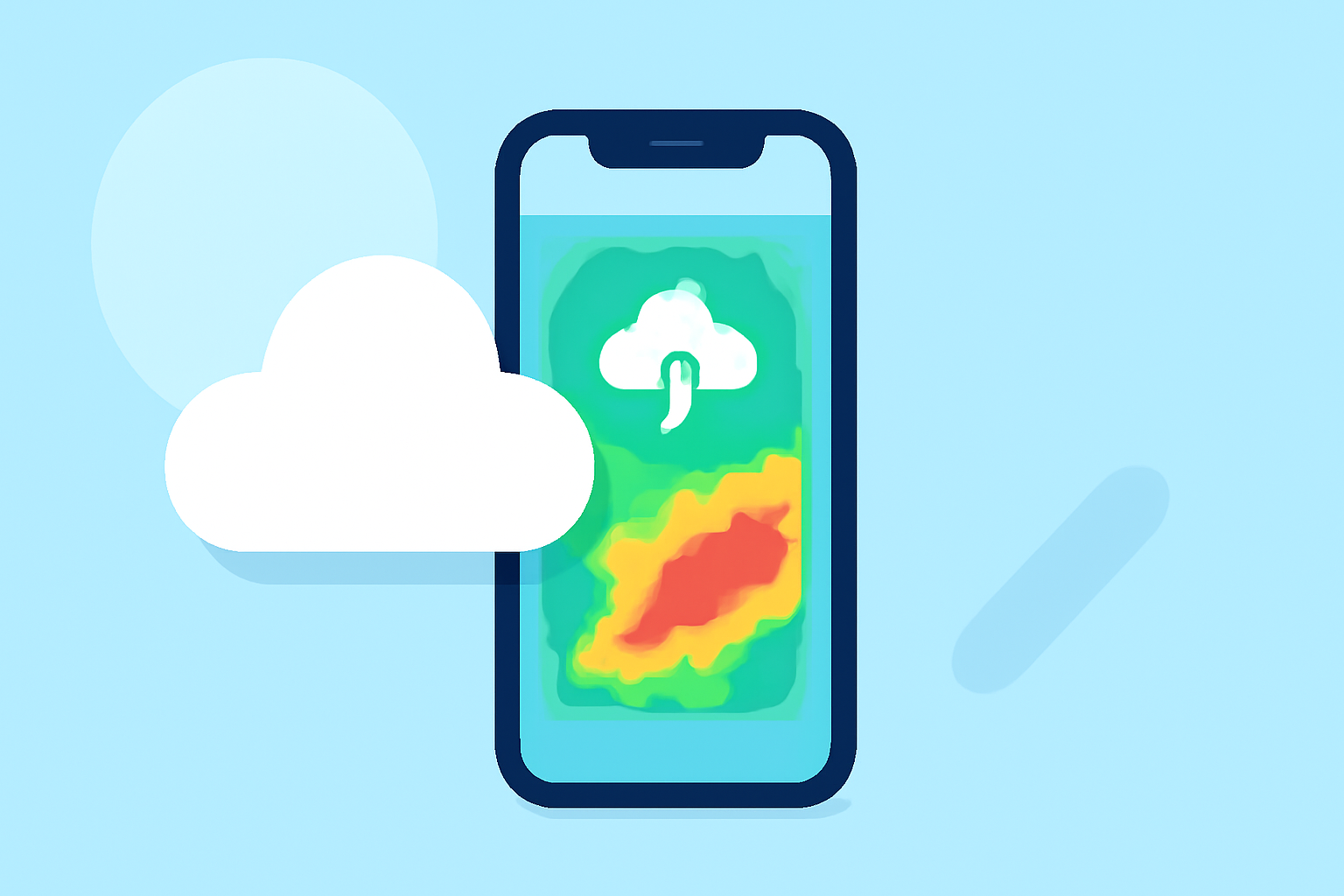
Accessing real-time weather radar data on your iPhone is essential for staying informed about current and upcoming weather conditions. Here's how you can do it:
Using the Built-in Weather App
The Weather app on your iPhone offers a convenient way to view weather maps, including precipitation forecasts.
-
Open the Weather App: Locate and tap the Weather app on your iPhone.
-
Select a Location: Choose the location for which you want to view the weather map.
-
Access the Map: Tap the map icon at the bottom of the screen to enter the full-screen map view.
-
Choose the Map Layer: In the upper-right corner, tap the overlay menu to select the precipitation map. This will display areas of rain, snow, and mixed precipitation in high resolution.
-
Navigate the Map: You can zoom in and out, move the map, and view different locations by dragging and pinching the screen.
For a visual guide on using the precipitation map, you can watch this tutorial:
How to Find and Use iPhone Precipitation Map
Using Clime: NOAA Weather Radar Live App
For more detailed and specialized weather radar data, consider using Clime: NOAA Weather Radar Live. This app provides real-time radar images, severe weather alerts, and accurate forecasts.
-
Download the App: Visit the App Store and search for "Clime: NOAA Weather Radar Live" to download and install the app.
-
Open the App: Launch Clime on your iPhone.
-
View Radar Data: The app will display high-resolution radar images, showing areas of rain, snow, and mixed precipitation.
-
Set Up Alerts: Enable push notifications to receive alerts for severe weather conditions in your area.
Clime offers a comprehensive suite of features to keep you informed about weather conditions, including 24-hour and 7-day forecasts, current temperatures, and more. (apps.apple.com)
Additional Tips
-
Stay Updated: Regularly check the Weather app or Clime for the latest weather information, especially during severe weather events.
-
Customize Notifications: Adjust notification settings in Clime to receive alerts for specific weather conditions that concern you.
-
Explore Map Features: Both the Weather app and Clime offer interactive maps with various overlays, such as wind speed, temperature, and air quality, to provide a comprehensive view of current conditions.
By utilizing these tools, you can effectively monitor weather patterns and make informed decisions based on real-time data.