
How to Add and Customize Small Weather Widgets on Your iPhone
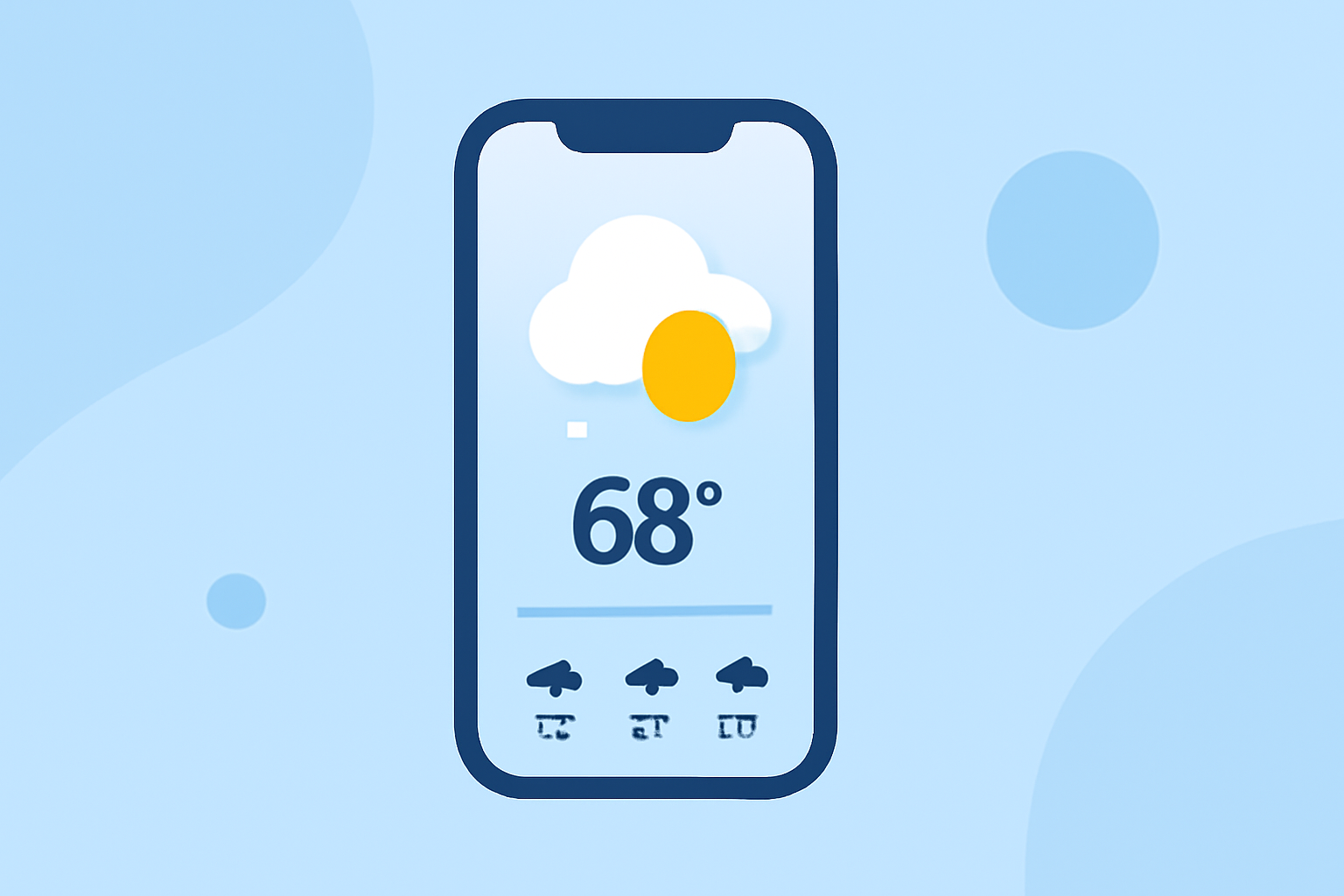
Adding a small weather widget to your iPhone's Home Screen allows you to view current conditions and forecasts at a glance, enhancing your daily planning and preparedness. Here's a step-by-step guide to help you set up and customize this feature:
1. Accessing the Widget Gallery
To begin, navigate to your iPhone's Home Screen:
-
Enter Jiggle Mode: Touch and hold an empty area on the Home Screen until the app icons start to jiggle.
-
Open Widget Gallery: Tap the plus sign (+) in the top-left corner to open the Widget Gallery.
2. Selecting the Weather Widget
Within the Widget Gallery:
-
Search for Weather: Use the search bar at the top to type "Weather" or scroll through the list to find the Weather widget.
-
Choose Widget Size: The Weather widget offers multiple sizes. For a small widget:
-
Small Widget: Displays current conditions for your selected location.
-
Medium and Large Widgets: Provide more detailed information, such as hourly forecasts or a multi-day outlook.
-
Add Widget: After selecting the desired size, tap "Add Widget" to place it on your Home Screen.
3. Customizing the Weather Widget
To tailor the widget to your preferences:
-
Edit Widget: Touch and hold the Weather widget until a quick action menu appears.
-
Select "Edit Widget": This option allows you to customize settings such as the location displayed.
-
Choose Location: Tap "Location" and select the desired city or enable "Current Location" to display weather information for your current area.
-
Save Changes: After making your selections, tap outside the widget to save and exit editing mode.
4. Repositioning the Widget
To move the widget to a preferred location on your Home Screen:
-
Enter Jiggle Mode: Touch and hold an empty area on the Home Screen until the app icons start to jiggle.
-
Drag Widget: Touch and hold the Weather widget, then drag it to the desired position.
-
Place Widget: Release the widget to place it in the new location.
5. Removing the Widget
If you decide to remove the widget:
-
Enter Jiggle Mode: Touch and hold an empty area on the Home Screen until the app icons start to jiggle.
-
Remove Widget: Tap the minus sign (-) on the Weather widget, then confirm by tapping "Remove Widget".
By following these steps, you can quickly add and customize a small weather widget on your iPhone, providing immediate access to essential weather information without opening the Weather app.
For a visual demonstration of adding and customizing the Weather widget, you can watch the following video: