
How to Add and Customize Weather Widgets on Wear OS
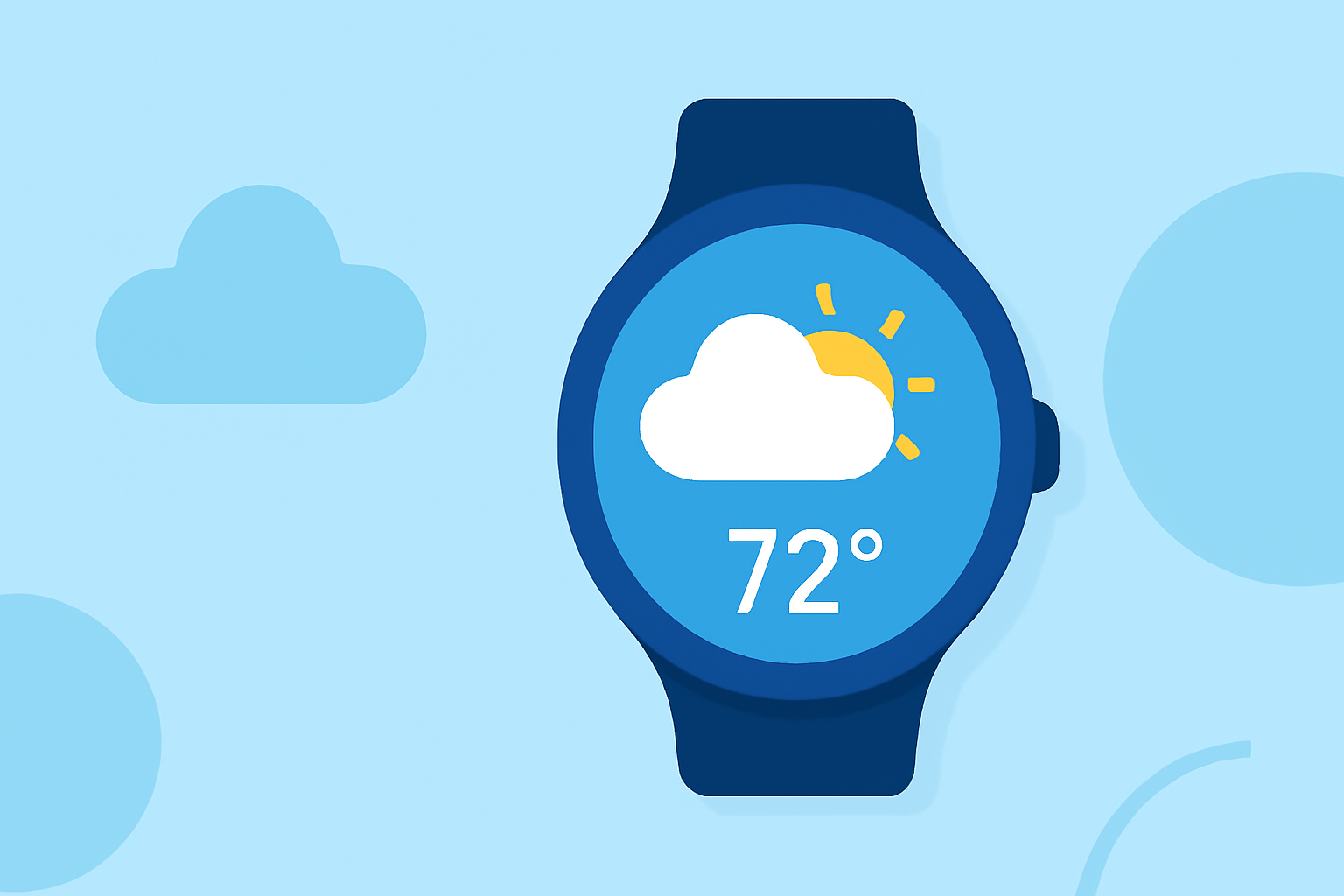
Adding weather widgets to your Wear OS smartwatch allows you to access current conditions and forecasts directly from your wrist. Here's a step-by-step guide to help you set up and customize weather widgets on your device.
1. Accessing and Adding Weather Widgets
Wear OS offers two primary methods to view weather information: the Weather Tile and the At a Glance complication.
Weather Tile
The Weather Tile provides a quick overview of current weather conditions and forecasts. To add it:
- Swipe left or right on your watch face to access your Tiles.
- Press and hold on an empty space within the Tiles view.
- Tap "Add Image" to add the Weather or UV Index Tile. (support.google.com)
At a Glance Complication
The At a Glance complication displays essential information, including weather updates, directly on your watch face. To add it:
- Touch and hold your current watch face.
- Swipe right three times to reach the complications menu.
- Scroll through the list and select "At a Glance." (support.google.com)
2. Customizing Weather Widgets
Personalizing your weather widgets ensures they display the information most relevant to you.
Reordering Tiles
To change the order of your Tiles:
- Swipe left or right to view your Tiles.
- Press and hold on a Tile until it enters edit mode.
- Drag the Tile to your desired position. (makeuseof.com)
Adding or Removing Tiles
To add a new Tile:
- Swipe left or right to access your Tiles.
- Keep swiping left until you reach the end, then tap the "Add tiles (+)" icon.
- Select the desired Tile to add it.
To remove a Tile:
- Enter edit mode by pressing and holding a Tile.
- Tap the red minus (-) sign on the Tile you wish to remove. (makeuseof.com)
3. Utilizing Third-Party Weather Apps
For enhanced weather information, consider using third-party weather apps compatible with Wear OS. These apps often provide additional features and more detailed forecasts. Ensure the app supports Wear OS and offers widget functionality.
4. Keeping Your Device Updated
Regularly updating your Wear OS device ensures access to the latest features and improvements. Check for updates in your device's settings to maintain optimal performance.
By following these steps, you can effectively add and customize weather widgets on your Wear OS smartwatch, keeping you informed about current conditions and forecasts at a glance.