
How to Add Small Weather Widgets to Your iPhone Lock Screen in 2026
June 17, 2026 · The Clime Team
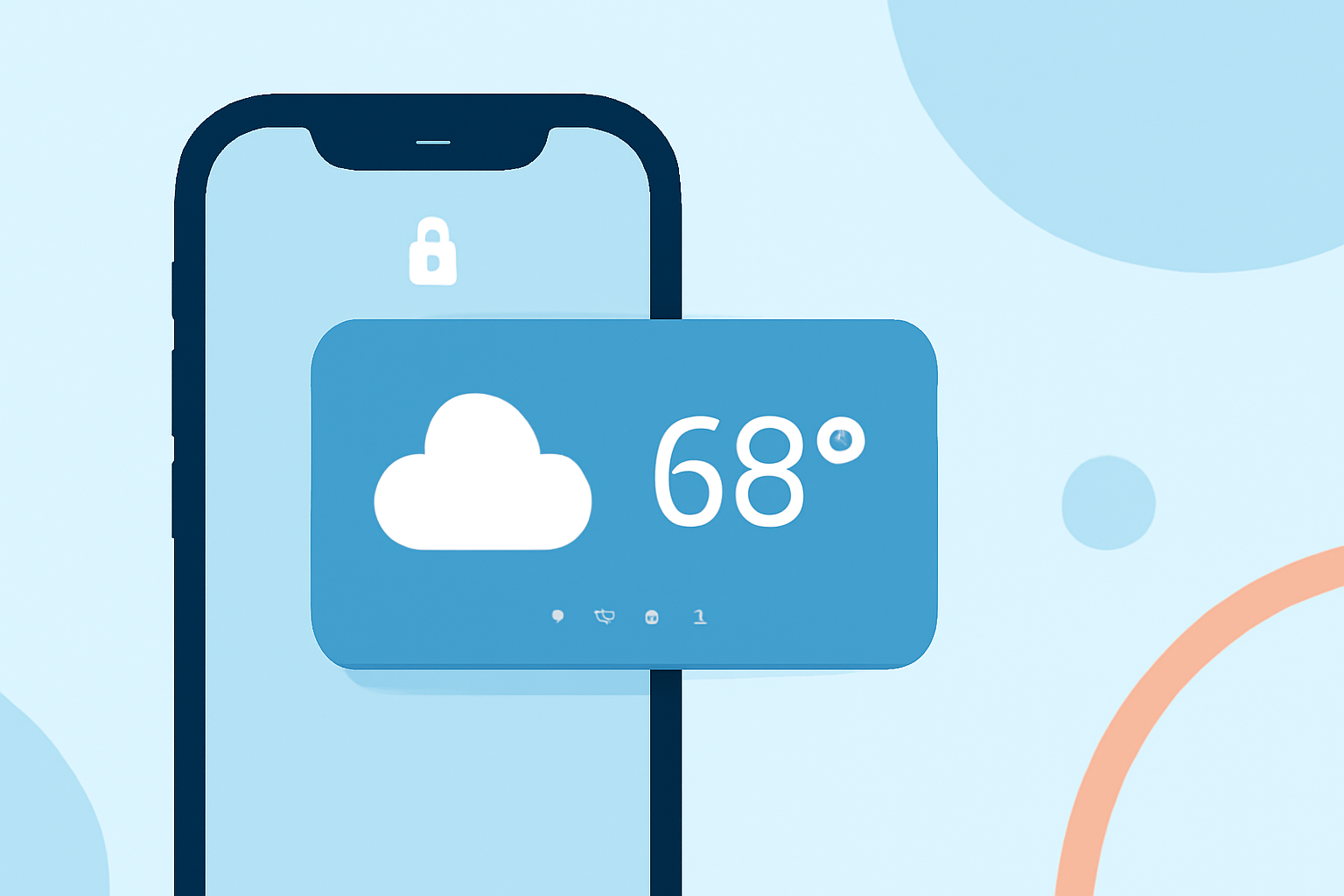
Customizing your iPhone Lock Screen with small weather widgets allows you to access current conditions and forecasts at a glance. Here's a step-by-step guide to adding these widgets in 2026:
1. Access the Lock Screen Customization Menu
- Unlock your iPhone and remain on the Lock Screen.
- Press and hold the Lock Screen until the customization options appear.
- Tap "Customize" at the bottom of the screen.
2. Add Weather Widgets
- In the customization menu, tap "Add Widgets."
- Scroll through the available widgets and select the weather widget you prefer.
- Tap or drag the widget to the desired position on your Lock Screen.
- Once satisfied with the placement, tap "Done" to save your changes.
3. Adjust Widget Position (Optional)
- To move the weather widget, press and hold it until it becomes draggable.
- Drag it to your preferred location on the Lock Screen.
- Tap "Done" to confirm the new position.
4. Customize Widget Settings (If Supported)
- Some weather widgets allow customization, such as selecting a specific location or adjusting the displayed information.
- To edit a widget, press and hold it, then tap "Edit Widget" from the quick actions menu.
- Make the desired changes and tap outside the widget to exit editing mode.
By following these steps, you can personalize your iPhone Lock Screen to display real-time weather updates, keeping you informed with just a glance.
(support.apple.com)