
A Non-Technical Guide to Adding Weather Widgets to Your Home Screen
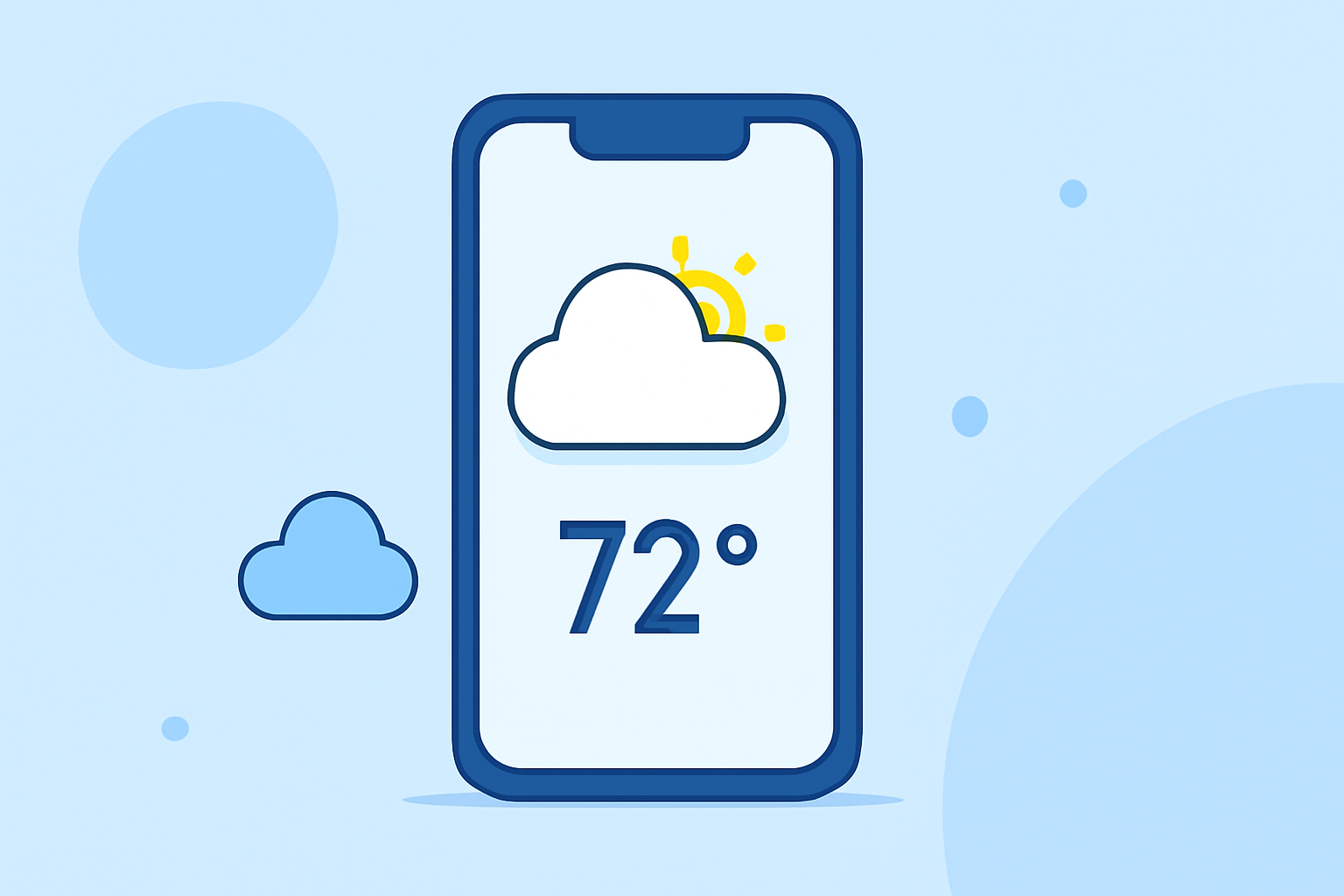
Adding a weather widget to your smartphone's home screen allows you to access current conditions and forecasts at a glance. Here's a step-by-step guide for both iPhone and Android users:
For iPhone Users:
-
Enter Edit Mode: Touch and hold an empty area on your home screen until the app icons begin to jiggle.
-
Access Widgets: Tap the '+' button in the top-left corner of the screen.
-
Select Weather Widget: Scroll through the list or use the search bar to find the "Weather" widget.
-
Choose Widget Size: Select the desired widget size (small, medium, or large) and tap "Add Widget."
-
Position the Widget: Drag the widget to your preferred location on the home screen and tap "Done" to finalize.
This process is applicable for iOS 14 and later versions. (help.theweathernetwork.com)
For Android Users:
-
Access Widgets: Long-press on an empty area of your home screen and tap "Widgets" from the menu that appears.
-
Find Weather Widget: Scroll through the list to locate the "Weather" widget.
-
Add Widget: Tap and hold the widget, then drag it to your desired location on the home screen.
-
Customize Widget: Release the widget to place it, and if prompted, select your location and adjust any other settings.
The exact steps may vary depending on your device and Android version. (androidcentral.com)
Additional Tips:
-
Customization: Many widgets allow customization of size, theme, and information displayed. Explore the widget's settings to tailor it to your preferences.
-
Third-Party Widgets: If your device doesn't offer a built-in weather widget, consider downloading third-party weather apps that provide widget functionality.
By following these steps, you can enhance your smartphone's home screen with a weather widget, keeping you informed about current conditions and forecasts with ease.