
A Step-by-Step Guide to Adding a Weather Widget to Your Home Screen
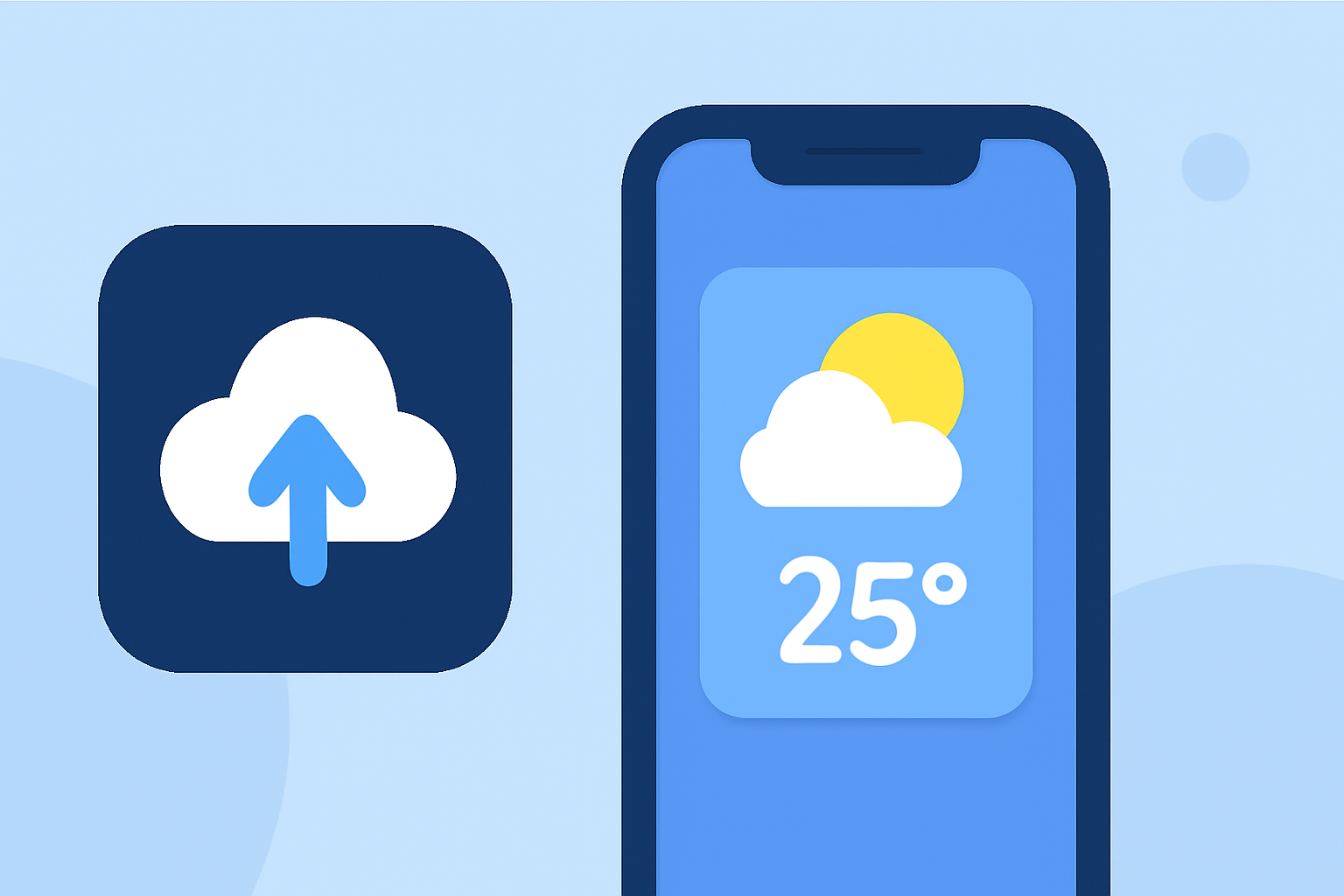
Adding a weather widget to your home screen provides quick access to current conditions and forecasts, keeping you informed throughout the day. Here's how to set up a weather widget on different devices:
For iPhone Users:
- Access the Widget Gallery:
- Touch and hold an empty area on your Home Screen until the apps jiggle.
- Tap the + icon in the top-left corner.
- Select the Weather Widget:
- In the widget gallery, scroll down and tap on Weather.
- Choose your preferred widget size.
- Add the Widget:
- Tap Add Widget to place it on your Home Screen.
- Tap Done to finalize the setup.
For more details, refer to Apple's official support page. (support.apple.com)
For Android Users:
- Access Widgets:
- Long-press on an empty area of your Home Screen.
- Tap Widgets from the menu that appears.
- Choose a Weather Widget:
- Scroll through the list to find the Weather widget.
- Tap and hold the widget, then drag it to your desired location on the Home Screen.
- Customize the Widget:
- Release the widget to place it.
- Adjust its size or settings as needed.
For more information, visit Android Central's guide on adding widgets. (androidcentral.com)
For Samsung Galaxy Users:
- Add the Weather Widget:
- Long-press on an empty area of your Home Screen.
- Tap Widgets from the menu.
- Scroll to find the Weather widget.
- Select your desired widget size and tap Add.
- Customize the Widget:
- Touch and hold the widget to access customization options.
- Adjust the widget size, layout, or theme to suit your preferences.
For detailed instructions, refer to Samsung's support page. (samsung.com)
For LG Users:
- Add the Weather Widget:
- From the Home screen, tap the Apps icon.
- Tap the Widgets tab at the top.
- Touch and hold the desired Weather widget to pick it up and place it on one of the Home screens.
- Customize the Widget:
- Tap the widget to access the Weather app.
- Tap the New city icon to add cities to your list.
- Swipe right or left to scroll through the weather information for each city.
For more details, see LG's user guide. (lg.com)
For Windows 11 Users:
- Add the Weather Widget:
- Click on the Widgets icon in the taskbar.
- If the Weather widget isn't already displayed, click the Add widgets button.
- In the widget picker, click the + next to Weather to add it.
- Customize the Widget:
- Click the three-dot menu on the Weather widget and select Customize widget.
- Adjust the settings as desired.
For more information, refer to Windows Central's guide on managing widgets in Windows 11. (windowscentral.com)
By following these steps, you can easily add a weather widget to your device's home screen, ensuring you have timely weather information at your fingertips.