
How to Add a Weather Widget to Your iPad Lock Screen
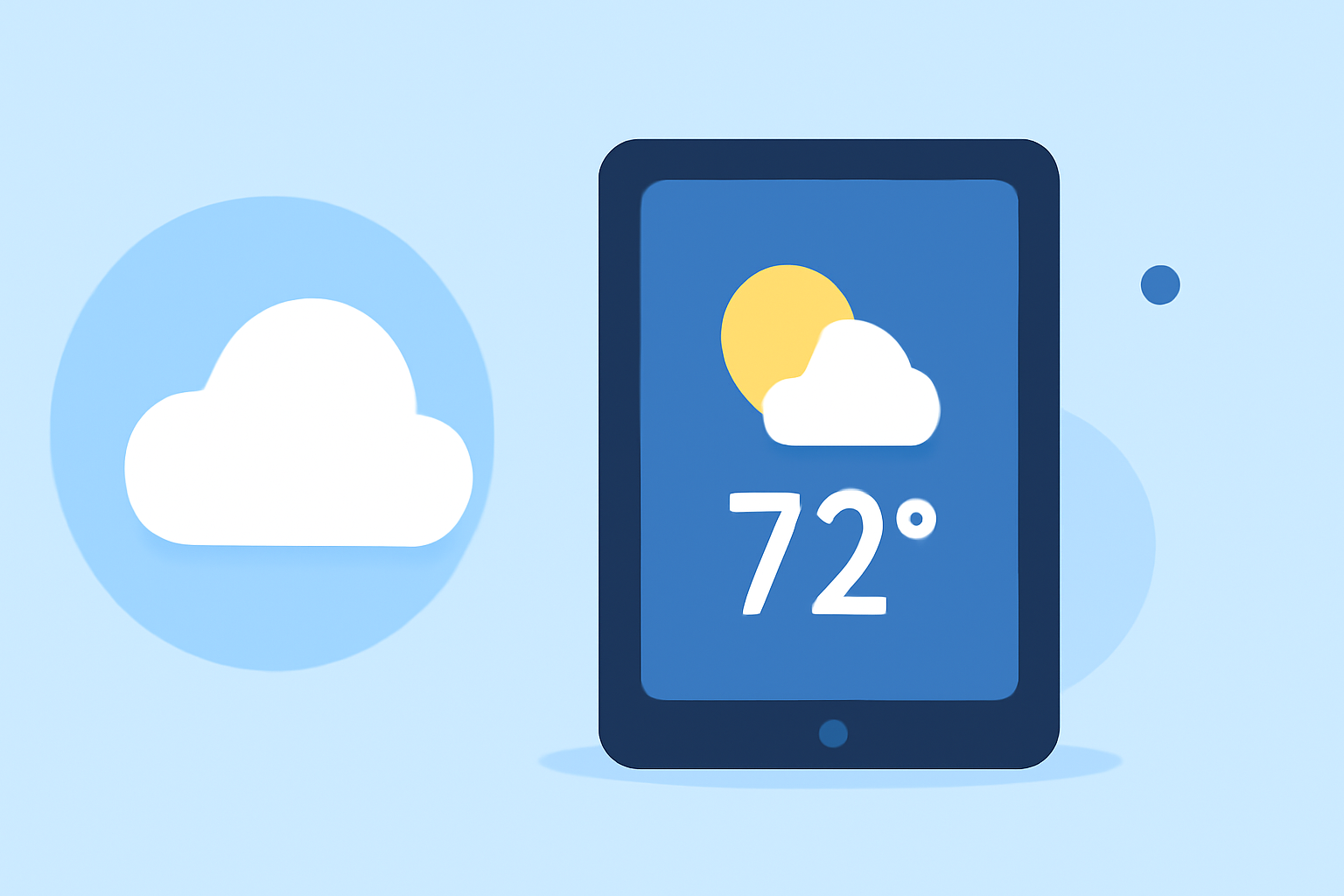
Customizing your iPad's Lock Screen with a weather widget allows you to access real-time weather updates at a glance. Here's how you can add a weather widget to your iPad's Lock Screen:
1. Ensure Your iPad is Updated
To add widgets to your Lock Screen, your iPad must be running iPadOS 17 or later. To check your iPad's software version:
- Open the Settings app.
- Tap on General.
- Select About.
- Check the Software Version.
If your iPad is not updated, connect it to Wi-Fi and follow the on-screen instructions to download and install the latest iPadOS version.
2. Access the Lock Screen Customization
- Wake your iPad without unlocking it.
- Touch and hold the Lock Screen until the Customize button appears.
- Tap Customize.
3. Add the Weather Widget
- Tap Add Widgets.
- Browse through the available widgets and select the Weather widget.
- Choose the widget size and style that best fits your preference.
- Tap Add Widget to place it on your Lock Screen.
4. Position the Widget
- In portrait orientation, you can add up to four small widgets below the clock.
- In landscape orientation, you have more flexibility to add multiple widgets on the left side of the screen.
- Drag the weather widget to your desired position.
5. Finalize the Customization
- Once satisfied with the widget placement, tap the Close button.
- Tap Done to save your changes.
Your iPad's Lock Screen will now display the weather widget, providing you with instant access to weather information without unlocking your device.
Additional Tips
- Interactive Widgets: Tapping the weather widget will open the Weather app, allowing you to view detailed forecasts.
- Customization: You can add multiple widgets to your Lock Screen, such as calendar events or battery status, to enhance functionality.
- Orientation Considerations: Remember that widget placement may vary between portrait and landscape orientations.
By following these steps, you can personalize your iPad's Lock Screen to display essential information, including real-time weather updates, right at your fingertips.