
How to Add a Weather Widget to Your iPhone Home Screen
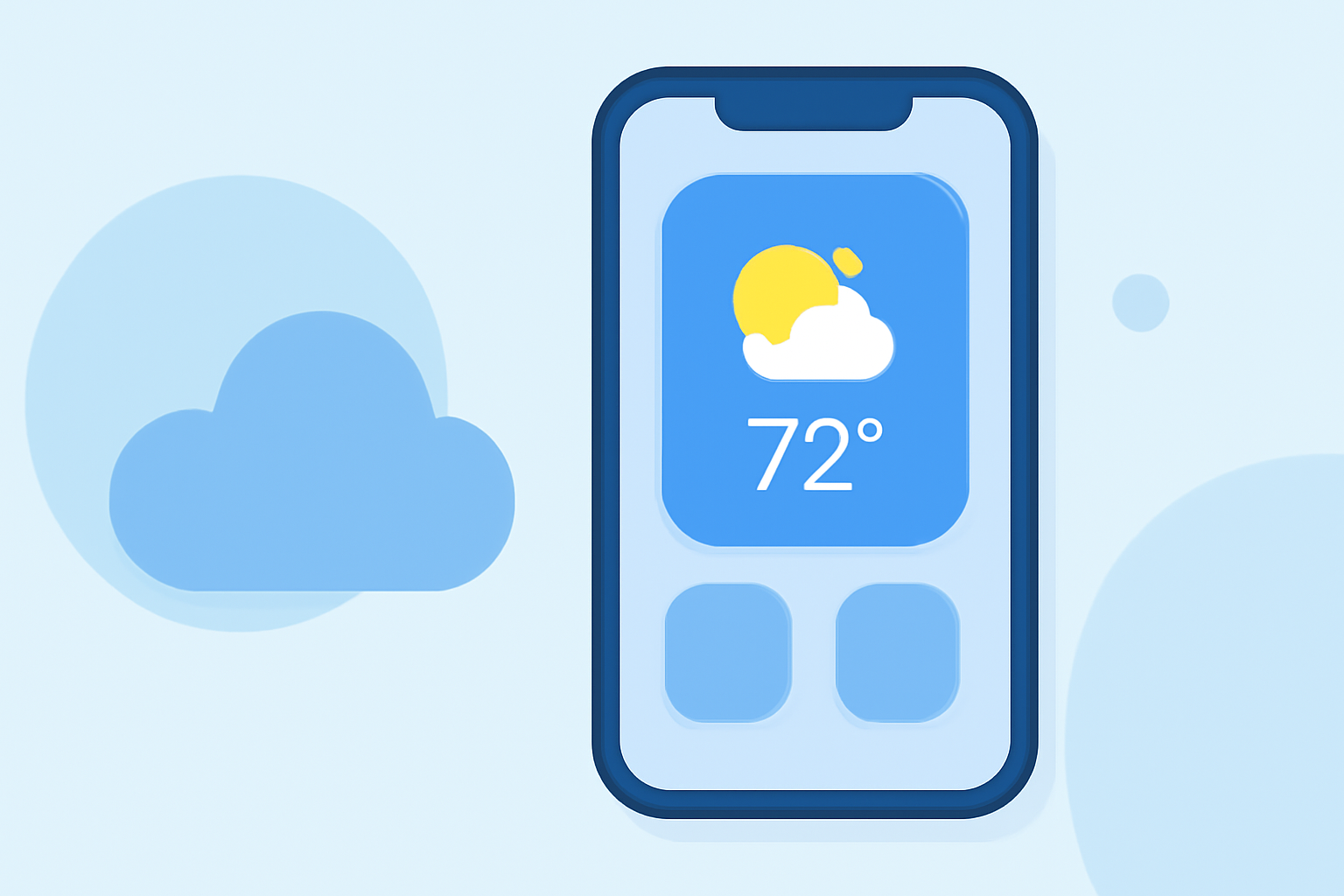
Adding a weather widget to your iPhone's home screen allows you to access current conditions and forecasts at a glance. Here's a step-by-step guide to set it up:
1. Enter Jiggle Mode
Touch and hold an empty area on your home screen until the app icons start wiggling. This is known as "jiggle mode." (support.apple.com)
2. Access the Widget Gallery
Tap the plus (+) icon in the top-left corner to open the widget gallery. (support.apple.com)
3. Select the Weather Widget
In the widget gallery, scroll down or use the search bar to find the "Weather" widget. Tap on it to view available sizes and configurations. (support.apple.com)
4. Choose a Widget Size
Swipe left or right to preview different widget sizes:
-
Small: Displays the current temperature and weather conditions.
-
Medium: Shows the current temperature, weather conditions, and a brief forecast.
-
Large: Provides detailed information, including hourly forecasts and additional weather data.
Tap "Add Widget" to select your preferred size. (support.apple.com)
5. Position the Widget
Drag the widget to your desired location on the home screen. You can place it alongside other apps or create a dedicated area for widgets. (support.apple.com)
6. Exit Jiggle Mode
Tap "Done" in the top-right corner to exit jiggle mode and save your changes. (support.apple.com)
Customizing the Weather Widget
To tailor the widget to your preferences:
-
Edit Widget: Touch and hold the weather widget until a quick actions menu appears.
-
Select Location: Tap "Edit Widget" and choose "Location" to set your preferred city or enable location services for automatic updates. (support.apple.com)
Additional Tips
-
Widget Stacks: Combine multiple widgets into a stack to save space. Touch and hold a widget, then drag it on top of another widget to create a stack. You can add up to 10 widgets in a stack. (support.apple.com)
-
Interactive Widgets: With iOS 17 and later, some widgets are interactive, allowing you to perform actions directly from the widget without opening the app. (macrumors.com)
By following these steps, you can have the weather information you need right at your fingertips, enhancing your iPhone experience.
For a visual demonstration, you might find this tutorial helpful: