
How to Add a Weather Widget to Your iPhone Home Screen: A Step-by-Step Guide
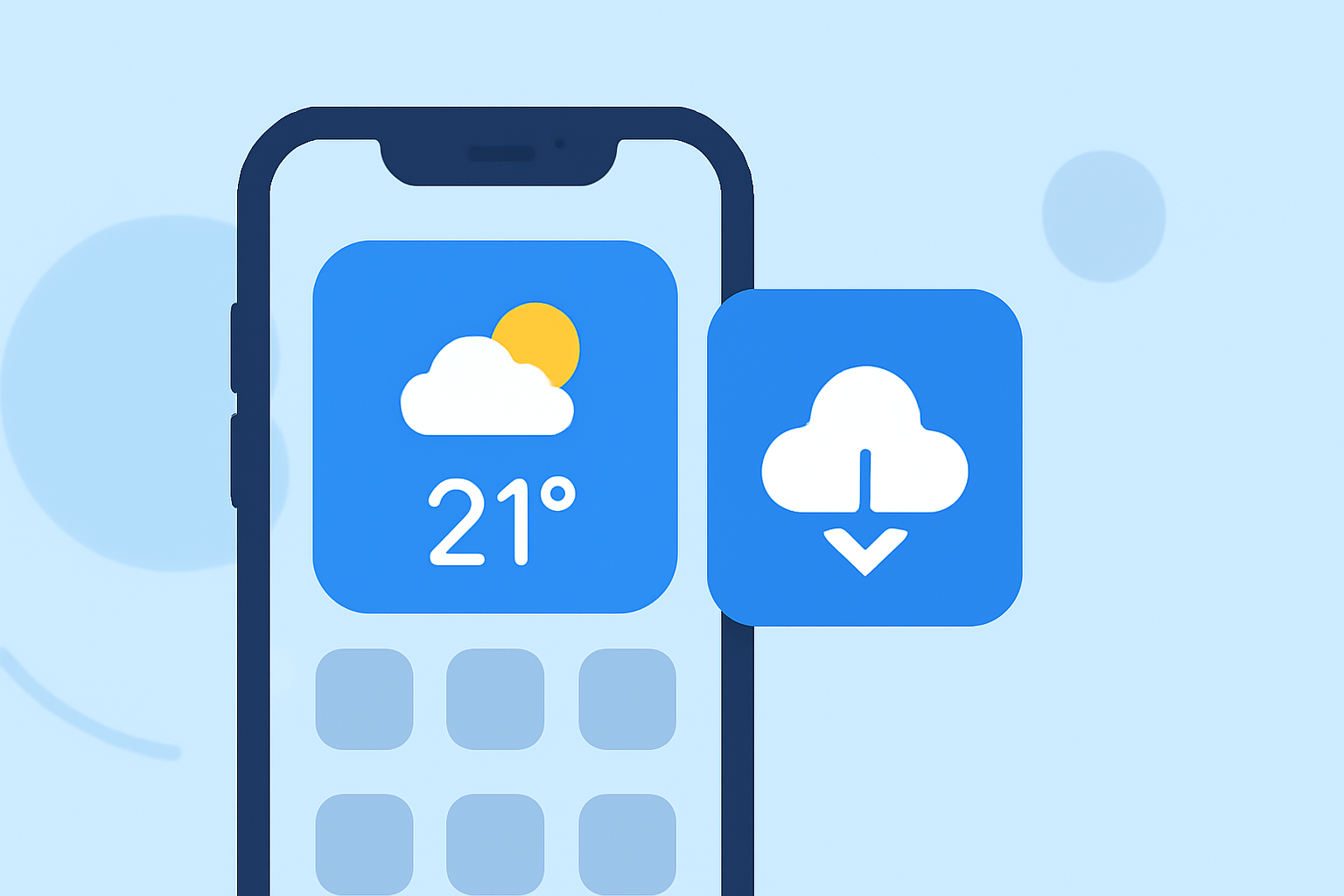
Adding a weather widget to your iPhone's home screen allows you to access current conditions and forecasts at a glance, enhancing your daily planning. Here's a step-by-step guide to set it up:
1. Enter Jiggle Mode
Touch and hold an empty space on your iPhone's home screen until the app icons start to jiggle. This indicates that you're in edit mode.
2. Access the Widget Gallery
Tap the plus sign (+) in the top-left corner of the screen to open the widget gallery.
3. Select the Weather Widget
In the widget gallery, scroll through the list or use the search bar to find the "Weather" widget.
4. Choose a Widget Size
The Weather widget comes in different sizes: small, medium, and large. Swipe left or right to preview each size and select the one that best fits your home screen layout.
5. Add the Widget to Your Home Screen
After selecting the desired size, tap "Add Widget." The widget will appear on your home screen.
6. Position the Widget
Drag the widget to your preferred location on the screen. You can place it alongside your apps or create a dedicated area for widgets.
7. Exit Jiggle Mode
Tap "Done" in the top-right corner to exit edit mode and save your changes.
Customizing the Weather Widget
To tailor the widget to your preferences:
-
Edit Widget Settings: Touch and hold the widget, then tap "Edit Widget." Here, you can adjust settings such as the location displayed.
-
Resize the Widget: If you wish to change the widget's size, remove it by tapping the minus (–) icon, then add it again in the desired size.
Additional Tips
-
Smart Stack: Consider adding a Smart Stack widget, which allows you to stack multiple widgets and swipe through them. This feature is useful if you want to include other widgets like Calendar or News alongside Weather.
-
Lock Screen Widgets: With iOS 16 and later, you can also add widgets to your Lock Screen for quick access. To do this, touch and hold the Lock Screen, tap "Customize," and select the widget area to add the Weather widget.
By following these steps, you can keep essential weather information readily available on your iPhone's home screen, helping you make informed decisions throughout the day.