
How to Add a Weather Widget to Your iPhone Lock Screen in Under 5 Minutes
June 18, 2026 · The Clime Team
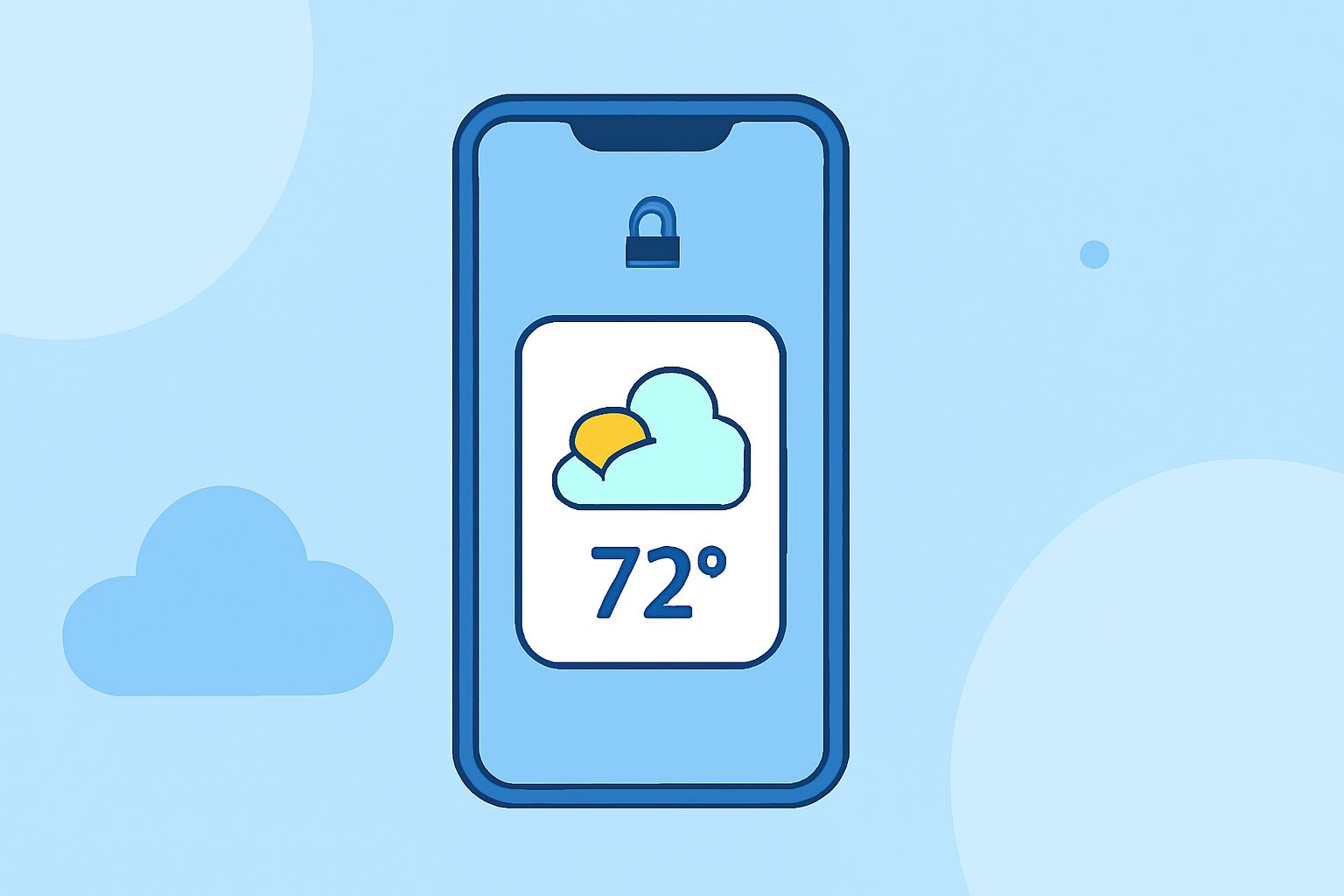
Adding a weather widget to your iPhone's Lock Screen allows you to view current conditions and forecasts at a glance. Here's a step-by-step guide to set it up in under five minutes:
1. Access Lock Screen Customization
- Wake your iPhone and ensure it's unlocked.
- Touch and hold the Lock Screen until the customization options appear.
- Tap the "Customize" button at the bottom of the screen. (support.apple.com)
2. Add the Weather Widget
- Tap the "Add Widgets" area.
- Scroll through the available widgets and select the weather widget.
- Choose your preferred widget size.
- Tap "Add Widget" to place it on your Lock Screen. (support.apple.com)
3. Finalize and Save
- Once satisfied with the widget placement, tap the close button.
- Tap "Done" to save your customized Lock Screen. (support.apple.com)
Your iPhone's Lock Screen now displays the weather widget, providing instant access to current conditions and forecasts.
For a visual demonstration, you can watch the following tutorial: