
How to Add Weather Widgets to Your Home Screen and Car Display
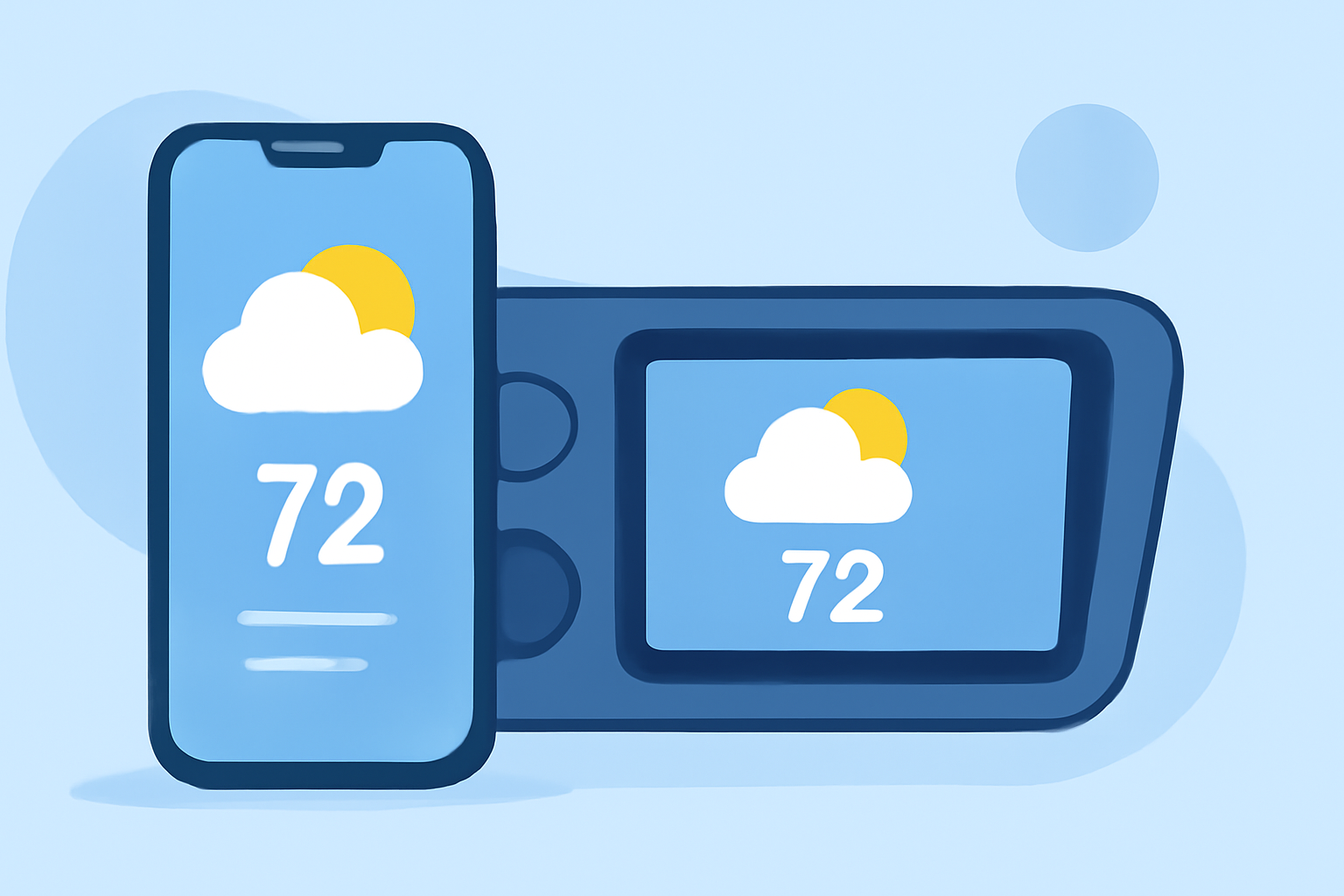
Adding weather widgets to your smartphone's home screen and car display provides quick access to current conditions and forecasts, enhancing your daily planning and driving experience. Here's how to set them up on various devices:
Adding Weather Widgets to Your Smartphone's Home Screen
For iPhone Users:
-
Access the Widget Gallery: Touch and hold an empty area on your Home Screen until the apps jiggle. Tap the '+' button in the top-left corner.
-
Select the Weather Widget: Scroll through the widget options and tap on "Weather."
-
Choose Widget Size and Add: Swipe to select your preferred widget size (small, medium, or large) and tap "Add Widget."
-
Position the Widget: Drag the widget to your desired location on the Home Screen and tap "Done."
To display weather information for a specific location:
-
Edit the Widget: Touch and hold the Weather widget, then tap "Edit Widget."
-
Set Location: Tap "Location" and choose your desired city.
For Android Users:
-
Access Widgets: Long-press an empty space on your Home Screen and tap "Widgets."
-
Find the Weather Widget: Scroll through the available widgets to locate the Weather widget.
-
Add the Widget: Long-press the Weather widget and drag it to your Home Screen.
-
Configure the Widget: Tap the widget to set your location and customize settings like temperature units.
Note: The exact steps may vary depending on your device and Android version.
Adding Weather Widgets to Your Car Display
For Apple CarPlay Users:
-
Update to iOS 26 or Later: Ensure your iPhone is running iOS 26 or a newer version.
-
Enable Widgets in CarPlay Settings: On your iPhone, go to Settings > General > CarPlay. Select your car and toggle on "Show Widgets."
-
Customize Widget Display: Widgets will appear as swipeable stacks on your CarPlay screen. You can add, remove, or rearrange them directly from your iPhone's Settings.
For Android Auto Users:
-
Check for Updates: Ensure your Android Auto app is updated to the latest version.
-
Access Widget Settings: Open the Android Auto app on your phone, go to Settings, and look for a "Car widgets" option.
-
Add Weather Widget: If available, select the Weather widget from the list and add it to your CarPlay dashboard.
Note: The availability of widgets in Android Auto may vary based on your device and the version of Android Auto.
By following these steps, you can have up-to-date weather information readily available on your smartphone and car display, helping you make informed decisions throughout your day.