
How to Add Weather Widgets to Your iPhone Lock Screen
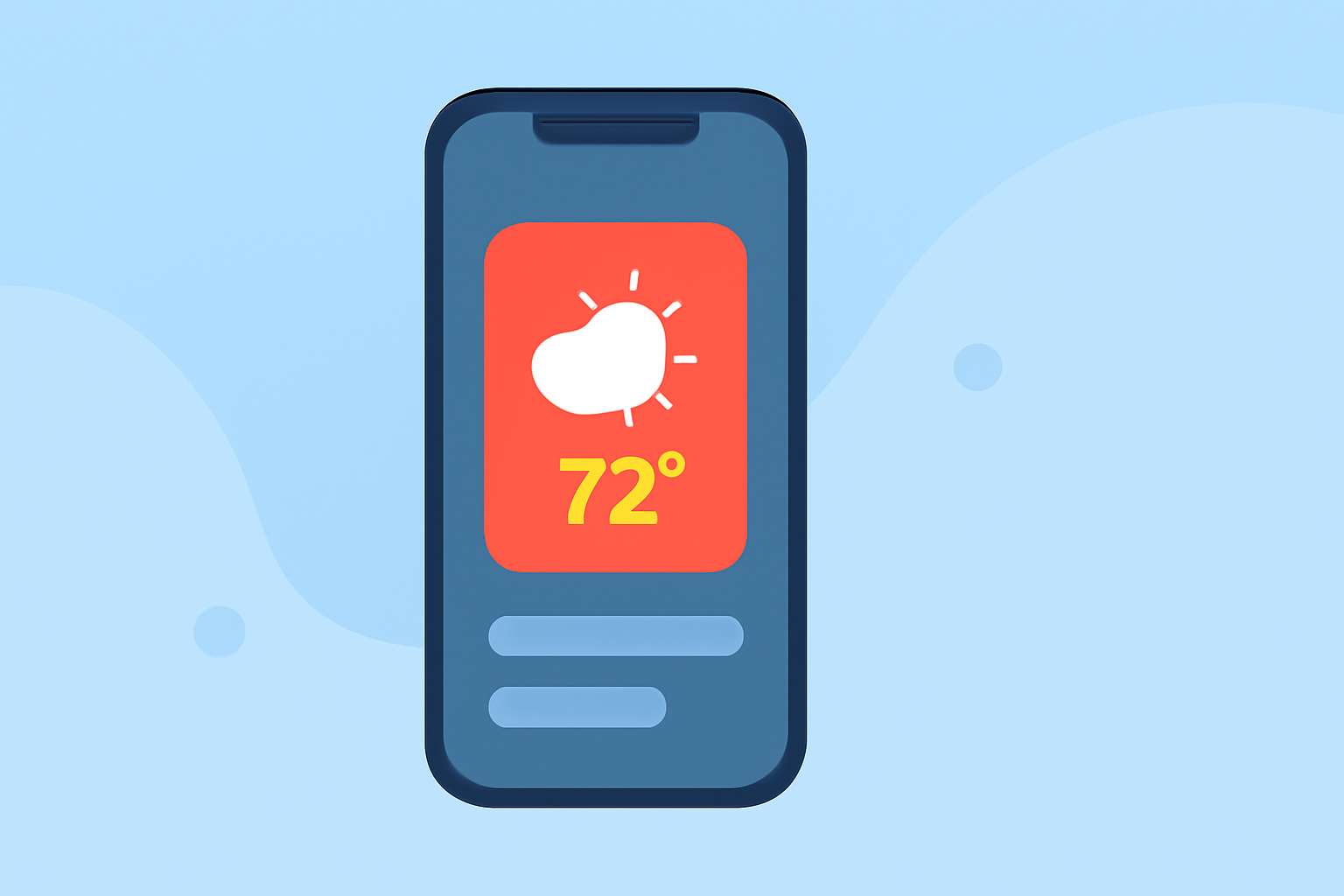
Customizing your iPhone's Lock Screen with weather widgets allows you to access real-time weather information without unlocking your device. Here's how to add and customize weather widgets on your iPhone running iOS 16 or later:
1. Access Lock Screen Customization
-
Wake Your iPhone: Press the side button or tap the screen to activate your iPhone.
-
Enter Customization Mode: Touch and hold the Lock Screen until the customization options appear.
-
Tap 'Customize': This will open the Lock Screen editing interface.
2. Add Weather Widgets
-
Select Widget Area: Tap the area below the time where widgets can be added.
-
Choose Weather Widget: Scroll through the available widgets and select the weather widget you prefer.
-
Position the Widget: Drag the widget to your desired location on the Lock Screen.
-
Tap 'Done': Save your changes to apply the new widget to your Lock Screen.
3. Customize Widget Settings
-
Edit Widget: Touch and hold the weather widget to open the quick actions menu.
-
Select 'Edit Widget': Adjust settings such as location, unit of measurement, and other preferences.
-
Save Changes: Tap outside the widget to exit editing mode.
4. Remove or Replace Widgets
-
Enter Customization Mode: Touch and hold the Lock Screen, then tap 'Customize'.
-
Select Widget to Remove: Tap the widget you wish to remove.
-
Remove or Replace: Choose to remove the widget or replace it with another.
-
Tap 'Done': Confirm your changes.
By following these steps, you can personalize your iPhone's Lock Screen to display weather information that suits your needs.
For more detailed instructions, refer to Apple's official guide on adding and editing widgets on your iPhone. (support.apple.com)
Additionally, you can watch a tutorial video that demonstrates the process of adding weather widgets to your iPhone Lock Screen.