
A Beginner's Guide to Adding Small Weather Widgets to Your Website
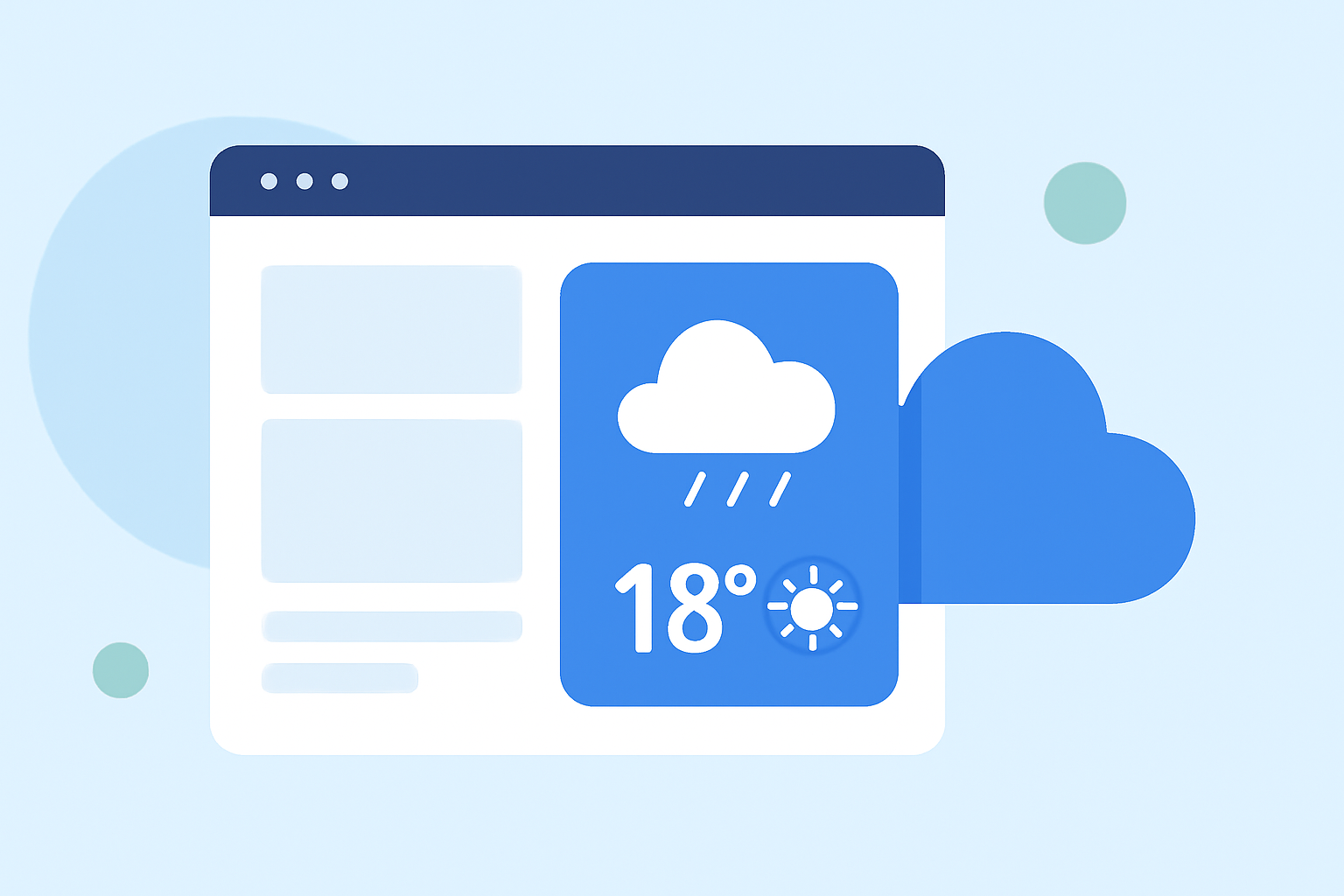
Enhancing your website with a small weather widget can provide visitors with real-time weather updates, improving user engagement and experience. This guide will walk you through the process of adding a weather widget to your website, even if you have no prior experience.
What Are Weather Widgets?
Weather widgets are small applications that display current weather information for a specific location. They typically show details like temperature, humidity, wind speed, and weather conditions. Integrating a weather widget into your website can offer several benefits:
- User Engagement: Visitors can quickly access weather information relevant to them.
- Enhanced User Experience: Provides valuable, real-time data that can influence user decisions.
- Professional Appearance: Demonstrates attention to detail and user-centric design.
How to Add a Small Weather Widget to Your Website
Adding a weather widget to your website is a straightforward process. Here's a step-by-step guide:
- Choose a Weather Widget Service:
Select a weather widget provider that offers customizable and responsive widgets. Look for features like:
- Customization Options: Ability to adjust colors, fonts, and layout to match your website's design.
- Responsiveness: Ensures the widget adapts to different screen sizes and devices.
- Ease of Use: User-friendly interface for easy setup.
- Customize the Widget:
After selecting a provider, customize the widget to fit your website's aesthetic and functional requirements. This may include:
- Selecting the Location: Enter the city or region for which you want to display weather information.
- Choosing Units: Decide on temperature units (Celsius or Fahrenheit) and other measurement units.
- Design Adjustments: Modify colors, fonts, and sizes to align with your website's theme.
- Generate the Embed Code:
Once customized, the widget provider will generate an HTML embed code. This code is what you'll insert into your website's HTML to display the widget.
- Insert the Embed Code into Your Website:
- Access Your Website's HTML: Depending on your website platform, this could be through a content management system (CMS) or directly editing the HTML files.
- Paste the Embed Code: Place the embed code in the desired location within your website's HTML. This could be in the header, footer, or a specific section of your page.
- Test the Widget:
After embedding, visit your website to ensure the widget displays correctly and functions as expected. Check for responsiveness on different devices and browsers.
Best Practices for Using Weather Widgets
- Keep It Relevant: Ensure the weather information displayed is pertinent to your target audience.
- Maintain Consistency: The widget's design should complement your website's overall aesthetic.
- Monitor Performance: Regularly check the widget's performance to ensure it loads quickly and accurately.
Conclusion
Adding a small weather widget to your website is an effective way to provide valuable information to your visitors. By following the steps outlined above, you can enhance user engagement and offer a more dynamic user experience. Remember to choose a widget provider that aligns with your website's needs and design preferences.
FAQs
- Do I need coding experience to add a weather widget to my website?
No, most weather widget providers offer easy-to-use interfaces that generate embed codes, eliminating the need for coding knowledge.
- Can I customize the appearance of the weather widget?
Yes, many providers allow customization of colors, fonts, and sizes to match your website's design.
- Are weather widgets free to use?
Many providers offer free versions of their widgets, though some may have premium options with additional features.
- Will the weather widget affect my website's loading speed?
Well-designed widgets are optimized for performance and should not significantly impact your website's loading time.
- Can I display weather information for multiple locations?
Some widget providers allow you to display weather information for multiple locations, which can be useful for travel or event websites.