
Adding Weather Widgets to Your iPhone Home Screen: A Beginner's Guide
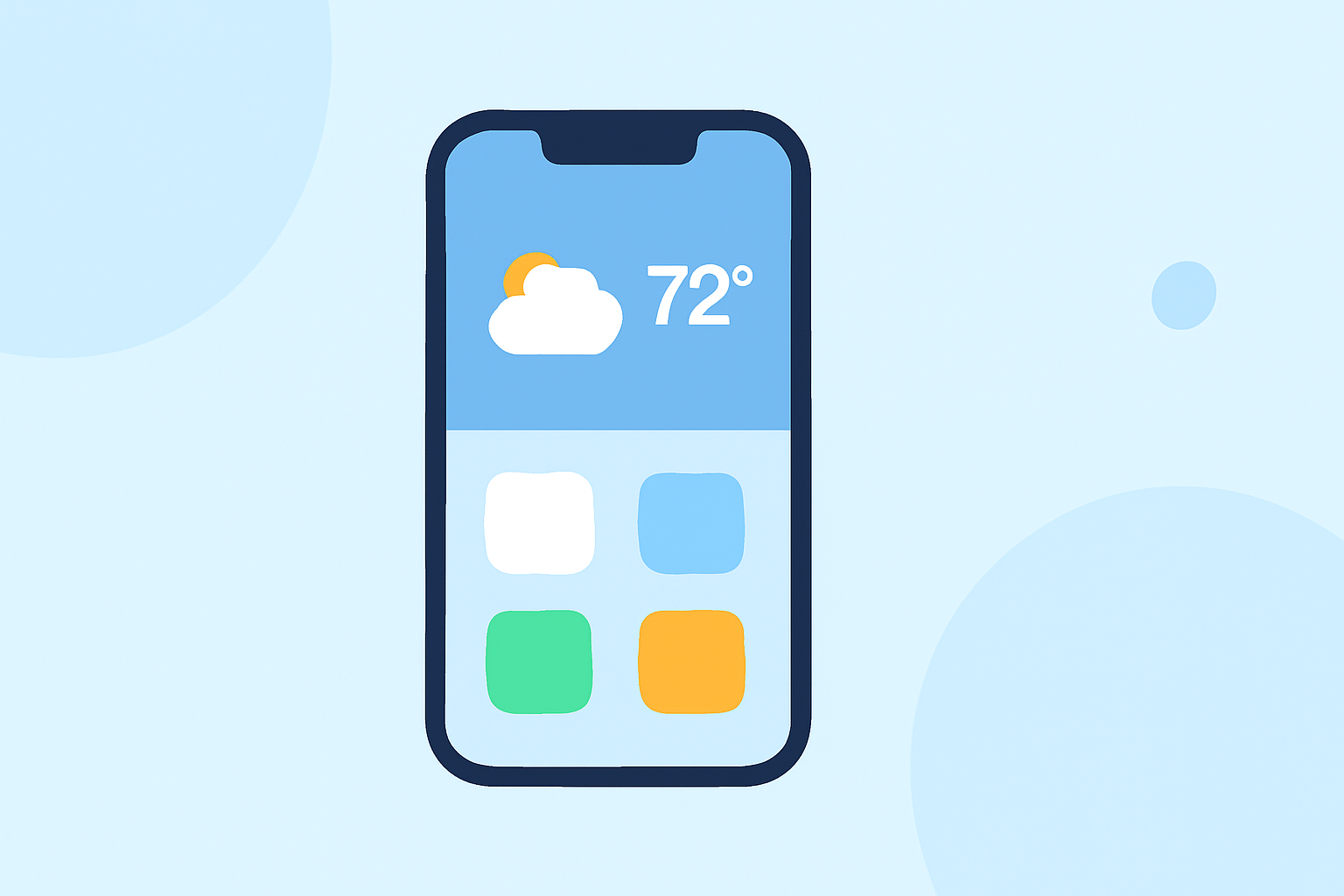
Adding a weather widget to your iPhone's Home Screen allows you to access current conditions and forecasts at a glance. Here's a step-by-step guide to help you set it up in under five minutes.
1. Access Jiggle Mode
Begin by unlocking your iPhone and navigating to the Home Screen where you want to add the widget. Touch and hold an empty area on the screen until the app icons start to jiggle. This indicates that you're in edit mode. (support.apple.com)
2. Open the Widget Gallery
In the top-left corner of the screen, tap the plus sign (+) to open the Widget Gallery. This gallery displays all available widgets from your installed apps. (support.apple.com)
3. Select the Weather Widget
Scroll through the list or use the search bar to find the "Weather" widget. Tap on it to view the available widget sizes and configurations. (support.apple.com)
4. Choose a Widget Size
The Weather widget comes in different sizes: small, medium, and large. Each size displays varying amounts of information. Swipe left or right to preview each size, then tap "Add Widget" to select your preferred size. (support.apple.com)
5. Position the Widget on Your Home Screen
After adding the widget, it will appear on your Home Screen. Drag it to your desired location. If you want to remove an existing widget to make space, touch and hold the widget, then tap "Remove Widget". (support.apple.com)
6. Exit Edit Mode
Once you're satisfied with the widget's placement, tap "Done" in the top-right corner to exit edit mode. Your Weather widget is now set up and will display current conditions and forecasts directly on your Home Screen. (support.apple.com)
Additional Tips
-
Customize Widget Settings: Some widgets allow customization. Touch and hold the widget, then tap "Edit Widget" to adjust settings like location or displayed information. (support.apple.com)
-
Use Smart Stacks: To save space, consider creating a Smart Stack—a collection of widgets that rotate based on factors like time of day or location. To create one, touch and hold a widget, then drag it on top of another widget of the same size. You can stack up to 10 widgets. (support.apple.com)
By following these steps, you can quickly add a weather widget to your iPhone's Home Screen, keeping you informed about the latest weather updates without opening the app.