
Adding Weather Widgets to Your iPhone's Smart Stack: A Step-by-Step Guide
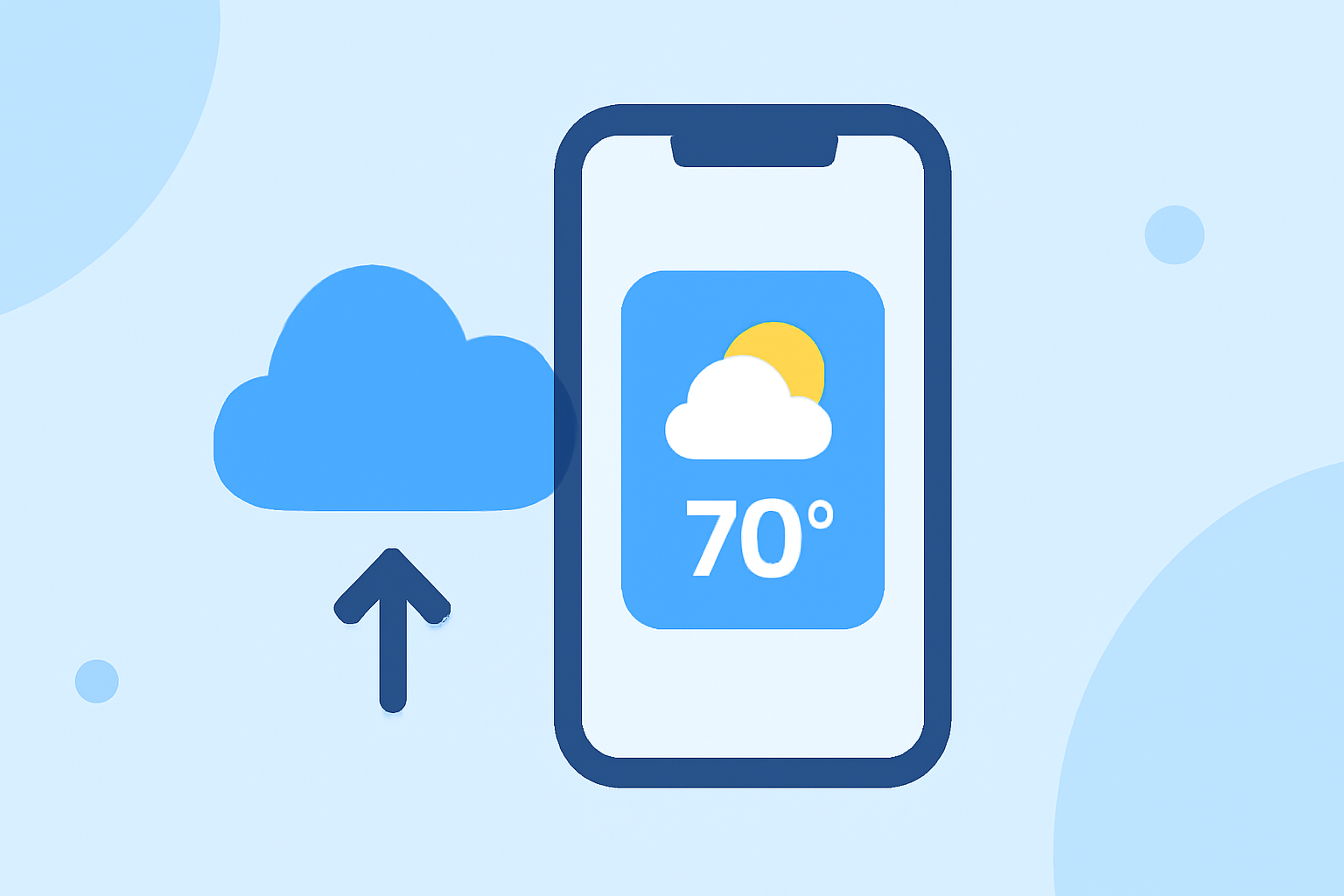
Enhancing your iPhone's Smart Stack with weather widgets allows you to access real-time forecasts at a glance, keeping you informed throughout the day. Here's how to set it up:
1. Accessing the Widget Gallery
Begin by entering the Home Screen's edit mode:
-
Touch and hold an empty area on your Home Screen until the apps jiggle.
-
Tap the '+' icon in the top-left corner to open the Widget Gallery.
2. Selecting the Weather Widget
In the Widget Gallery:
-
Scroll or use the search bar to find the 'Weather' widget.
-
Tap on it to view available sizes and styles.
3. Adding the Weather Widget to Your Smart Stack
To incorporate the weather widget into your Smart Stack:
-
Choose the desired widget size.
-
Tap 'Add Widget' to place it on your Home Screen.
-
If you already have a Smart Stack, drag the new weather widget on top of it to add it to the stack.
4. Customizing the Smart Stack
Tailor your Smart Stack to display the weather widget when needed:
-
Touch and hold the Smart Stack until a menu appears.
-
Tap 'Edit Stack' to rearrange widgets or adjust settings.
-
Ensure 'Smart Rotate' is enabled to allow the stack to display the weather widget at appropriate times.
5. Accessing the Weather Widget
With the Smart Stack configured:
-
Swipe through the stack to view the weather widget.
-
Tap on it to open the Weather app for detailed information.
By following these steps, you can seamlessly integrate weather updates into your iPhone's Smart Stack, ensuring timely access to essential information.
For a visual demonstration, you might find this tutorial helpful:
iOS 14: How to Add Widgets to Your Home Screen | How to Create Smart Stacks on iPhone