
Mastering the Weather Widget on Your Apple Watch: A Comprehensive Guide
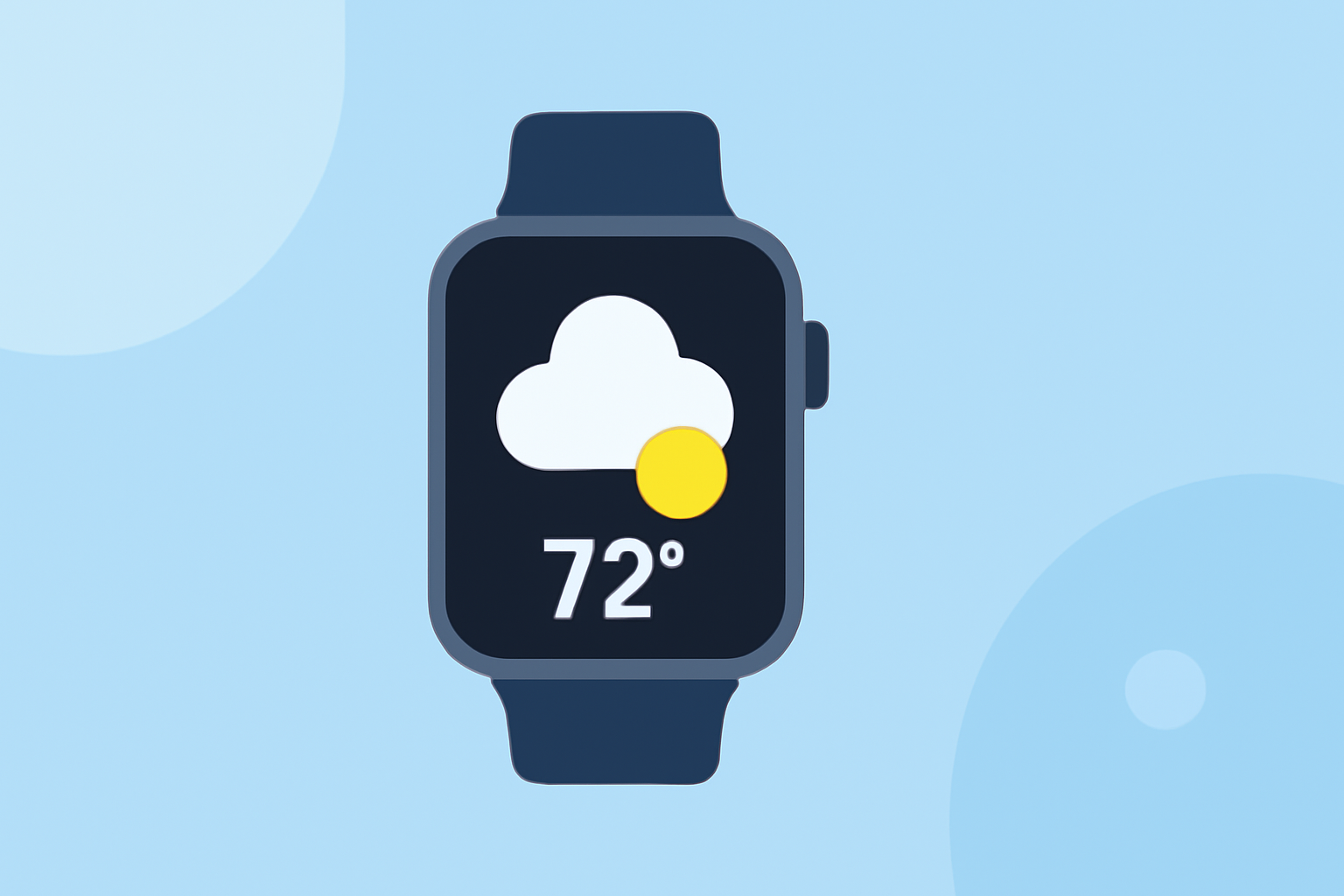
The Apple Watch's Weather widget is a powerful tool that provides real-time weather updates directly on your wrist. Whether you're planning your day or checking conditions on the go, understanding how to utilize this feature can enhance your daily routine.
What Is the Weather Widget on Apple Watch?
The Weather widget on your Apple Watch delivers current weather conditions, forecasts, and severe weather alerts for your location or any city you choose. It offers a quick and convenient way to access essential weather information without needing to open a separate app.
How to Access the Weather Widget
- Using the Watch Face Complication:
- Many watch faces allow you to add a weather complication, displaying current conditions and temperature directly on your watch face.
- To add it, press firmly on your watch face, tap "Customize," select the complication area, and choose "Weather." (watch.skydocu.com)
- Using the Smart Stack:
- With watchOS 10 and later, you can access the Smart Stack by swiping up from the bottom of the watch face.
- The Smart Stack displays a series of widgets, including the Weather widget, which you can scroll through for quick information. (macrumors.com)
Viewing Detailed Weather Information
-
Current Conditions:
-
Open the Weather app on your Apple Watch to see the current temperature, conditions, and additional details like wind speed, UV index, and air quality. (support.apple.com)
-
Hourly and 10-Day Forecasts:
-
Scroll down in the Weather app to view hourly forecasts for the next 12 hours and a 10-day forecast, including high and low temperatures. (support.apple.com)
-
Severe Weather Alerts:
-
The Weather app provides alerts for significant weather events. These notifications appear at the top of the app when active. (support.apple.com)
Adding and Managing Locations
-
Adding a New Location:
-
Open the Weather app on your Apple Watch.
-
Tap the list button, scroll to the bottom, and tap the add button.
-
Enter the location name, tap "Search," and select the correct location from the list. (support.apple.com)
-
Setting a Default Location:
-
On your iPhone, open the Apple Watch app.
-
Tap "Weather," then "Default City," and choose your preferred location. (support.apple.com)
-
Removing a Location:
-
Open the Weather app on your Apple Watch.
-
Tap the list button, swipe left on the location you want to remove, and tap the delete button. (support.apple.com)
Customizing Weather Metrics
-
Viewing Specific Metrics:
-
In the Weather app, tap the button at the top right to select a specific metric, such as air quality.
-
Turn the Digital Crown to view forecast information for that metric. (support.apple.com)
-
Cycling Through Metrics:
-
Tap the display to cycle through available metrics like temperature, humidity, and wind speed. (support.apple.com)
Tips for Effective Use
-
Enable Location Services:
-
Ensure that Location Services are turned on for accurate local weather updates.
-
On your Apple Watch, go to Settings > Privacy & Security > Location Services, and turn on Location Services. (support.apple.com)
-
Stay Updated with Alerts:
-
Keep an eye out for severe weather alerts to stay informed about significant weather events in your area. (support.apple.com)
By mastering the Weather widget on your Apple Watch, you can stay informed about current and upcoming weather conditions, helping you plan your day more effectively.
Highlights:
- Check the weather on Apple Watch - Apple Support
- See weather in other locations on Apple Watch - Apple Support
- Here's How Apple Watch Widgets Work in watchOS 10, Published on Wednesday, June 14