
Understanding AQI Categories on Apple Watch
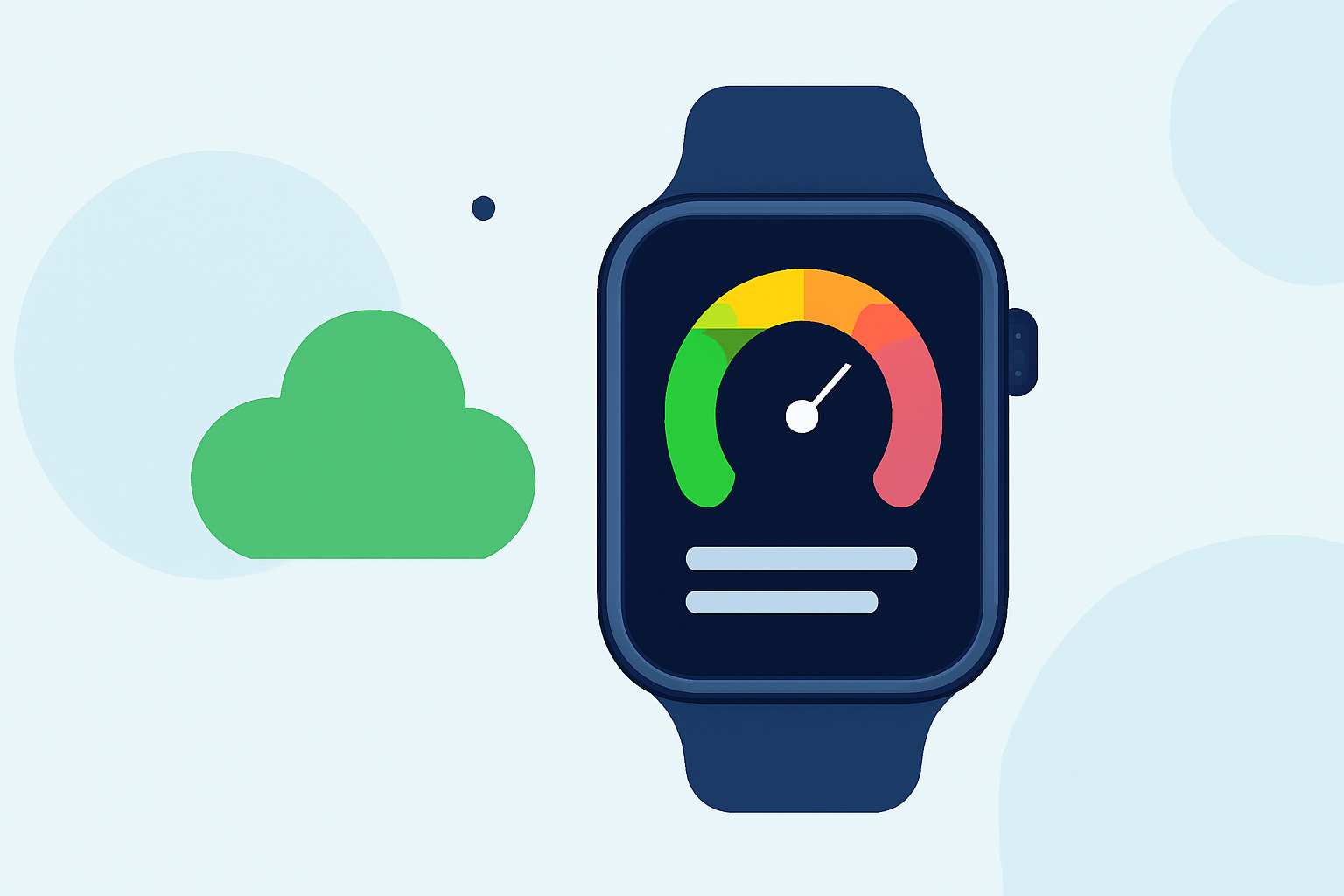
The Air Quality Index (AQI) is a standardized system used to communicate the quality of air in a specific area, indicating potential health risks associated with air pollution levels. On your Apple Watch, the AQI is presented through color-coded categories, each corresponding to a range of index values and associated health implications.
What Are the AQI Categories?
The AQI is divided into six categories, each representing a different level of health concern:
- Good (0–50): Air quality is satisfactory, posing little or no risk.
- Moderate (51–100): Air quality is acceptable; however, there may be a risk for some people, particularly those who are unusually sensitive to air pollution.
- Unhealthy for Sensitive Groups (101–150): Members of sensitive groups may experience health effects; the general public is less likely to be affected.
- Unhealthy (151–200): Some members of the general public may experience health effects; members of sensitive groups may experience more serious health effects.
- Very Unhealthy (201–300): Health alert: The risk of health effects is increased for everyone.
- Hazardous (301 and higher): Health warning of emergency conditions: everyone is more likely to be affected.
These categories are color-coded for easy identification:
- Green: Good
- Yellow: Moderate
- Orange: Unhealthy for Sensitive Groups
- Red: Unhealthy
- Purple: Very Unhealthy
- Maroon: Hazardous
How to View AQI on Your Apple Watch
To monitor the AQI directly from your Apple Watch:
- Open the Weather App: Press the Digital Crown to access the app list, then tap on the Weather app.
- Scroll to Air Quality: Within the Weather app, scroll down to find the Air Quality section, which displays the current AQI value and its corresponding category.
For a more detailed view, you can add the AQI as a complication on your watch face:
- Customize Your Watch Face: Press firmly on your current watch face, then tap 'Edit.'
- Select a Complication: Navigate to the complication area where you want to add the AQI.
- Choose Air Quality: Scroll through the available complications and select 'Air Quality.'
- Save Changes: Press the Digital Crown to save and exit customization.
This setup allows you to view the AQI at a glance without opening the Weather app.
Why Monitor AQI?
Regularly checking the AQI on your Apple Watch helps you make informed decisions about outdoor activities, especially if you have respiratory conditions or are sensitive to air pollution. By staying informed, you can take necessary precautions to protect your health.
Understanding and monitoring the AQI on your Apple Watch empowers you to stay aware of air quality conditions and take appropriate actions to safeguard your well-being.
(support.apple.com)