
Avoiding Common Mistakes When Silencing Weather Alerts on Your Apple Watch
Managing weather alerts on your Apple Watch is essential for staying informed about changing conditions without unnecessary disturbances. However, improper silencing of these alerts can lead to missed critical information. Here's how to manage them effectively:
1. Understanding the 'Cover to Mute' Gesture
The 'Cover to Mute' feature allows you to silence incoming notifications by covering your watch face with your palm for about three seconds. This action mutes the current alert but does not affect future notifications. It's a temporary, per-alert silence, not a system-wide setting. To use this feature, ensure it's enabled by going to Settings → Sounds & Haptics on your Apple Watch and confirming that 'Cover to Mute' is toggled on. (everydaytech.org)
2. Utilizing Silent Mode for Ongoing Alerts
Silent Mode mutes all notification sounds while keeping haptic taps active, allowing you to feel notifications without hearing them. To activate Silent Mode:
-
Swipe up on the watch face to open Control Center.
-
Tap the bell icon to toggle Silent Mode on.
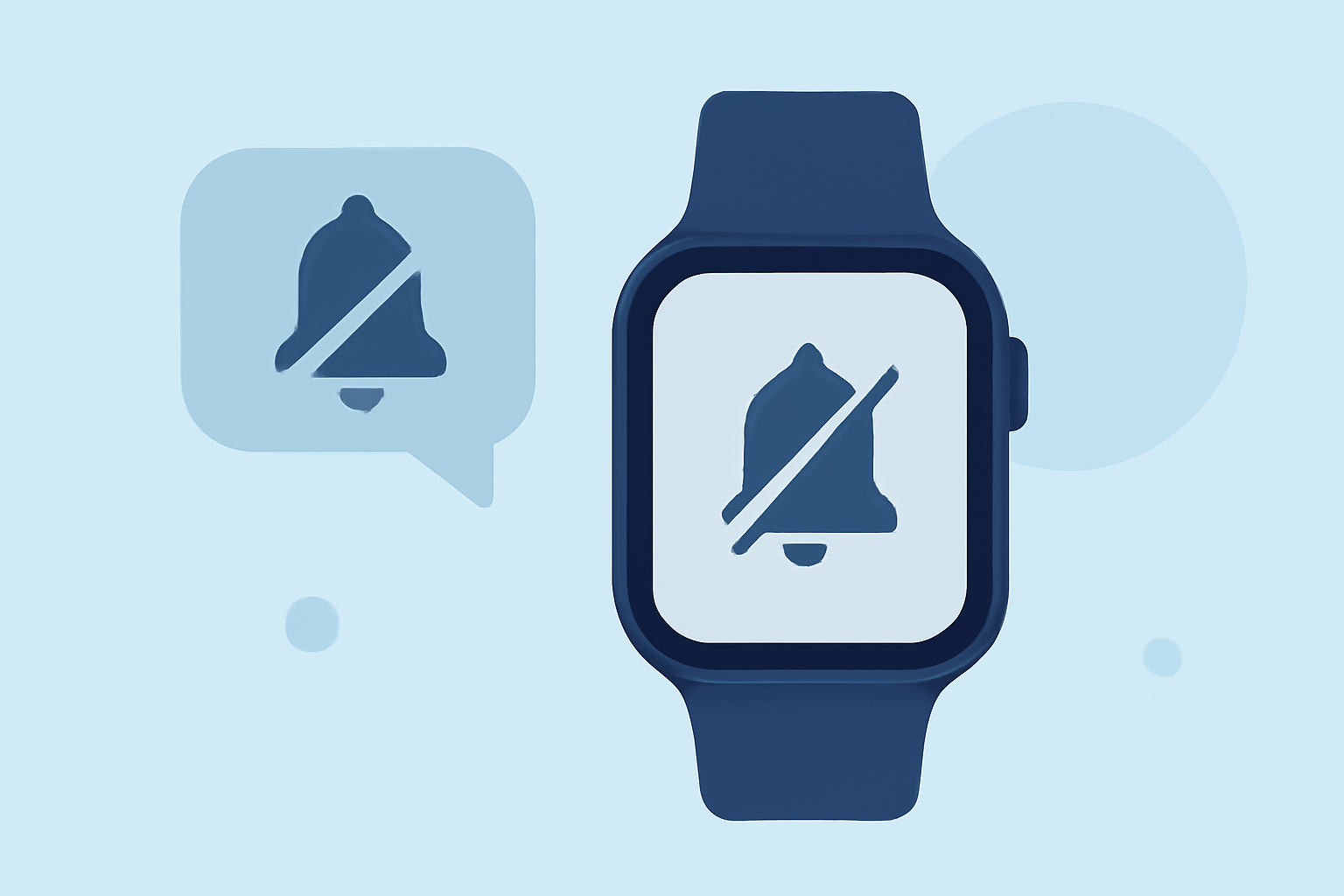
A crossed-out bell icon indicates that Silent Mode is active. This mode is useful in situations where you prefer not to hear alerts but still want to be aware of them through vibrations. (everydaytech.org)
3. Avoiding Unintentional Silencing During Sleep
Previously, covering the Apple Watch display during sleep could unintentionally cancel morning alarms. This issue was addressed in the watchOS 9.4 update, which fixed the bug that caused wake-up alarms to be silenced when the 'Cover to Mute' gesture was used during sleep. To prevent accidental silencing of alarms, ensure your watchOS is updated to the latest version. (idownloadblog.com)
4. Managing Notifications for Specific Apps
To prevent non-essential weather-related notifications from disturbing you:
-
Open the Watch app on your iPhone.
-
Tap on 'Notifications.'
-
Scroll to the Weather app and adjust the notification settings as desired.
This customization allows you to tailor which weather alerts you receive, ensuring that only the most pertinent information reaches you. (macworld.com)
5. Ensuring Location Services Are Enabled
Accurate weather alerts depend on your watch's ability to access your current location. If Location Services are disabled, your watch may not provide accurate weather information. To enable Location Services:
-
On your Apple Watch, go to Settings → Privacy & Security → Location Services, and toggle it on.
-
On your iPhone, go to Settings → Privacy & Security → Location Services, and ensure it's enabled for the Weather app.
This ensures that your watch receives the most accurate and timely weather updates based on your location. (support.apple.com)
6. Keeping Your WatchOS Updated
Regular updates to watchOS can fix bugs and improve the functionality of your Apple Watch. For instance, the watchOS 10.1 update addressed issues with the Weather complication not loading properly. To check for updates:
-
On your iPhone, open the Watch app.
-
Go to General → Software Update.
Keeping your watchOS updated ensures that your watch operates optimally and that you have access to the latest features and fixes. (macrumors.com)
By understanding and properly managing these features, you can ensure that your Apple Watch provides timely and relevant weather alerts without unnecessary disturbances.
Highlights:
- Apple Watch no longer accidentally cancels your mining alarms, Published on Thursday, March 30
- watchOS 10.1 Fixes Apple Watch Weather Complication Bug, Published on Tuesday, October 24
- Apple Suggests Potential Fixes for Weather Complication Bug on Apple Watch, Published on Tuesday, September 26