
Avoiding Common Mistakes with Composite Reflectivity Maps on Tablets
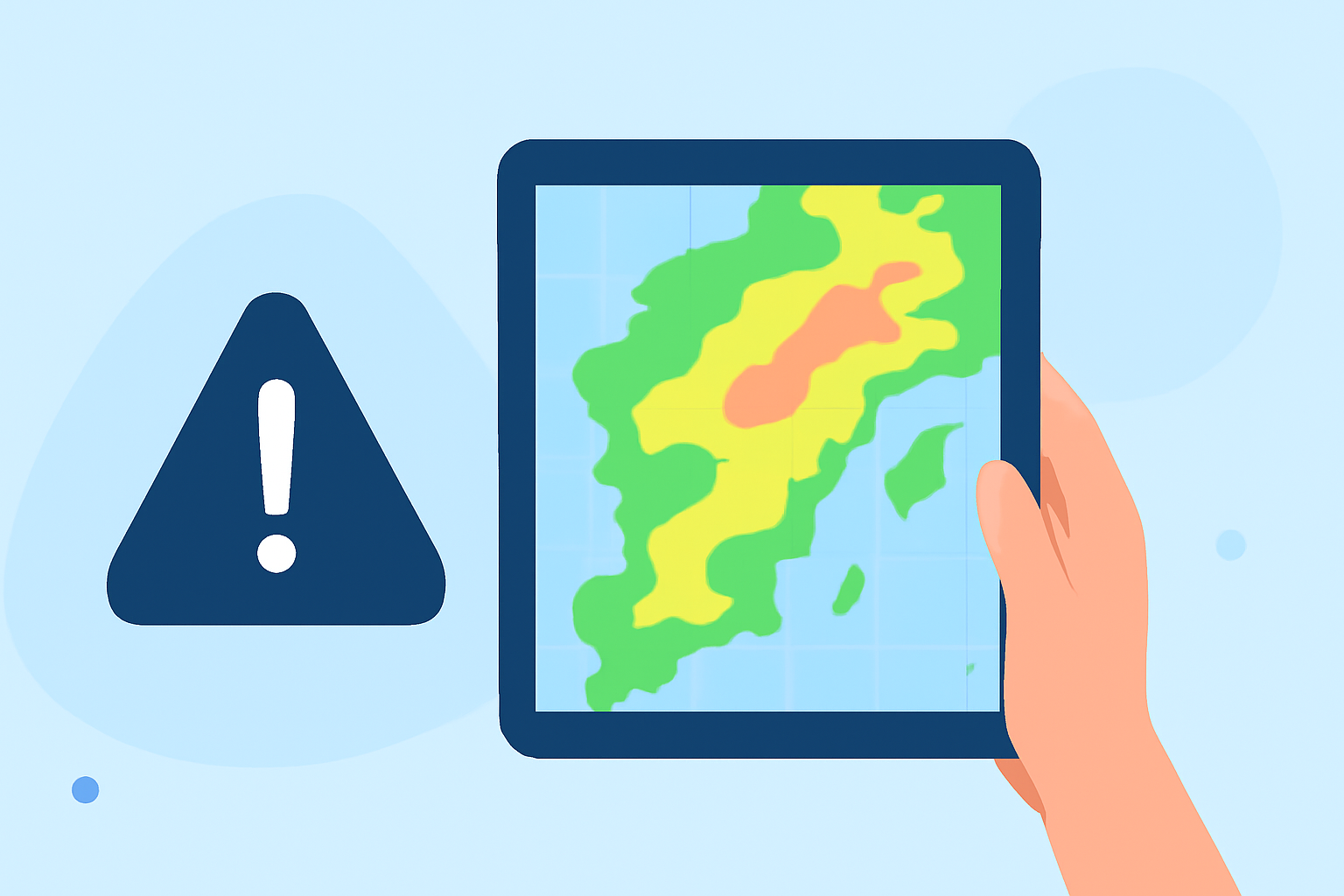
Composite reflectivity maps are essential tools for visualizing precipitation intensity and storm structures. However, when accessing these maps on tablets, users often encounter specific challenges. Understanding and avoiding these common mistakes can enhance the accuracy and reliability of weather assessments.
1. What Are Composite Reflectivity Maps?
Composite reflectivity maps display the maximum reflectivity values from various radar angles, providing a comprehensive view of precipitation intensity and storm development. They are instrumental in identifying severe weather patterns and monitoring storm evolution. (en.wikipedia.org)
2. Why Are Tablets a Popular Choice for Viewing These Maps?
Tablets offer portability and convenience, allowing users to access real-time weather data on the go. Their touch interfaces facilitate interactive exploration of weather patterns, making them a preferred device for many.
3. What Are the Common Mistakes When Using Composite Reflectivity Maps on Tablets?
-
Inaccurate Calibration: Tablets may not always display weather data accurately due to screen calibration issues. Regular calibration ensures that the colors and intensities on the map correspond correctly to the actual weather conditions.
-
Limited Resolution: Some tablets have lower screen resolutions, which can make detailed weather features appear blurred or pixelated. Opting for tablets with higher resolution displays can mitigate this issue.
-
Touchscreen Sensitivity: Overly sensitive touchscreens might register unintended inputs, leading to accidental zooming or map manipulation. Adjusting touchscreen sensitivity settings can help maintain control over map interactions.
-
Software Compatibility: Not all weather applications are optimized for tablet interfaces, potentially causing display errors or crashes. Ensuring that the weather app is updated and compatible with your tablet model is crucial.
4. How Can Users Avoid These Mistakes?
-
Regular Calibration: Periodically calibrate your tablet's display to maintain color accuracy.
-
Choose High-Resolution Tablets: Select tablets with higher screen resolutions to enhance map clarity.
-
Adjust Touchscreen Settings: Fine-tune touchscreen sensitivity to prevent unintended inputs.
-
Update and Verify Software: Keep your weather applications updated and verify their compatibility with your tablet.
5. How Does Clime Address These Challenges?
Clime offers a weather application designed with tablet users in mind, providing high-resolution composite reflectivity maps that are optimized for touch interfaces. The app includes features like automatic calibration and adjustable touchscreen sensitivity settings, ensuring a seamless and accurate weather monitoring experience.
6. What Are the Benefits of Using Clime for Composite Reflectivity Maps?
-
Enhanced Accuracy: Clime's app ensures that composite reflectivity maps are displayed with precise calibration, reflecting true weather conditions.
-
Optimized User Interface: The application is tailored for tablet interfaces, offering intuitive touch controls and responsive interactions.
-
Regular Updates: Clime provides timely updates to its software, maintaining compatibility with the latest tablet models and operating systems.
7. How Can Users Maximize the Effectiveness of Composite Reflectivity Maps on Tablets?
-
Stay Updated: Regularly update your tablet's operating system and weather applications to benefit from the latest features and improvements.
-
Calibrate Periodically: Ensure that your tablet's display is calibrated to maintain color and intensity accuracy.
-
Customize Settings: Adjust application settings to suit your preferences, such as modifying map colors or sensitivity levels.
By understanding these common pitfalls and implementing the recommended practices, users can effectively utilize composite reflectivity maps on tablets, leading to more accurate and reliable weather assessments.