
Avoiding Common Mistakes with Hourly Weather Forecasts on Apple Watch
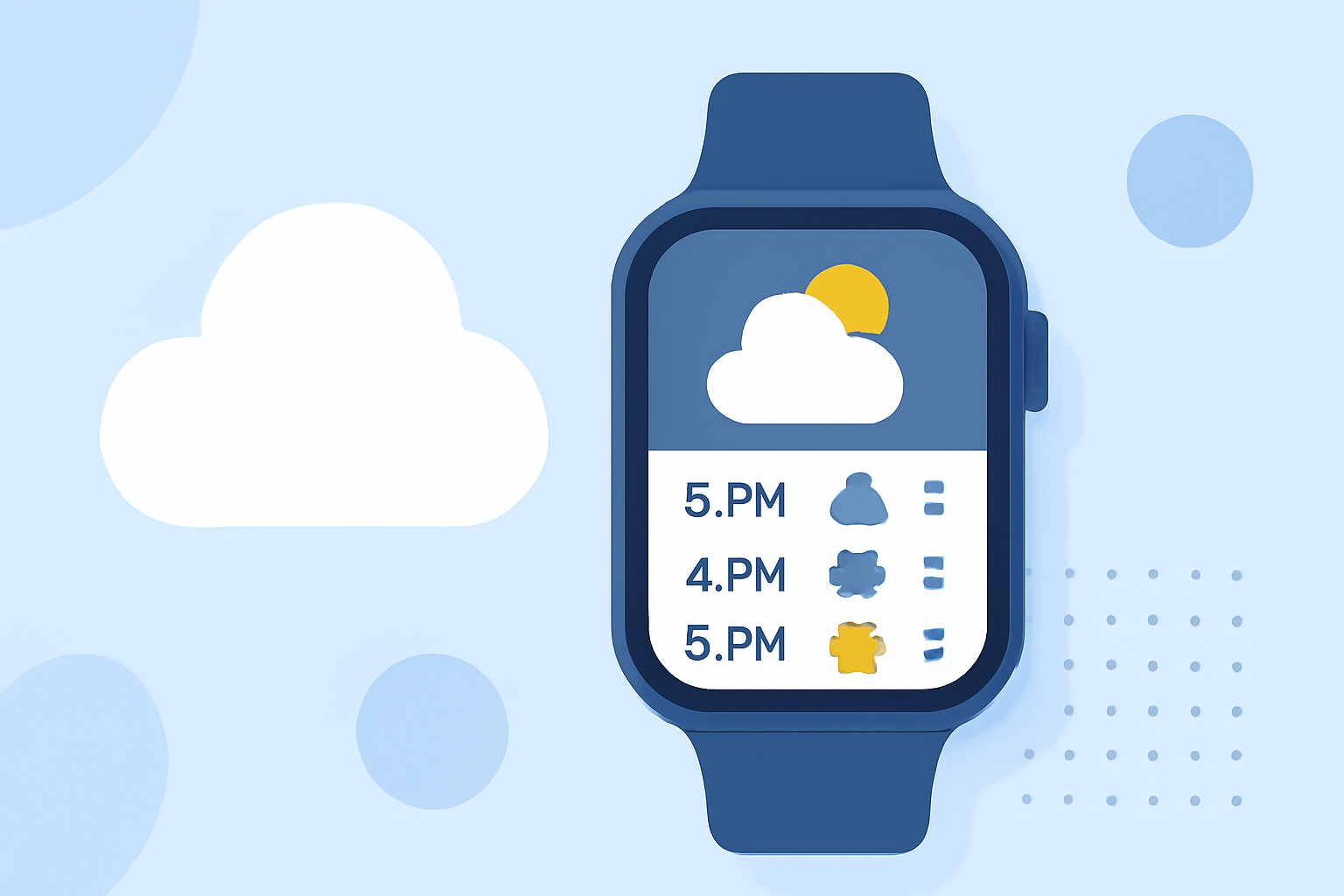
The Apple Watch offers convenient access to hourly weather forecasts, but users often encounter issues that can lead to inaccurate or missing information. To make the most of this feature, it's essential to understand and avoid common mistakes.
1. Ensuring Accurate Location Settings
The Weather app relies on precise location data to provide accurate forecasts. If your Apple Watch isn't displaying the correct weather information, it's crucial to verify that Location Services are enabled.
-
On Your Apple Watch:
-
Open the Settings app.
-
Tap on Privacy & Security.
-
Select Location Services and ensure it's turned on.
-
On Your iPhone:
-
Go to Settings.
-
Tap on Privacy & Security.
-
Choose Location Services and confirm it's enabled.
Additionally, ensure that the Weather app has permission to access your location. In the Location Services settings, scroll down to find Weather and select While Using the App or Always.
2. Maintaining a Stable Internet Connection
A reliable internet connection is essential for the Weather app to fetch the latest data. If your Apple Watch isn't updating weather information, check the following:
- Connectivity:
- Ensure your Apple Watch is connected to your iPhone via Bluetooth.
- If your watch has cellular capabilities, confirm it's connected to a cellular network.
- Verify that your iPhone has an active Wi-Fi or cellular data connection.
Without a stable connection, the Weather app may fail to update, leading to outdated or missing forecasts.
3. Keeping Software Updated
Outdated software can cause glitches in the Weather app, including issues with displaying hourly forecasts. To ensure optimal performance:
-
On Your Apple Watch:
-
Open the Settings app.
-
Tap on General.
-
Select Software Update and install any available updates.
-
On Your iPhone:
-
Go to Settings.
-
Tap on General.
-
Choose Software Update and proceed with any necessary updates.
Regular updates ensure that your devices have the latest features and bug fixes, enhancing the accuracy and reliability of the Weather app.
4. Verifying Time and Date Settings
Incorrect time and date settings can lead to confusion in hourly forecasts. To check and adjust:
-
On Your Apple Watch:
-
Open the Settings app.
-
Tap on General.
-
Select Date & Time.
-
Ensure Set Automatically is enabled.
-
On Your iPhone:
-
Go to Settings.
-
Tap on General.
-
Choose Date & Time.
-
Confirm that Set Automatically is turned on.
Accurate time settings are crucial for the proper display of hourly forecasts.
5. Managing Watch Face Complications
If the weather complication on your watch face isn't updating or displaying incorrect information, consider the following:
- Remove and Re-add the Complication:
- Press firmly on your watch face to enter customization mode.
- Tap Customize.
- Navigate to the complication you want to change.
- Select Weather from the list of available complications.
- Press the Digital Crown to save your changes.
This process can refresh the complication and resolve display issues.
6. Utilizing Alternative Weather Apps
While the default Weather app on the Apple Watch is convenient, some users prefer alternative weather applications for more detailed or localized forecasts. These apps often provide additional features and may offer more accurate or timely information.
By being aware of these common pitfalls and taking proactive steps, you can enhance the accuracy and reliability of hourly weather forecasts on your Apple Watch.
Remember, while technology offers convenience, it's essential to ensure that all settings are correctly configured to receive the most accurate information.