
Avoiding Common Mistakes with Weather Lock-Screen Notifications
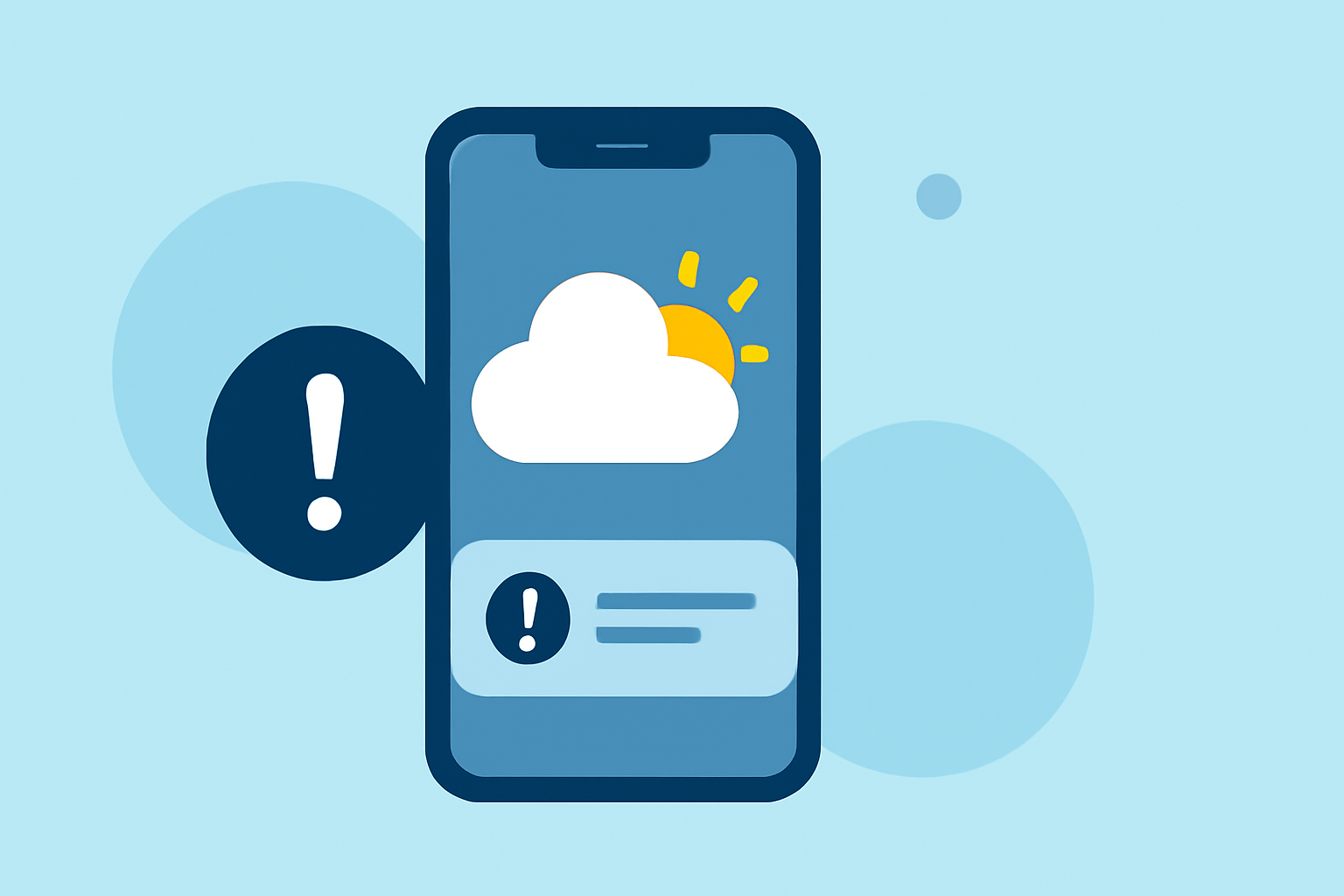
Weather lock-screen notifications provide timely updates on current conditions and forecasts, keeping you informed at a glance. However, several common mistakes can hinder their effectiveness. Here's a step-by-step guide to help you avoid these pitfalls:
1. Not Enabling Location Services
Accurate weather updates rely on your device's location services. Without this, your device cannot provide precise local weather information.
Solution: Ensure that location services are enabled for your weather app. Navigate to your device's settings, select "Privacy" or "Location Services," and confirm that your weather app has permission to access your location.
2. Disabling Notifications for Weather Apps
If notifications are turned off, you won't receive weather updates on your lock screen.
Solution: Go to your device's settings, tap on "Notifications," find your weather app, and make sure that notifications are enabled. Additionally, check that the "Show on Lock Screen" option is activated.
3. Overloading the Lock Screen with Too Many Widgets
While widgets are useful, having too many can clutter your lock screen and drain battery life.
Solution: Limit the number of widgets to essential ones. For weather updates, consider using a single, concise widget that displays the current temperature and conditions.
4. Ignoring Battery Optimization Settings
Some devices may restrict background activities to conserve battery, affecting the timely delivery of weather notifications.
Solution: Check your device's battery optimization settings. Ensure that your weather app is excluded from any battery-saving restrictions. This can typically be found under "Settings" > "Battery" > "Battery Optimization."
5. Using Outdated or Unsupported Weather Apps
An outdated app may not function correctly, leading to missing or inaccurate notifications.
Solution: Regularly update your weather app through your device's app store. If issues persist, consider using a different app that is compatible with your device's operating system.
6. Overlooking Privacy Settings
Displaying sensitive information on your lock screen can pose privacy risks.
Solution: Review your device's privacy settings to control what information appears on your lock screen. You can typically adjust these settings under "Settings" > "Lock Screen" or "Notifications."
7. Not Customizing Notification Preferences
Generic notifications may not be as useful as personalized ones.
Solution: Customize your weather app's notification settings to receive alerts that are most relevant to you, such as severe weather warnings or daily forecasts.
By addressing these common mistakes, you can enhance the functionality and reliability of your weather lock-screen notifications, ensuring you stay informed and prepared for changing weather conditions.