
A Beginner's Guide to Adding Medium Weather Widgets
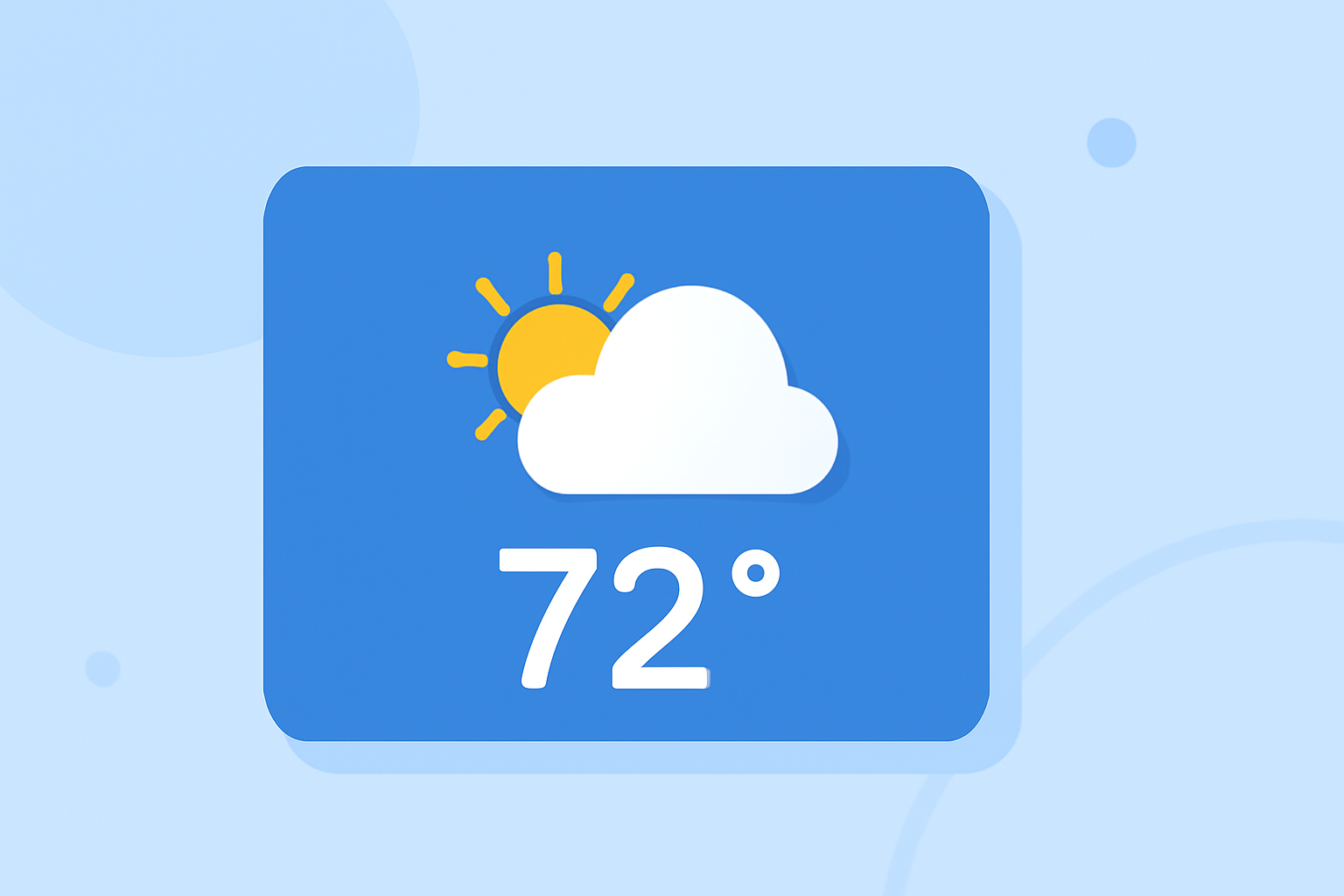
Adding a medium-sized weather widget to your device's home screen allows you to view current weather conditions and forecasts without opening a dedicated app. This guide will walk you through the steps to add and customize a medium weather widget on both Android and iOS devices.
What Are Medium Weather Widgets?
Medium weather widgets are interactive elements that display weather information directly on your home screen. They typically show current conditions, forecasts, and other relevant data, providing quick access to weather updates without launching a separate application.
How to Add a Medium Weather Widget on Android
-
Access the Widgets Menu: Long-press on an empty space on your home screen until the home screen options appear. Tap on "Widgets" to view available widgets.
-
Locate the Weather Widget: Scroll through the list of widgets to find the weather widget. Depending on your device and Android version, this may be labeled as "Weather," "Clock," or "Weather & Clock."
-
Add the Widget to Your Home Screen: Tap and hold the desired weather widget, then drag it to your preferred location on the home screen. Release it to place the widget.
-
Customize the Widget: After placing the widget, you can resize it by long-pressing and adjusting its dimensions. Some widgets allow you to select the location for weather updates and adjust settings such as temperature units (Celsius or Fahrenheit).
How to Add a Medium Weather Widget on iOS
-
Enter Jiggle Mode: Long-press on an empty area of your home screen until the app icons start wiggling.
-
Access the Widget Gallery: Tap the "+" icon in the top-left corner to open the widget gallery.
-
Find the Weather Widget: Scroll through the list or use the search bar to locate the weather widget.
-
Add the Widget: Tap on the weather widget, choose the desired size (medium), and tap "Add Widget."
-
Place the Widget: Drag the widget to your preferred location on the home screen and tap "Done" to save the arrangement.
Customizing Your Weather Widget
Most weather widgets offer customization options, including:
-
Location Settings: Set the widget to display weather information for your current location or a specific city.
-
Temperature Units: Choose between Celsius and Fahrenheit.
-
Update Frequency: Adjust how often the widget refreshes to provide the latest weather data.
-
Appearance: Some widgets allow you to change themes, colors, and transparency to match your home screen aesthetic.
Benefits of Using Medium Weather Widgets
-
Quick Access: View current weather conditions and forecasts at a glance without opening an app.
-
Customization: Tailor the widget's appearance and information to suit your preferences.
-
Space Efficiency: Medium-sized widgets provide a balance between information display and home screen real estate, fitting well without overcrowding.
Conclusion
Adding a medium weather widget to your device's home screen enhances your ability to stay informed about weather conditions with minimal effort. By following the steps outlined above, you can easily integrate a weather widget that suits your needs and preferences.
For more detailed instructions and troubleshooting, refer to the support resources provided by your device manufacturer or consult the user manual.