
How to Check Evening Weather on Your Apple Watch
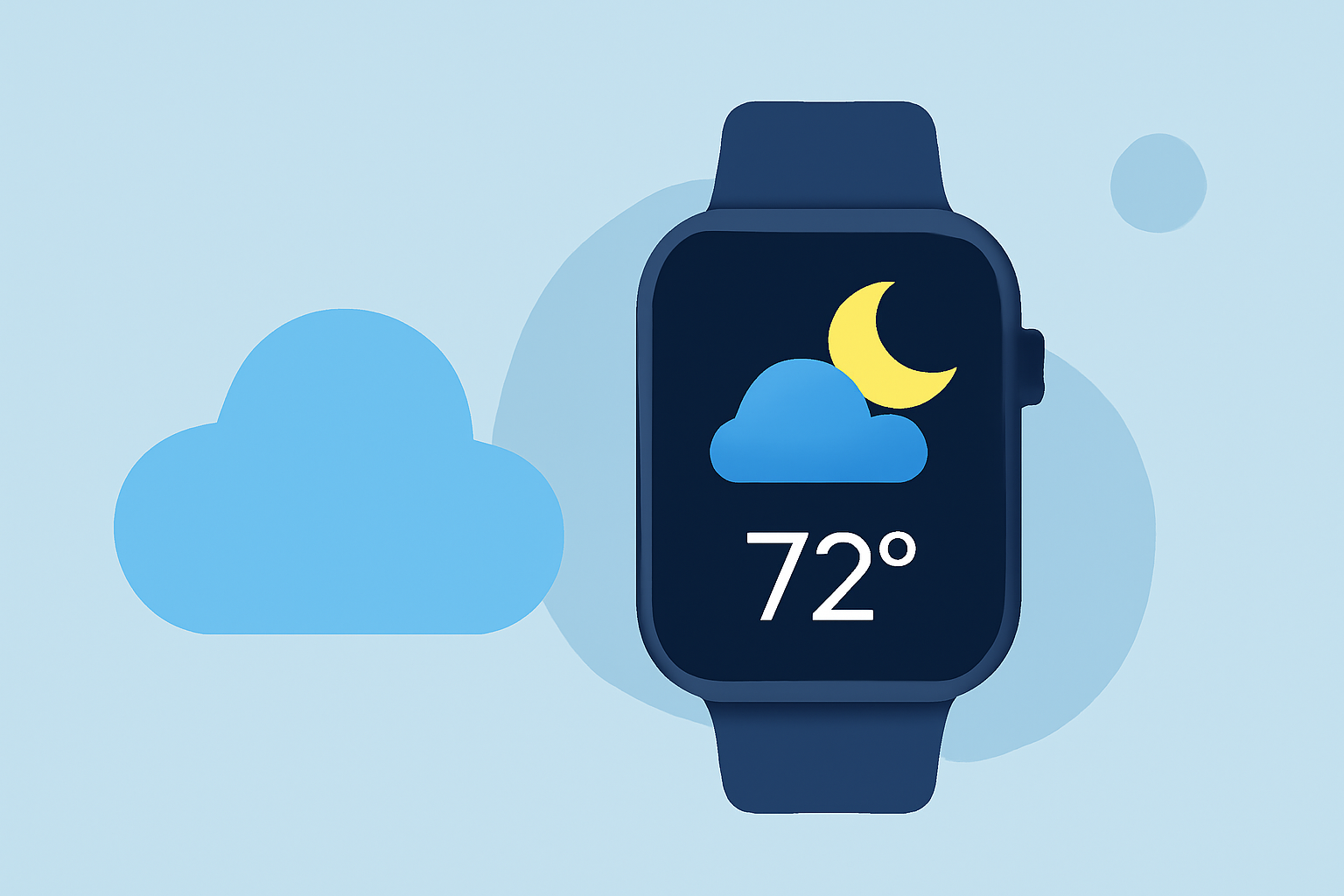
Your Apple Watch offers a convenient way to stay informed about evening weather conditions, helping you plan your activities effectively. Here's how to access and interpret weather information on your device.
Accessing the Weather App
-
Open the Weather App: Press the Digital Crown on your Apple Watch to access the Home screen. Tap the Weather app icon to launch it.
-
View Current Conditions: The main screen displays the current weather for your default location, including temperature, conditions (e.g., sunny, cloudy), and other relevant metrics.
Checking Evening Forecasts
-
Scroll for Hourly Forecasts: Within the Weather app, scroll down to view the hourly forecast for the next 12 hours. This section provides detailed information on expected conditions, temperatures, and precipitation for each hour.
-
Access the 10-Day Forecast: Further down, you'll find the 10-day forecast, offering a broader outlook on upcoming weather patterns.
Using Siri for Quick Updates
For a hands-free experience, activate Siri by saying "Hey Siri" or by pressing and holding the Digital Crown. Then, ask questions like:
-
"What's the weather like this evening?"
-
"Will it rain tonight?"
-
"What's the temperature at 8 PM?"
Setting Up Weather Complications
To have weather information readily available on your watch face:
-
Customize Your Watch Face: Press and hold the watch face, then tap "Customize."
-
Add the Weather Complication: Navigate to the complication area, select the Weather complication, and choose your preferred display style.
Ensuring Accurate Location Data
For precise weather updates, ensure that Location Services are enabled:
-
On Your Apple Watch: Go to Settings > Privacy & Security > Location Services, then toggle on Location Services.
-
On Your iPhone: Navigate to Settings > Privacy & Security > Location Services, select Weather, and choose "While Using the App" or "Always."
Troubleshooting Tips
-
Weather App Not Updating: If the Weather app isn't displaying current information, ensure your Apple Watch is connected to your iPhone via Bluetooth and that both devices have an active internet connection.
-
Complication Not Displaying Data: If the Weather complication shows dashes instead of data, try toggling between 12-hour and 24-hour time formats. On your iPhone, open the Watch app, go to My Watch > Clock, and switch the time format.
Conclusion
By utilizing the Weather app and Siri on your Apple Watch, you can effortlessly stay informed about evening weather conditions, ensuring you're prepared for any changes in the forecast.
(support.apple.com)