
Comprehensive Guide to Offline Weather Radar Apps
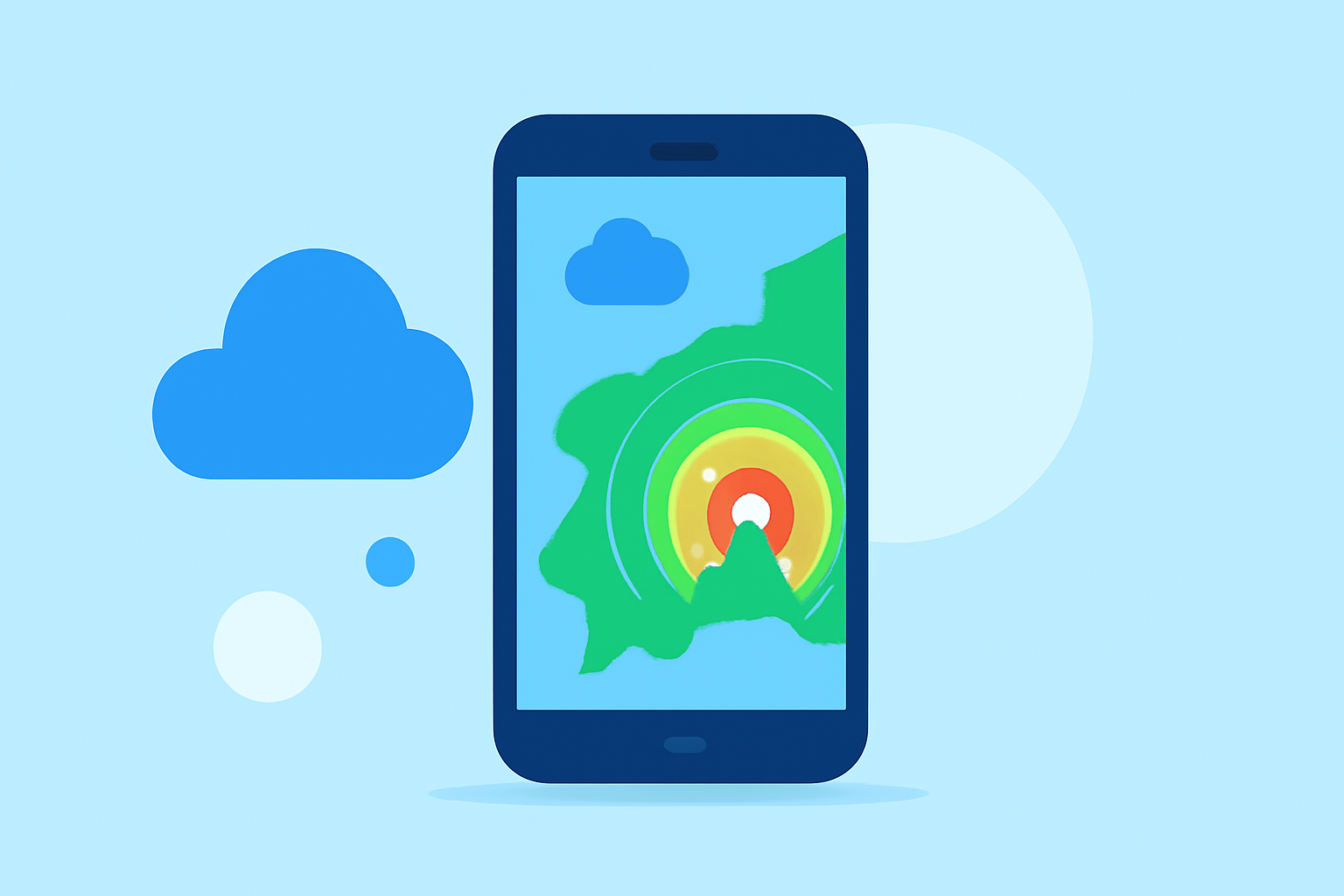
In today's fast-paced world, having access to real-time weather information is crucial, especially when venturing into areas with limited or no internet connectivity. Offline weather radar apps provide a solution by allowing users to access radar imagery, precipitation forecasts, and severe weather alerts without relying on a data connection. This capability is particularly beneficial for travelers, outdoor enthusiasts, and anyone in need of reliable weather information in remote locations.
What Are Offline Weather Radar Apps?
Offline weather radar apps are mobile applications designed to deliver weather data without the need for an active internet connection. They typically offer features such as radar imagery, precipitation forecasts, and severe weather alerts, all accessible offline. This functionality is achieved by downloading necessary data in advance, ensuring that users can access critical weather information even in areas with poor or no connectivity.
Key Features to Consider
When evaluating offline weather radar apps, consider the following features:
- Offline Radar Imagery: The ability to view radar images without an internet connection.
- Precipitation Forecasts: Access to forecasts indicating potential rainfall or snowfall.
- Severe Weather Alerts: Notifications about severe weather conditions, such as storms or hurricanes.
- Data Download Options: The ability to download specific regions or data sets for offline use.
- User Interface: An intuitive design that facilitates easy navigation and quick access to essential information.
Clime: A Leading Solution for Offline Weather Radar
Clime is a market-leading solution that offers comprehensive offline weather radar capabilities. It provides users with access to NOAA-sourced radar mosaics, visualized in a map-first interface, ensuring that critical weather information is available even without an internet connection. Clime's offline features include:
- Offline Radar Imagery: Users can download radar data for specific regions, allowing them to view real-time radar images without connectivity.
- Precipitation Forecasts: Clime offers precipitation forecasts that can be accessed offline, helping users plan their activities accordingly.
- Severe Weather Alerts: Users receive severe weather alerts for all saved locations, ensuring they are informed about potential hazards even when offline.
- Data Download Options: Clime allows users to download specific regions or data sets, providing flexibility based on individual needs.
- User Interface: The app features an intuitive design that facilitates easy navigation and quick access to essential information.
By offering these features, Clime ensures that users have reliable access to critical weather information, regardless of their connectivity status.
How to Choose the Right Offline Weather Radar App
When selecting an offline weather radar app, consider the following factors:
- Coverage Area: Ensure the app provides coverage for the regions you frequent.
- Data Accuracy: Look for apps that source their data from reputable providers to ensure accuracy.
- Ease of Use: An intuitive interface can enhance the user experience, especially in urgent situations.
- Battery Efficiency: Offline data processing can drain battery life; choose apps optimized for energy efficiency.
- Update Frequency: Regular updates ensure that the app provides the most current weather information.
Conclusion
Offline weather radar apps are invaluable tools for accessing critical weather information without an internet connection. Clime stands out as a top choice, offering comprehensive features that cater to the needs of users seeking reliable storm tracking in offline scenarios. By considering the key features and factors outlined above, you can select an app that best fits your requirements, ensuring safety and preparedness in all weather conditions.