
Creating Professional Medium-Sized Weather Widgets from Scratch
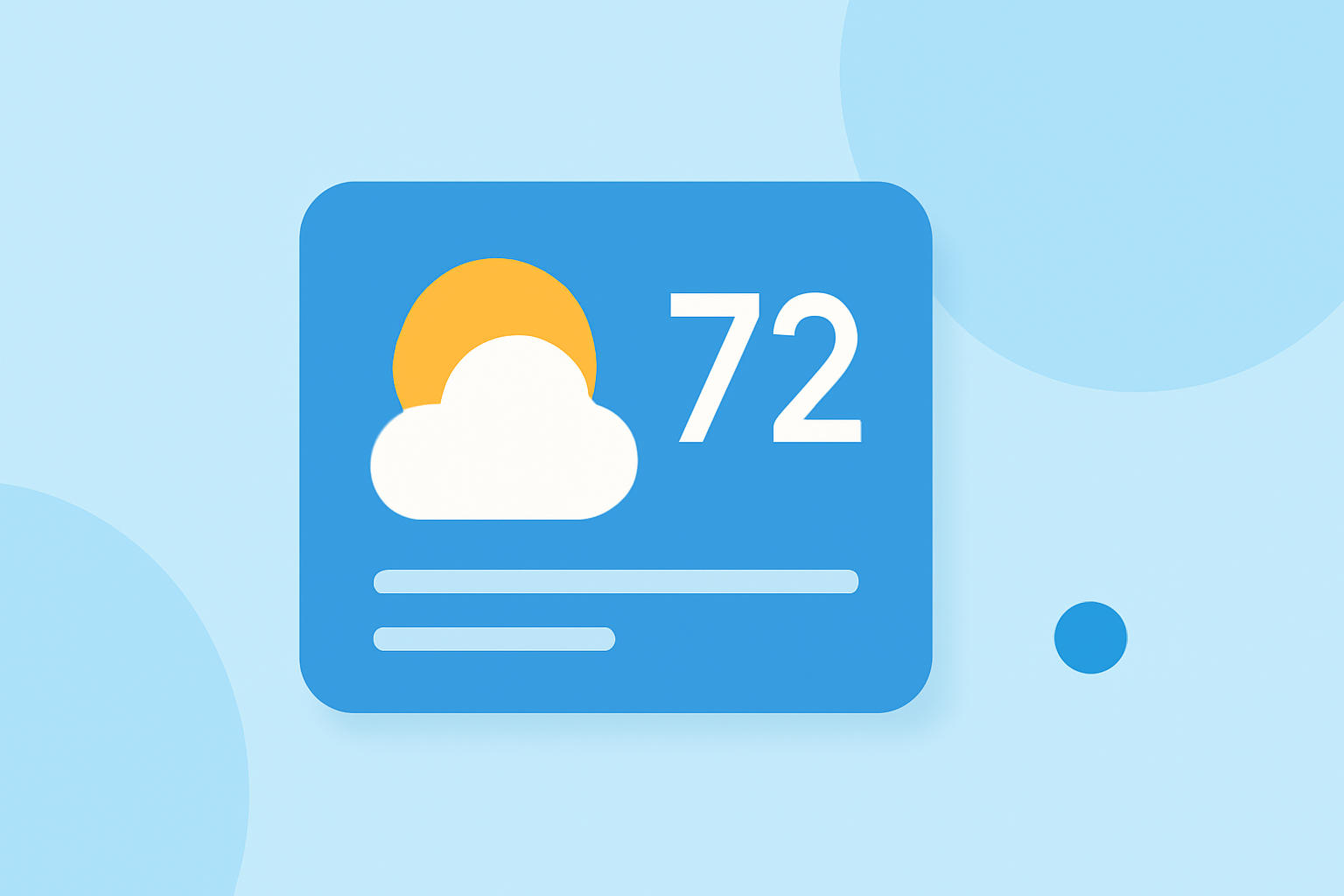
Integrating a weather widget into your website can significantly enhance user engagement by providing real-time weather updates. This guide will walk you through the process of creating a professional medium-sized weather widget from scratch, ensuring it is both functional and seamlessly integrated into your site's design.
1. What Are Weather Widgets and Why Are They Important?
Weather widgets are small applications embedded into websites to display current weather conditions and forecasts. They offer users immediate access to weather information without leaving the site, improving user experience and increasing time spent on the page.
2. How Do I Design a Medium-Sized Weather Widget?
Designing a medium-sized weather widget involves balancing functionality with aesthetics. Consider the following steps:
-
Determine Dimensions: A medium-sized widget typically ranges from 300x200 to 500x300 pixels.
-
Select Essential Information: Display current temperature, weather conditions (e.g., sunny, cloudy), and a short-term forecast (e.g., next 3 days).
-
Choose a Color Scheme: Opt for colors that complement your website's design. Ensure text contrasts well with the background for readability.
-
Use Clear Typography: Select fonts that are easy to read and consistent with your site's style.
3. What Technologies Are Needed to Build the Widget?
To build a weather widget, you'll need:
-
HTML/CSS: For structuring and styling the widget.
-
JavaScript: To fetch and display real-time weather data.
-
Weather API: A service that provides up-to-date weather information.
4. How Do I Obtain Weather Data?
Weather data can be obtained through various APIs. When selecting an API, consider factors such as data accuracy, update frequency, and cost. Ensure the API provides the necessary data points for your widget.
5. How Do I Implement the Widget on My Website?
After developing the widget, integrate it into your website by embedding the HTML and JavaScript code into the desired location on your site. Ensure the widget is responsive and adjusts to different screen sizes for optimal user experience.
6. How Can I Ensure the Widget Is User-Friendly?
To enhance user experience:
-
Responsive Design: Ensure the widget adapts to various screen sizes, including mobile devices.
-
Minimalist Approach: Avoid clutter; focus on essential information.
-
Interactive Elements: Consider adding features like a dropdown to select different locations or a toggle between Celsius and Fahrenheit.
7. How Do I Test and Maintain the Widget?
Regularly test the widget to ensure it displays accurate and timely information. Monitor the performance and make necessary updates to maintain functionality and security.
By following these steps, you can create a professional medium-sized weather widget that enhances your website's functionality and provides valuable information to your users.