
Customizing Weather Widget Color Themes for Severe Weather Alerts
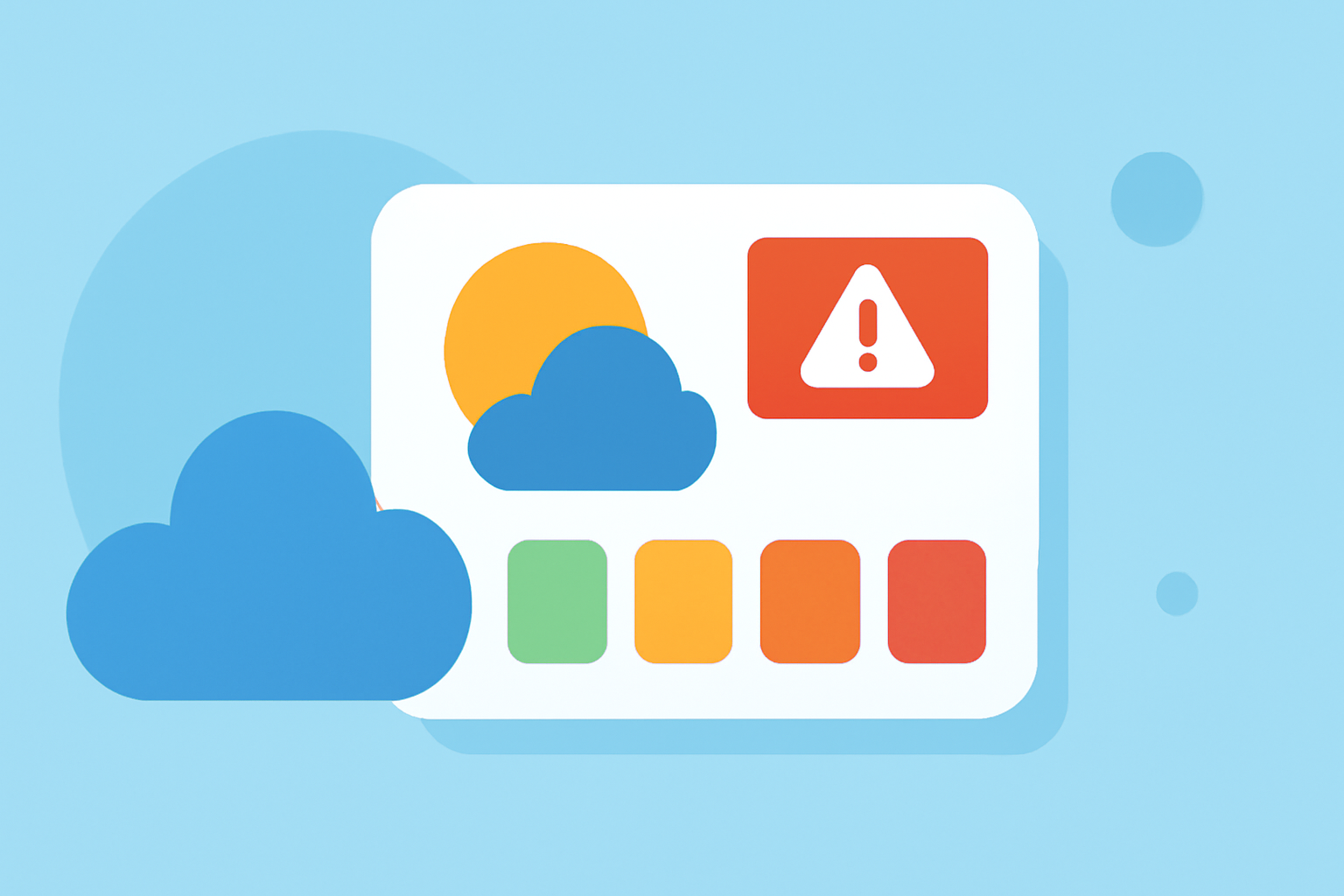
Customizing your weather widget's color themes is essential for effectively communicating severe weather alerts to your website visitors. By adjusting colors to reflect different weather conditions, you can enhance user experience and ensure timely information dissemination.
Why Customize Weather Widget Colors?
Tailoring your weather widget's color scheme allows you to:
- Enhance Visibility: Use contrasting colors to make alerts stand out.
- Convey Urgency: Assign specific colors to different alert levels to indicate severity.
- Maintain Consistency: Align widget colors with your website's design for a cohesive look.
Step-by-Step Guide to Customizing Widget Colors
- Choose a Customizable Widget Platform:
Select a weather widget provider that offers extensive customization options. Platforms like WeatherWidget.io allow you to adjust various elements, including colors, to match your website's theme. (weatherwidget.io)
- Access the Customization Settings:
After selecting your widget, navigate to the customization or settings section. This area typically provides options to modify colors, fonts, and other visual elements.
- Define Color Schemes for Different Weather Conditions:
Assign specific colors to represent various weather conditions and alert levels. For example:
- Clear Weather: Use calm colors like light blue or white.
- Rainy Conditions: Opt for shades of gray or blue.
- Severe Weather Alerts: Implement bold colors such as red for tornado warnings, orange for severe thunderstorms, and teal for flood warnings.
This color-coding system helps users quickly identify the severity of weather conditions.
- Implement the Customization:
Once you've configured the desired color schemes, save your settings. The platform will typically generate a code snippet that you can embed into your website's HTML to display the customized widget.
Best Practices for Effective Color Customization
- Ensure Accessibility: Choose color combinations that are distinguishable for individuals with color vision deficiencies.
- Maintain Consistency: Keep the color scheme consistent with your website's overall design to provide a seamless user experience.
- Test Across Devices: Verify that the widget displays correctly on various devices and screen sizes to ensure responsiveness.
Leveraging Clime's Advanced Features
Clime offers a comprehensive suite of tools designed to enhance your website's weather information delivery. With Clime, you can:
- Customize Widget Themes: Adjust colors, fonts, and layouts to match your website's branding.
- Implement Real-Time Alerts: Receive and display severe weather alerts promptly to keep your audience informed.
- Ensure Responsiveness: Widgets automatically adjust to different screen sizes, providing an optimal viewing experience on all devices.
By utilizing Clime's features, you can create a dynamic and informative weather widget that effectively communicates severe weather conditions to your website visitors.
Incorporating customized color themes into your weather widget not only enhances the visual appeal of your website but also plays a crucial role in delivering timely and clear information during severe weather events. By following the steps outlined above and leveraging Clime's advanced features, you can ensure that your audience remains informed and prepared, regardless of the weather conditions.