
Customizing Weather Widget Color Themes in Your Car
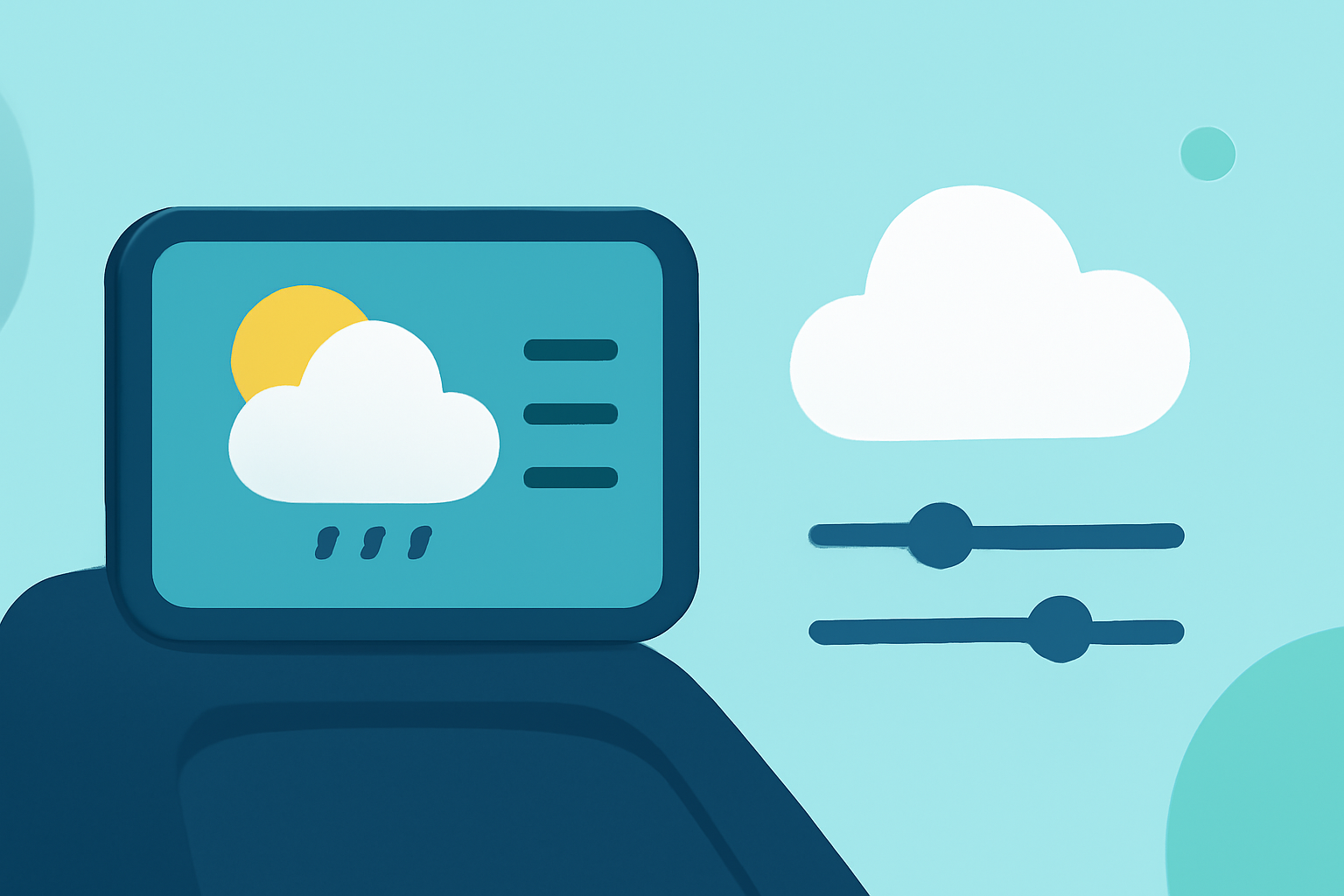
Personalizing the color themes of your car's weather widget can significantly enhance your driving experience by providing both functionality and aesthetic appeal. Here's a step-by-step guide to help you customize your weather widget's color themes effectively.
1. Accessing the Weather Widget Settings
Begin by navigating to the settings menu of your car's infotainment system. Locate the 'Widgets' or 'Display' section, where you can manage various on-screen elements. Within this menu, select the weather widget to access its customization options.
2. Customizing Color Themes
Once in the weather widget settings, look for options labeled 'Color Theme,' 'Appearance,' or 'Display Settings.' Here, you can adjust the following elements:
-
Background Color: Choose a background color that complements your car's interior lighting and your personal preferences.
-
Text Color: Select text colors that ensure readability against the chosen background.
-
Accent Colors: Modify accent colors for elements like temperature readings, icons, and borders to create a cohesive look.
3. Utilizing Pre-Set Themes or Creating Custom Ones
Many infotainment systems offer pre-set color themes for convenience. If you prefer a unique design, some systems allow you to create custom themes by selecting specific colors for each element. Refer to your car's user manual for detailed instructions on creating custom themes.
4. Saving and Applying Changes
After making your desired adjustments, ensure you save the new settings. The system may prompt you to apply the changes immediately or upon restarting the vehicle.
5. Testing the New Theme
Exit the settings menu and observe the weather widget to ensure the new color theme is applied correctly. If adjustments are needed, repeat the customization process until you achieve the desired appearance.
Additional Tips
-
Contrast and Visibility: Ensure there is sufficient contrast between text and background colors for optimal readability.
-
Consistency: Maintain a consistent color scheme with other widgets and displays in your car for a harmonious interface.
-
User Manual Reference: Consult your car's user manual for specific instructions related to your vehicle's infotainment system, as features and options can vary.
By following these steps, you can personalize your car's weather widget to match your style and enhance your driving experience.