
Customizing Weather Widget Color Themes: A Quick Guide
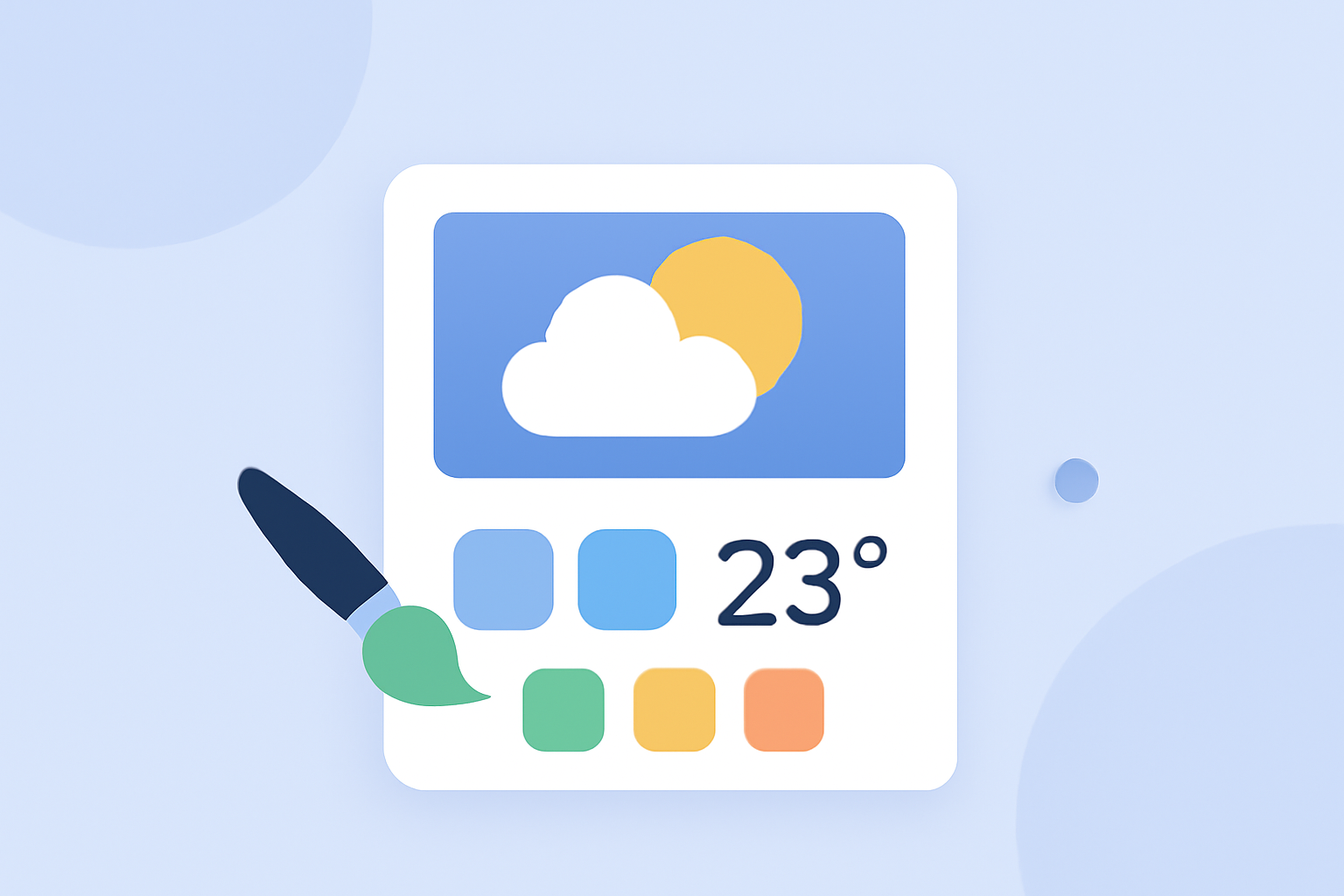
Personalizing your weather widget's color theme can enhance your device's appearance and provide a more cohesive user experience. Here's a step-by-step guide to help you customize your weather widget's color themes efficiently.
1. Accessing Widget Settings
To begin, locate the weather widget on your device's home screen. Tap and hold the widget until a menu appears. Select "Settings" or "Customize" to access the widget's configuration options.
2. Customizing Accent Colors
Within the settings menu, look for options labeled "Accent Color," "Text Color," or "Font Color." These settings allow you to change the color of the text and icons displayed on the widget. Choose from predefined color options or use a color picker to select a custom hue that complements your device's theme.
3. Adjusting Background Themes
Many weather widgets offer customizable background themes. Options may include light, dark, live weather, or transparent backgrounds. Select the background theme that best suits your aesthetic preferences. Some widgets also allow you to set a background image or gradient.
4. Implementing Gradient Themes
For a more dynamic look, consider applying gradient themes. Gradients provide a smooth transition between colors, adding depth and interest to your widget. Some widgets come with built-in gradient options, while others may require third-party applications to achieve this effect.
5. Saving and Applying Changes
After making your desired adjustments, ensure you save the changes. The widget should automatically update to reflect the new color theme. If not, try removing and re-adding the widget to your home screen.
6. Utilizing Third-Party Applications
If your device's default weather widget lacks customization options, third-party applications can offer enhanced features. These apps often provide a wider range of color themes, gradient options, and additional customization features.
7. Ensuring Compatibility
Before installing third-party applications, verify that they are compatible with your device's operating system and that they do not compromise your device's security.
By following these steps, you can quickly and effectively customize your weather widget's color themes, creating a personalized and visually appealing experience on your device.