
Customizing Weather Widgets on Your iPhone: A Comprehensive Guide
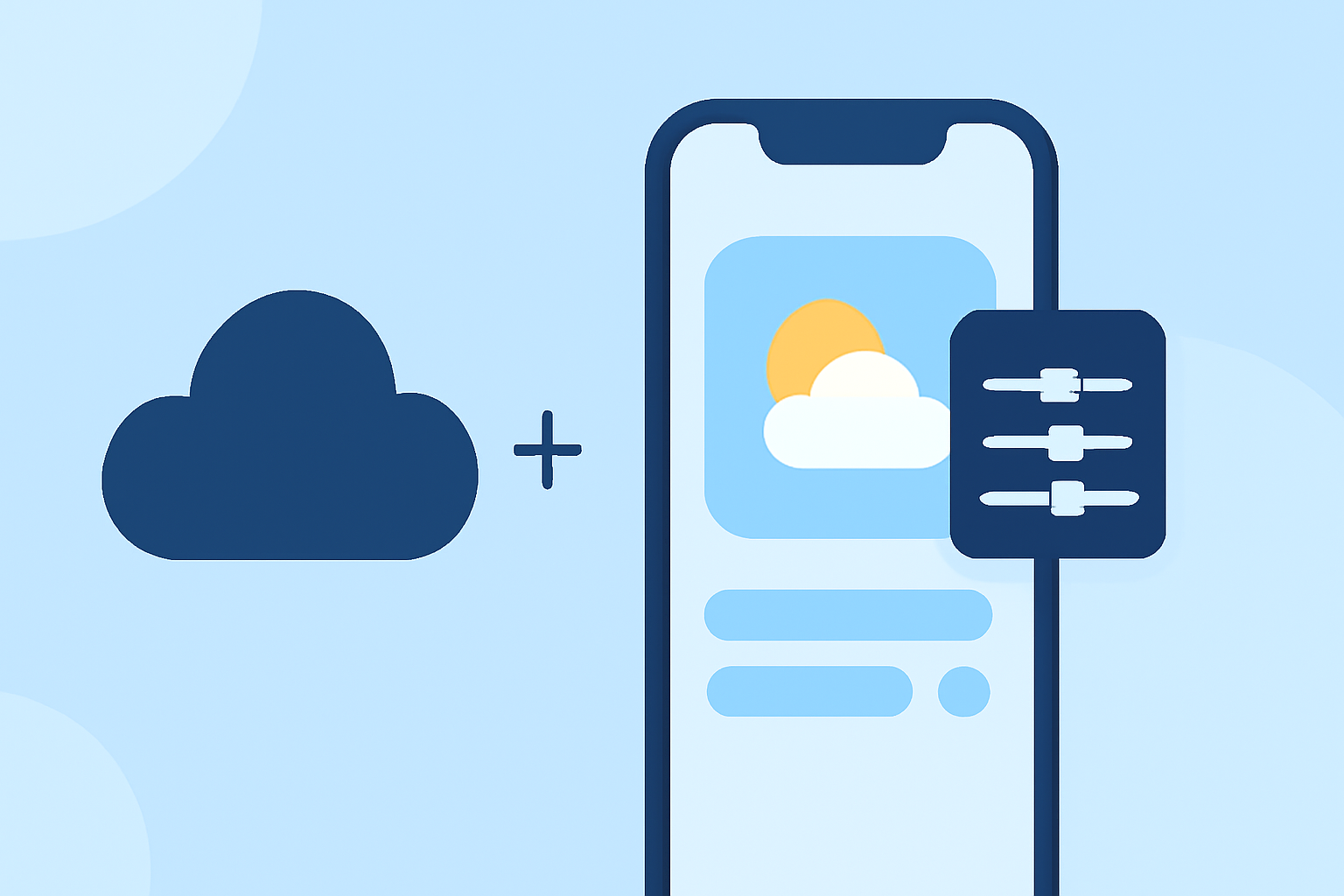
Weather widgets on your iPhone provide quick access to current conditions, forecasts, and other essential weather information directly from your Home Screen. Customizing these widgets allows you to tailor the displayed data to your preferences, ensuring you have the most pertinent information at a glance.
Understanding iPhone Weather Widgets
iPhone weather widgets come in various sizes—small, medium, and large—each offering different levels of detail:
- Small Widget: Displays current temperature, weather condition icon, and location.
- Medium Widget: Includes the small widget's information plus an hourly forecast strip.
- Large Widget: Shows the medium widget's details along with a multi-day forecast.
These widgets update automatically to provide real-time weather information.
Customizing Your Weather Widget
To personalize your weather widget:
- Add a Widget to Your Home Screen:
- Tap and hold an empty area on your Home Screen until the apps jiggle.
- Tap the plus (+) button in the top-left corner to open the widget gallery.
- Scroll or search for "Weather" and select it.
- Choose the widget size you prefer and tap "Add Widget."
- Change the Location Displayed:
- Touch and hold the Weather widget on your Home Screen.
- Tap "Edit Widget."
- Tap "Location," then search for or select the desired city.
- Tap outside the widget to return to your Home Screen.
This customization allows you to monitor weather conditions in multiple locations simultaneously. (support.apple.com)
Exploring Additional Data Choices
While the default Weather widget provides essential information, you can access more detailed data within the Weather app:
- Hourly and Daily Forecasts: Tap on a day to view detailed hourly forecasts, including temperature, precipitation, and wind speed.
- Weather Maps: Access maps showing temperature, precipitation, and air quality by tapping the map icon at the bottom-left corner of the Weather app.
- Weather Alerts: Stay informed about severe weather warnings by enabling notifications in the Weather app settings.
For more advanced features, consider third-party weather apps that offer customizable widgets with additional data points. These apps often provide unique visualizations and more granular control over the information displayed.
Conclusion
Customizing your iPhone's weather widgets enhances your ability to access the most relevant weather information quickly. By adjusting widget settings and exploring the Weather app's features, you can stay informed about current conditions and forecasts tailored to your needs.