
Customizing Weather Widgets on Your iPhone for Travel
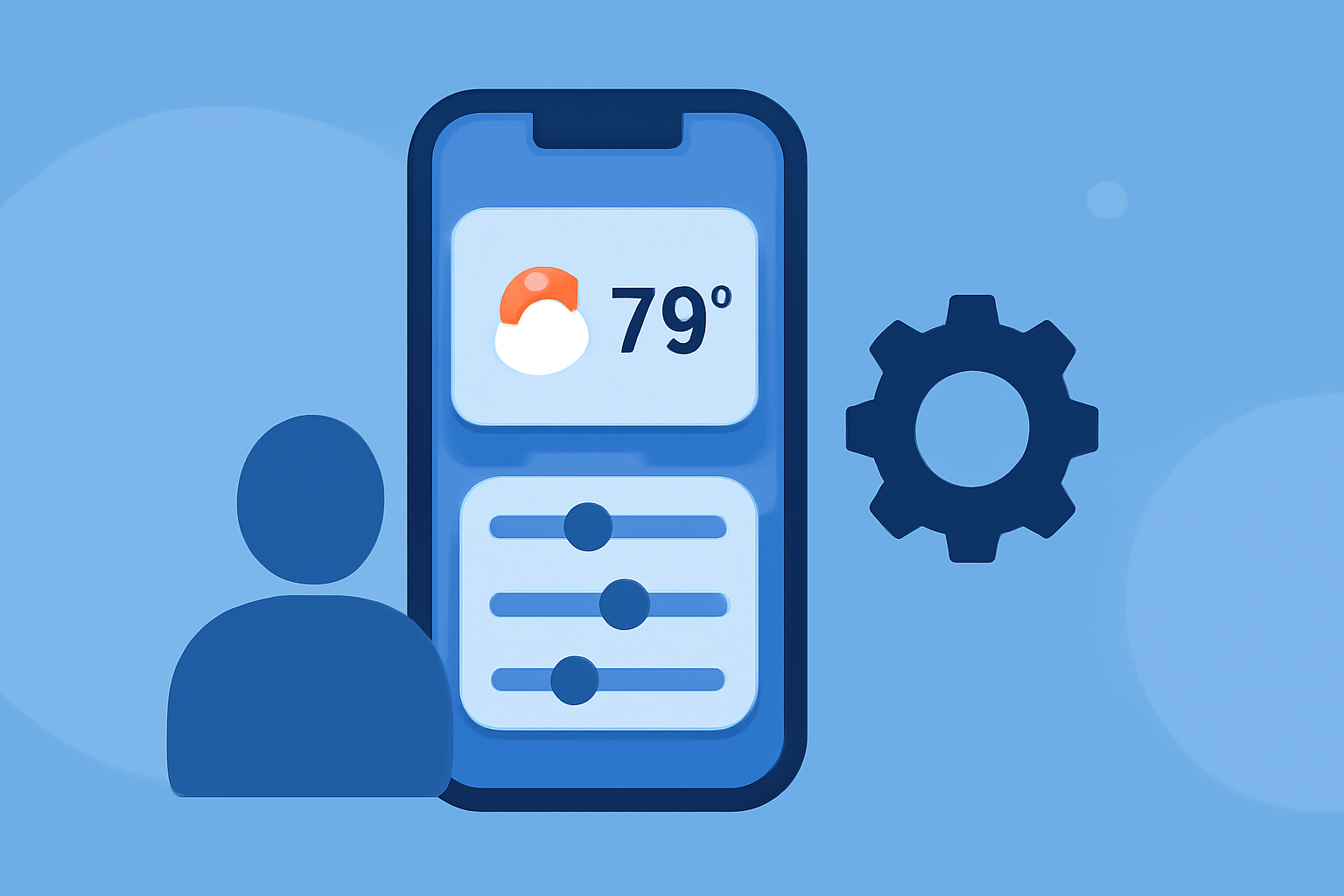
Traveling often means encountering varying weather conditions. Customizing your iPhone's weather widgets allows you to monitor forecasts for multiple destinations directly from your Home Screen. Here's how to set it up:
1. Add the Weather Widget to Your Home Screen
To keep track of weather conditions at a glance, add the Weather widget to your Home Screen:
-
Access the Widget Gallery: Touch and hold an empty area on your Home Screen until the apps jiggle. Tap the plus (+) button in the top-left corner to open the Widget Gallery.
-
Select the Weather Widget: Scroll through the list or use the search bar to find "Weather."
-
Choose a Widget Size: The Weather widget comes in small, medium, and large sizes, each displaying different amounts of information.
-
Add the Widget: Tap "Add Widget," then drag it to your desired location on the Home Screen.
2. Customize the Widget to Display Multiple Locations
To monitor weather conditions in various cities:
-
Edit the Widget: Touch and hold the Weather widget on your Home Screen, then tap "Edit Widget."
-
Set Up a Widget Stack: To display weather information for multiple locations, create a widget stack:
-
Add Multiple Weather Widgets: Repeat the process of adding the Weather widget, placing each one on top of the other to form a stack.
-
Edit the Stack: Touch and hold the stack, then tap "Edit Stack."
-
Enable Smart Rotate: Toggle on "Smart Rotate" to allow the stack to automatically display different widgets based on factors like time of day and activity.
-
Manually Switch Between Locations: If you prefer to select the location manually:
-
Edit Each Widget: Touch and hold each Weather widget, tap "Edit Widget," then choose the desired location from the list.
3. Utilize the Lock Screen for Quick Access
For immediate weather updates without unlocking your iPhone:
-
Customize the Lock Screen: Press and hold the Lock Screen, tap the plus (+) button, and select the Weather widget to add it to your Lock Screen.
-
Add Multiple Widgets: You can add up to four small widgets or two large widgets to your Lock Screen, providing quick access to weather information for different locations.
4. Stay Updated with Severe Weather Notifications
To receive alerts about severe weather conditions in your selected locations:
-
Enable Notifications: Go to Settings > Weather > Notifications, then toggle on "Severe Weather Alerts."
-
Set Up Notifications for Specific Locations: Within the Weather app, add the locations you're interested in to receive timely updates.
By customizing your iPhone's weather widgets, you can effortlessly monitor weather conditions across multiple destinations, ensuring you're always prepared for your travels.
(support.apple.com)