
Designing an Effective Weather Widget for Your Home Screen
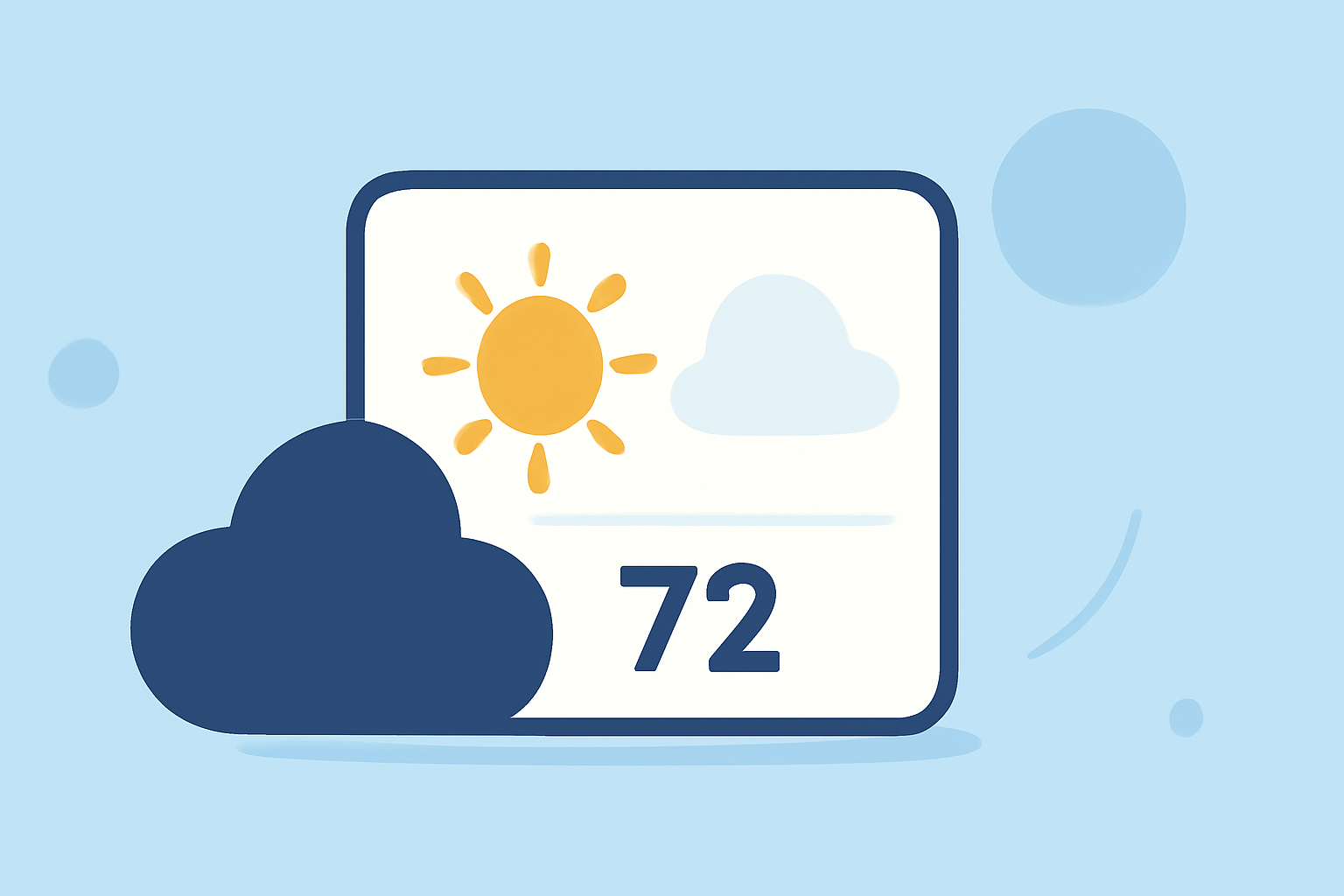
In today's fast-paced world, having quick access to weather information is essential. A well-designed weather widget on your home screen can provide timely updates at a glance, helping you plan your day effectively.
What Makes a Weather Widget Effective?
An effective weather widget should deliver concise, relevant information without overwhelming the user. Key features include:
- Current Conditions: Display the current temperature and weather status (e.g., sunny, cloudy, rainy).
- Forecast Information: Provide upcoming high and low temperatures, and a brief outlook for the next few days.
- Location Awareness: Automatically detect your location or allow manual input to ensure accurate data.
- Minimalist Design: Use clear fonts and intuitive icons to convey information without clutter.
Choosing the Right Widget Size
Widgets come in various sizes, each serving different purposes:
- Small Widgets: Ideal for quick temperature checks and current conditions.
- Medium Widgets: Offer a balance between current conditions and a brief forecast.
- Large Widgets: Provide detailed forecasts, including hourly updates and extended outlooks.
Selecting the appropriate size depends on how much information you wish to display and the available space on your home screen.
Designing for Glanceability
A glanceable widget allows users to quickly absorb information without opening the app. To achieve this:
- Prioritize Key Information: Focus on the most relevant data, such as current temperature and weather conditions.
- Use Contrasting Colors: Ensure text and icons stand out against the background for easy readability.
- Maintain Consistency: Use uniform iconography and color schemes to create a cohesive look.
Integrating with Your Home Screen
To add a weather widget to your home screen:
- Enter Edit Mode:
- On iOS: Tap and hold an empty area on your home screen until apps jiggle.
- On Android: Tap and hold on the home screen, then select "Widgets."
- Select the Widget:
- Browse through available widgets and choose the weather widget that suits your needs.
- Add to Home Screen:
- Drag the widget to your desired location on the home screen.
- Configure Settings:
- Set your location preferences and adjust any other settings as needed.
Maintaining Widget Accuracy
For your widget to provide accurate and timely information:
- Enable Location Services: Allow the widget to access your device's location for precise data.
- Allow Background Refresh: Ensure the widget can update in the background to reflect current conditions.
- Regularly Update the App: Keep the weather app associated with the widget updated to benefit from the latest features and improvements.
By thoughtfully designing and configuring your weather widget, you can enhance your home screen's functionality, ensuring that essential weather information is always at your fingertips.