
How to Display Hourly Weather Forecasts on Your Smart Display
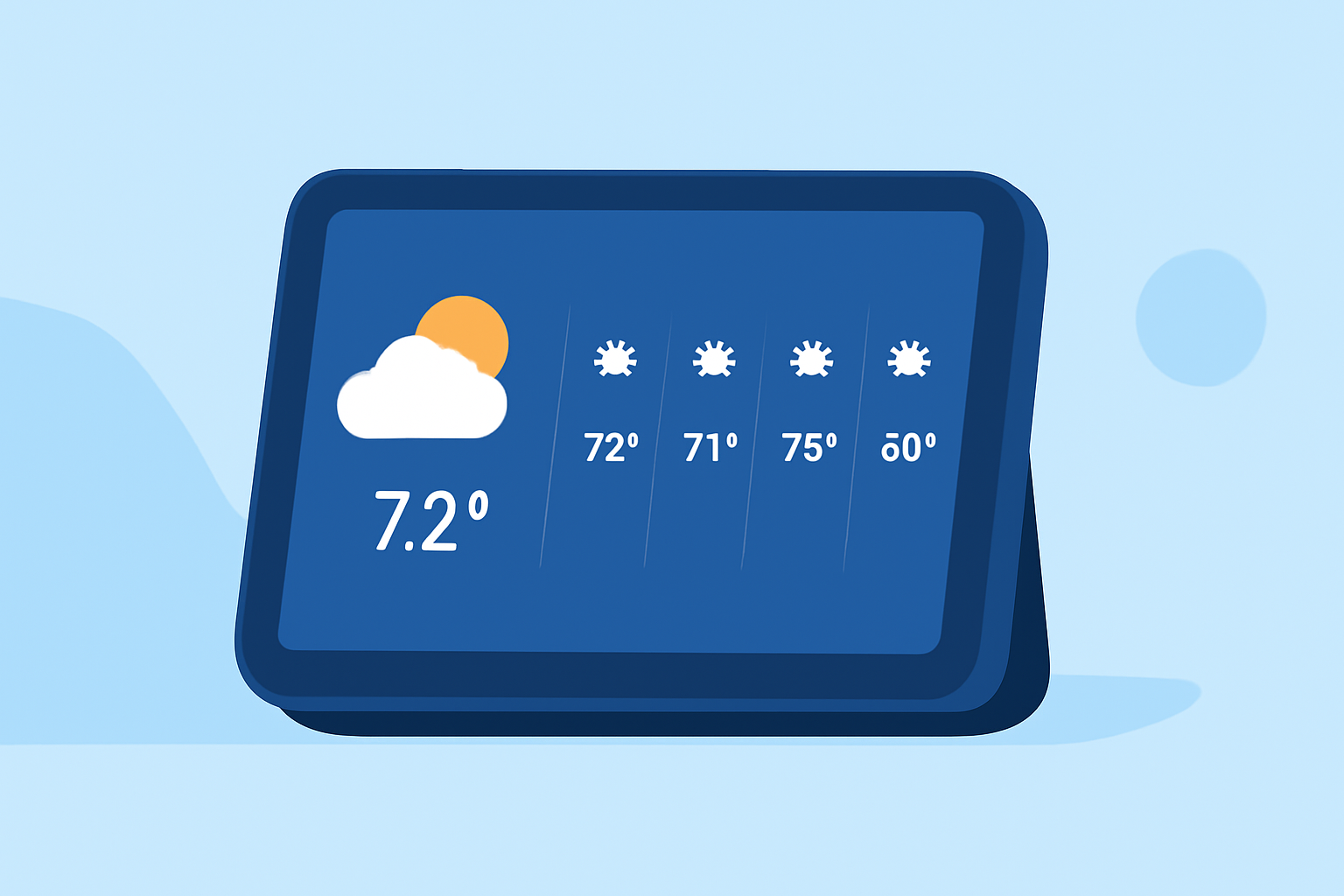
Smart displays offer a convenient way to access real-time information, including hourly weather forecasts. Here's how you can set up and view these forecasts on your device.
1. Setting Up Hourly Weather Forecasts on Your Smart Display
a. Google Nest or Home Devices
To receive hourly weather updates on your Google Nest or Home device, ensure your location and weather preferences are correctly configured:
-
Set Your Location: Open the Google Home app, navigate to your device settings, and enter your home address.
-
Configure Weather Units: In the same settings menu, select your preferred temperature unit (Celsius or Fahrenheit).
Once set up, you can ask your device for hourly weather updates by saying, "Hey Google, what's the weather for the next 12 hours?" (support.google.com)
b. Samsung Smart Displays
Samsung's smart displays feature a "Daily Board" that includes a weather widget:
-
Access the Daily Board: Say, "Hi Bixby, show me the Daily Board," or swipe down from the top of the screen and select the Daily Board icon.
-
View Hourly Forecasts: The weather widget displays current conditions and upcoming hourly forecasts. (samsung.com)
c. AcuRite Smart Displays
AcuRite devices provide hourly forecasts through their dashboard:
-
Access the Dashboard: On your AcuRite display, navigate to the dashboard section.
-
View Hourly Forecasts: The dashboard displays a 12-hour forecast, including temperature, chance of rain, and wind direction. (support.acurite.com)
2. Troubleshooting Common Issues
If your smart display isn't showing up-to-date hourly forecasts, consider the following:
-
Check Internet Connectivity: Ensure your device is connected to the internet, as weather updates require an active connection.
-
Verify Location Settings: Confirm that your device's location settings are accurate to receive localized weather information.
-
Update Device Software: Outdated software can affect functionality; check for and install any available updates.
3. Enhancing Your Weather Experience
To make the most of your smart display's weather features:
-
Customize Widgets: Many devices allow you to customize the appearance and information displayed in weather widgets.
-
Set Up Notifications: Enable weather notifications to receive alerts for severe weather conditions or significant changes.
-
Integrate with Other Smart Devices: Connect your smart display with other smart home devices, such as thermostats or lights, to automate responses based on weather conditions.
By properly configuring your smart display and utilizing its features, you can stay informed about hourly weather forecasts and make better decisions throughout your day.