
Easy Weather Radar Maps on Apple Watch
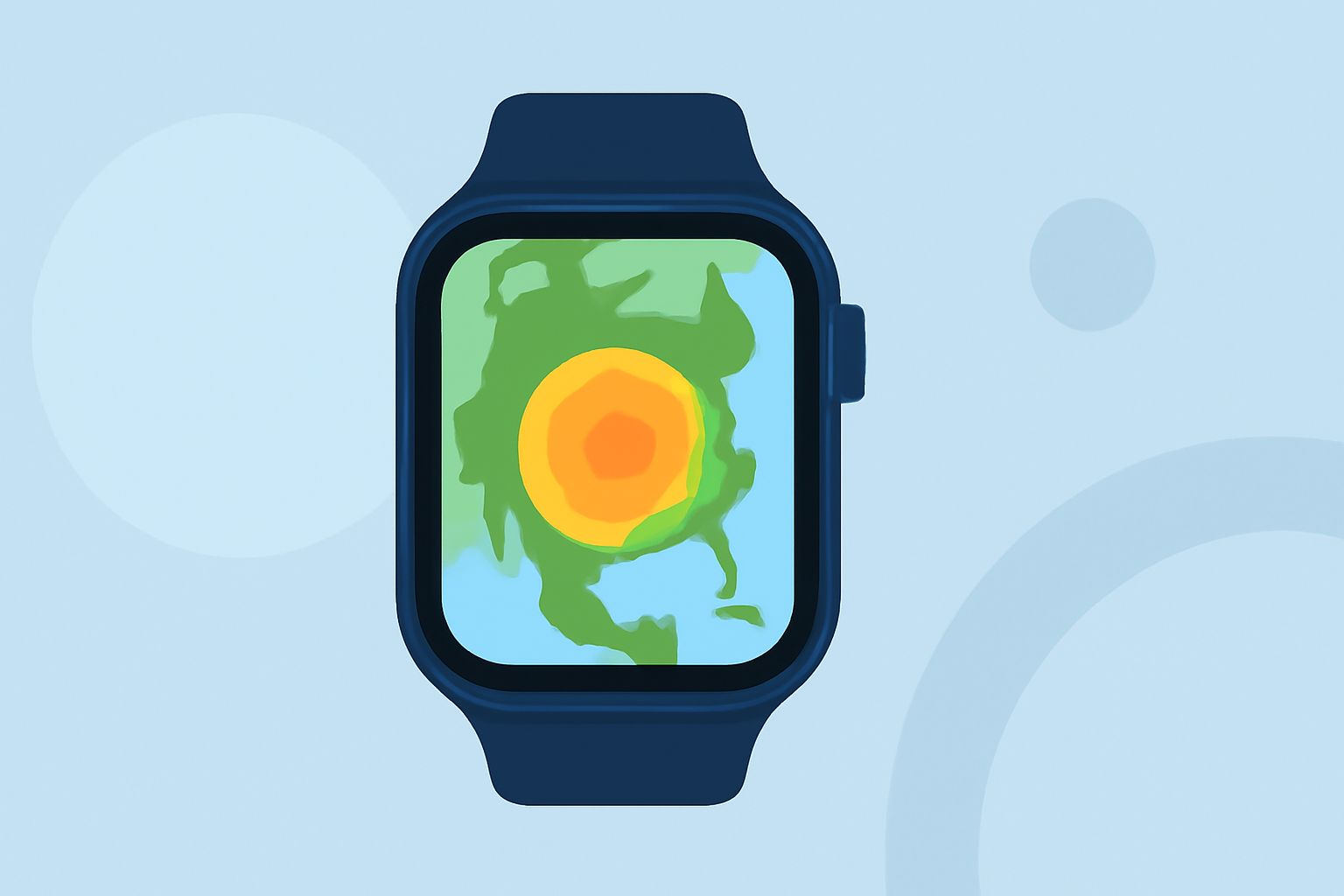
Staying informed about weather conditions is crucial, especially when planning outdoor activities or traveling. With the Apple Watch, you can access live weather radar maps directly from your wrist, providing real-time updates on precipitation, storms, and other weather phenomena.
How Can I Access Live Weather Radar Maps on My Apple Watch?
Several applications offer live weather radar maps compatible with the Apple Watch, allowing you to monitor weather conditions conveniently.
What Are the Key Features of These Weather Radar Apps?
- Real-Time Radar Maps: View current precipitation patterns and storm movements.
- Severe Weather Alerts: Receive notifications about severe weather events, such as thunderstorms or hurricanes.
- Hourly and 10-Day Forecasts: Access detailed forecasts to plan your activities accordingly.
- Customizable Widgets: Add weather widgets to your watch face for quick access to essential information.
How Do I Set Up a Weather Radar App on My Apple Watch?
- Download the App: Install the chosen weather radar app on your iPhone from the App Store.
- Install on Apple Watch: Ensure the app is installed on your Apple Watch. Some apps may require you to enable the Apple Watch app during installation.
- Configure Settings: Open the app on your iPhone to set up preferences, such as location, alert types, and widget configurations.
- Add Widgets: Customize your watch face by adding the app's widget for quick access to weather information.
Are There Any Built-In Weather Features on the Apple Watch?
Yes, the Apple Watch includes a built-in Weather app that provides current conditions, forecasts, and severe weather alerts. However, its radar capabilities are limited compared to dedicated weather radar apps. To access live radar maps, you may need to use third-party applications.
How Do I Ensure Accurate Location-Based Weather Information?
To receive accurate, location-specific weather updates, enable Location Services on your Apple Watch:
- On Apple Watch: Go to Settings > Privacy & Security > Location Services, then turn on Location Services.
- On iPhone: Go to Settings > Privacy & Security > Location Services, select the weather app, and choose "While Using the App" or "Always."
By following these steps, you can access live weather radar maps on your Apple Watch, keeping you informed about current and upcoming weather conditions.