
Easy Weather Widget Color Themes: A Simple Guide
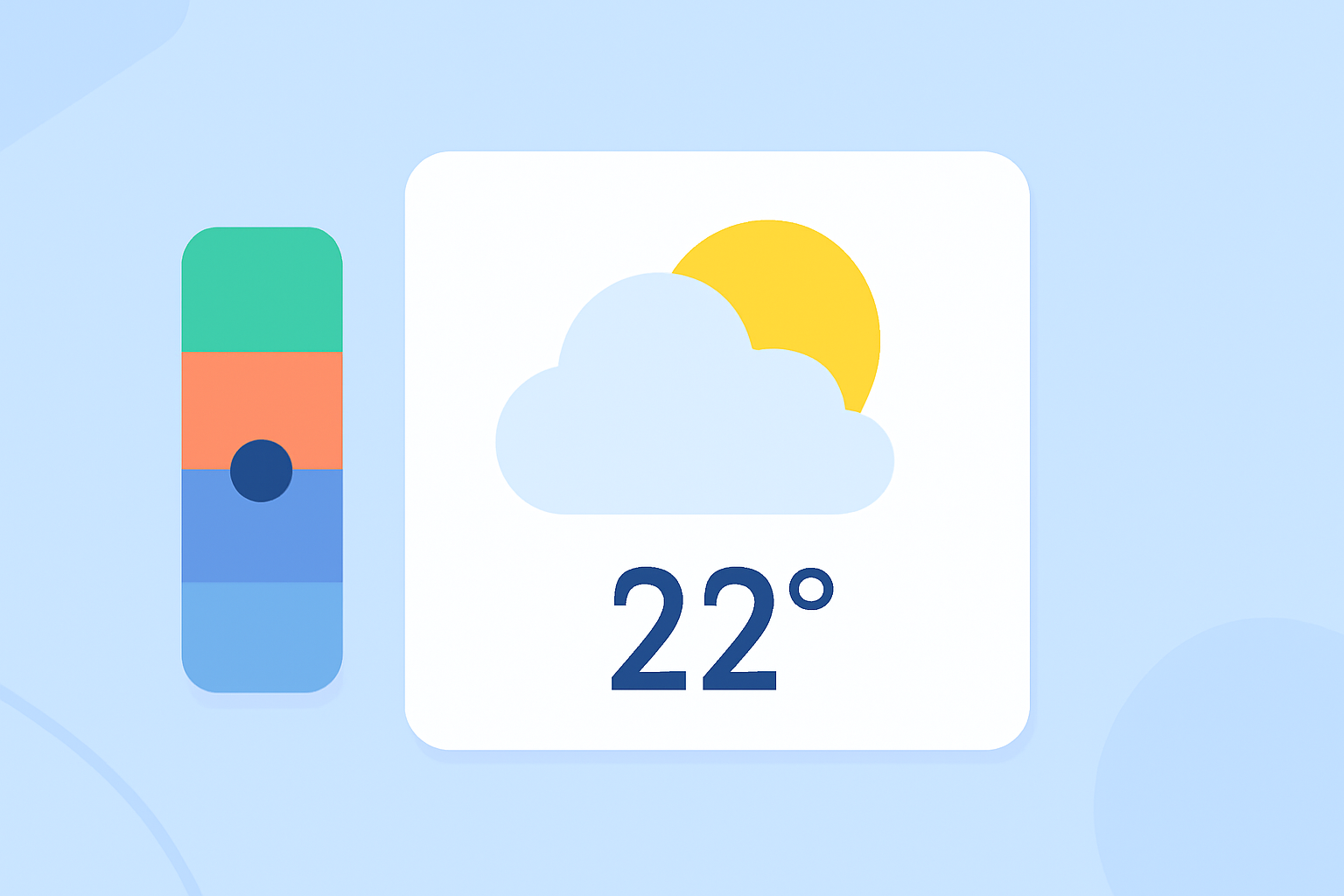
Personalizing your weather widget with custom color themes can enhance your device's aesthetics and make weather information more accessible. Here's a straightforward guide to help you achieve this:
1. Choose a Weather Widget App with Customization Features
Select a weather widget app that offers extensive customization options, including color themes. Many apps provide a variety of themes and color schemes to suit different preferences.
2. Install and Set Up the App
Download and install the chosen app from your device's app store. Follow the on-screen instructions to set up the app and grant necessary permissions for location access and notifications.
3. Access Widget Customization Settings
Navigate to the widget customization section within the app. This is typically found in the app's settings menu or directly within the widget setup interface.
4. Select a Color Theme
Browse through the available color themes or create a custom palette. Many apps allow you to adjust colors for various widget elements, such as background, text, and icons.
5. Apply and Preview Changes
Apply your selected color theme and preview how it appears on your home screen. Ensure that the text is legible and the overall design complements your device's wallpaper and other elements.
6. Save and Set the Widget
Once satisfied with the customization, save your settings and add the widget to your home screen. Position it as desired and enjoy your personalized weather widget.
Tips for Effective Customization
-
Contrast and Readability: Ensure there is sufficient contrast between text and background colors for easy readability.
-
Consistency: Maintain a consistent color scheme that aligns with your device's overall theme.
-
Simplicity: Avoid overly complex color combinations that may distract from the widget's functionality.
By following these steps, you can effortlessly customize your weather widget's color themes, enhancing both its visual appeal and functionality.