
Enhancing Your Android Lock Screen with Weather Widgets
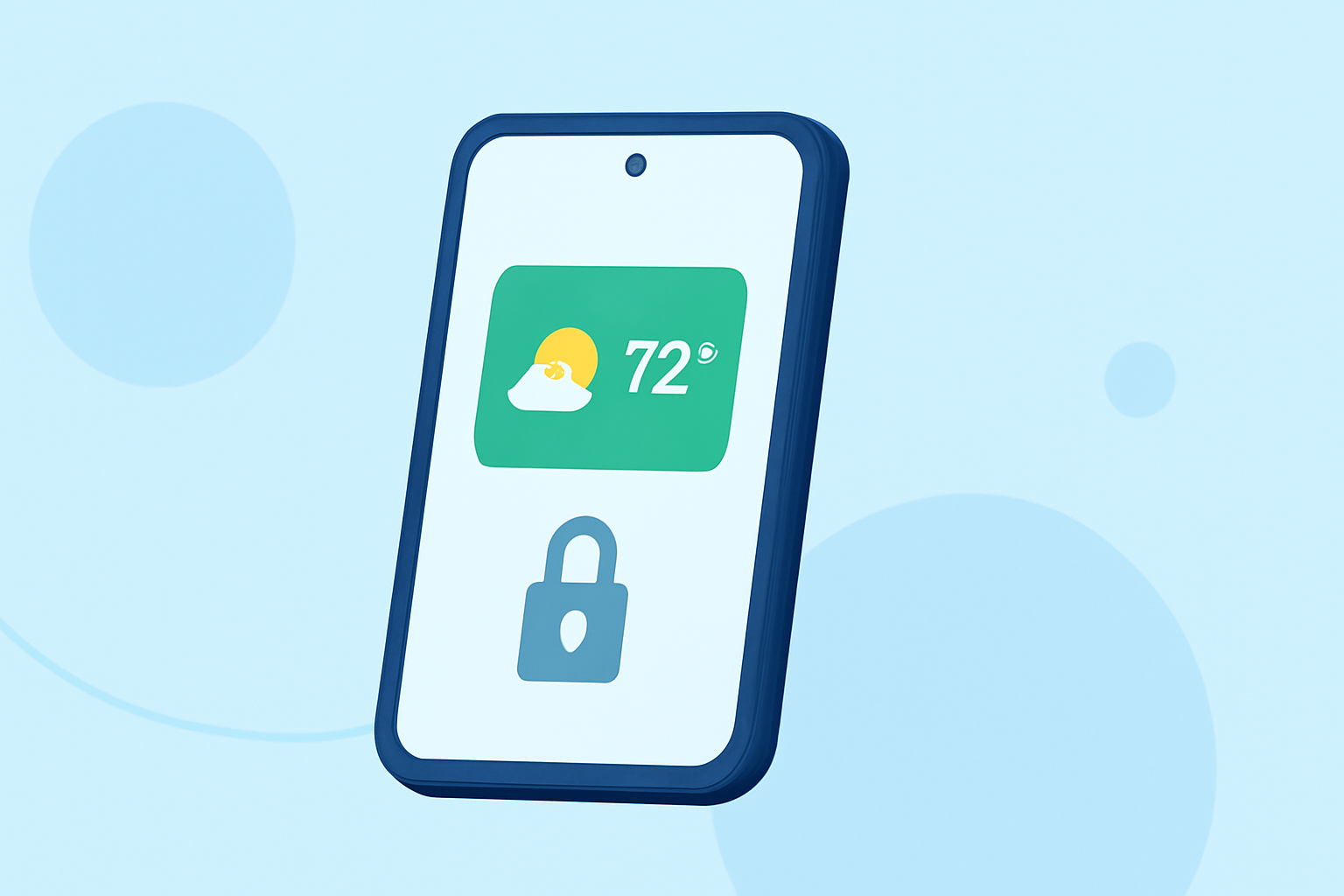
Adding a weather widget to your Android lock screen provides immediate access to current conditions and forecasts, enhancing your device's functionality and convenience. Here's how you can set this up:
1. Using Built-in Features
Many Android devices offer native support for lock screen widgets, including weather updates. To add a weather widget:
-
Access Lock Screen Settings: Navigate to your device's settings and select "Lock Screen."
-
Enable Widgets: Ensure that the "Widgets" option is activated.
-
Add Weather Widget: Choose the weather widget from the available options and place it on your lock screen.
This method allows for seamless integration without the need for third-party applications.
2. Utilizing Third-Party Applications
If your device lacks a built-in weather widget or you seek additional customization, third-party apps can offer enhanced features. Here are some options:
Lock Screen Weather App - App Store Lockscreen Widget - Weather This app enables you to customize your lock screen with various widgets, including weather, clock, memo, news, and battery status. You can adjust the size and color of each widget to suit your preferences. (play.google.com)
elegant smartphone user interface widget weather clock Weather Clock Widget Designed for Android 4.2 and above, this app allows you to add a weather clock widget to your lock screen, providing current time and weather conditions at a glance. (play.google.com)
Meteogram Weather Widget 5.6.0 Free Download Meteogram Widget Offers detailed weather forecasts, including temperature, precipitation, pressure, wind speed, and cloudiness, all displayed on your home screen. The widgets are highly customizable to fit your layout. (meteogramwidget.com)
3. Customizing Your Widget
After adding a weather widget, you can tailor it to your liking:
-
Size and Position: Resize and move the widget to fit your screen layout.
-
Theme and Transparency: Adjust colors, themes, and transparency to match your device's aesthetic.
-
Update Frequency: Set how often the widget refreshes to balance accuracy and battery life.
4. Managing Widget Permissions
Ensure that the weather widget has the necessary permissions to access location data for accurate forecasts. Typically, you'll need to grant location access during the widget setup process.
5. Troubleshooting
If the weather widget isn't displaying correctly:
-
Check Permissions: Verify that location and other relevant permissions are enabled.
-
Update the App: Ensure that the weather app is updated to the latest version.
-
Restart Your Device: Sometimes, a simple restart can resolve widget display issues.
By following these steps, you can effectively add and customize a weather widget on your Android lock screen, keeping you informed about current conditions and forecasts at a glance.