
Enhancing Your Apple Watch with Pro Weather Complications
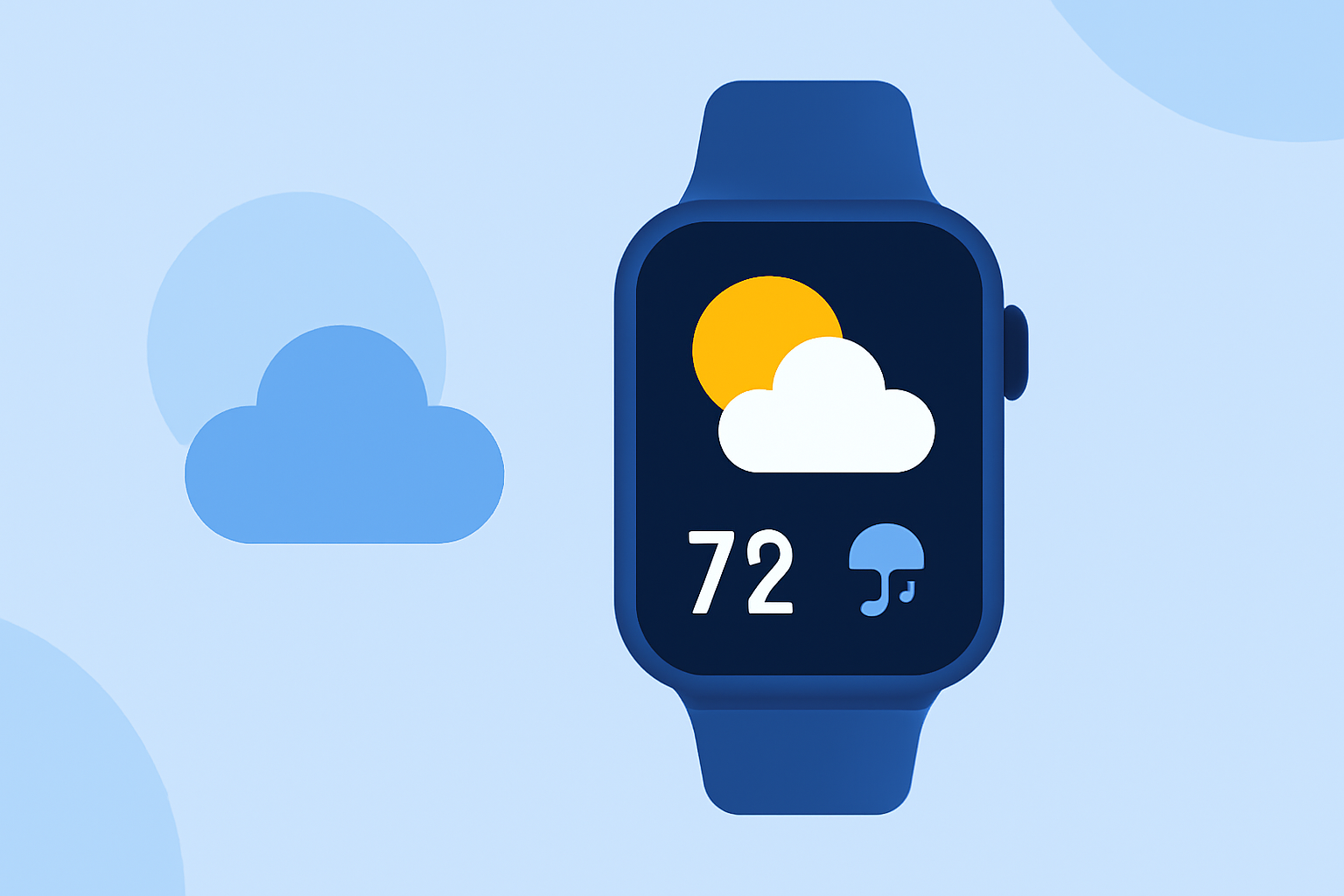
Apple Watch offers a variety of complications that provide quick access to essential information directly from your watch face. Among these, weather complications are particularly valuable, delivering real-time updates on conditions, temperature, and more. This guide explores how to add and customize weather complications on your Apple Watch, ensuring you have timely weather information at a glance.
What Are Weather Complications?
Complications are small widgets on your Apple Watch face that display information from apps without needing to open them. Weather complications, specifically, provide updates on various weather metrics, such as:
- Air Quality: Current air quality index.
- Conditions: General weather conditions (e.g., sunny, cloudy).
- Humidity: Percentage of humidity in the air.
- Rain: Chance of precipitation.
- Temperature: Current temperature.
- UV Index: Level of ultraviolet radiation.
- Wind: Wind speed and direction.
These complications allow you to monitor weather conditions effortlessly throughout the day.
How to Add Weather Complications to Your Apple Watch
Customizing your watch face with weather complications involves a few straightforward steps:
- Access Watch Face Customization: On your Apple Watch, press firmly on the current watch face to enter customization mode.
- Edit Watch Face: Tap the 'Edit' button to modify the watch face.
- Navigate to Complications: Swipe left to reach the complications customization screen.
- Select a Complication Slot: Tap on the slot where you want to add a weather complication.
- Choose Weather Complication: Scroll through the available complications and select the desired weather-related option.
- Save Changes: Press the Digital Crown to save your changes and return to the watch face.
For detailed instructions, refer to Apple's official guide on adding complications to your watch face. (support.apple.com)
Troubleshooting Weather Complications
If your weather complications aren't displaying data correctly, consider the following steps:
- Check Internet Connectivity: Ensure your Apple Watch is connected to your iPhone, which should have an active Wi-Fi or cellular connection.
- Update Software: Verify that both your iPhone and Apple Watch are running the latest versions of iOS and watchOS, respectively.
- Restart Devices: Restart both your iPhone and Apple Watch to resolve temporary glitches.
- Verify Location Services: On your iPhone, go to Settings > Privacy & Security > Location Services, and ensure that location access is enabled for the Weather app.
- Set Default City: Open the Watch app on your iPhone, navigate to Weather settings, and set the default city to your current location or preferred city.
For more detailed troubleshooting steps, consult this guide. (idownloadblog.com)
Enhancing Weather Complications with Third-Party Apps
To further customize your weather experience, consider third-party apps that offer advanced weather complications:
- Watchsmith: This app provides a wide range of customizable complications, including dynamic weather updates that change throughout the day based on your schedule. (apps.apple.com)
By integrating such apps, you can tailor your Apple Watch to deliver the most relevant weather information for your needs.
Conclusion
Adding and customizing weather complications on your Apple Watch ensures that you have immediate access to essential weather information, enhancing your daily planning and activities. By following the steps outlined above and utilizing third-party apps, you can create a personalized and efficient watch face that keeps you informed and prepared.
Highlights:
- Apple Watch Users Report Weather Complication Issues in watchOS 10, Published on Monday, September 25
- Apple Suggests Potential Fixes for Weather Complication Bug on Apple Watch, Published on Tuesday, September 26
- watchOS 10.1 Fixes Apple Watch Weather Complication Bug, Published on Tuesday, October 24