
Enhancing Your Home Screen with Glanceable Weather Widgets
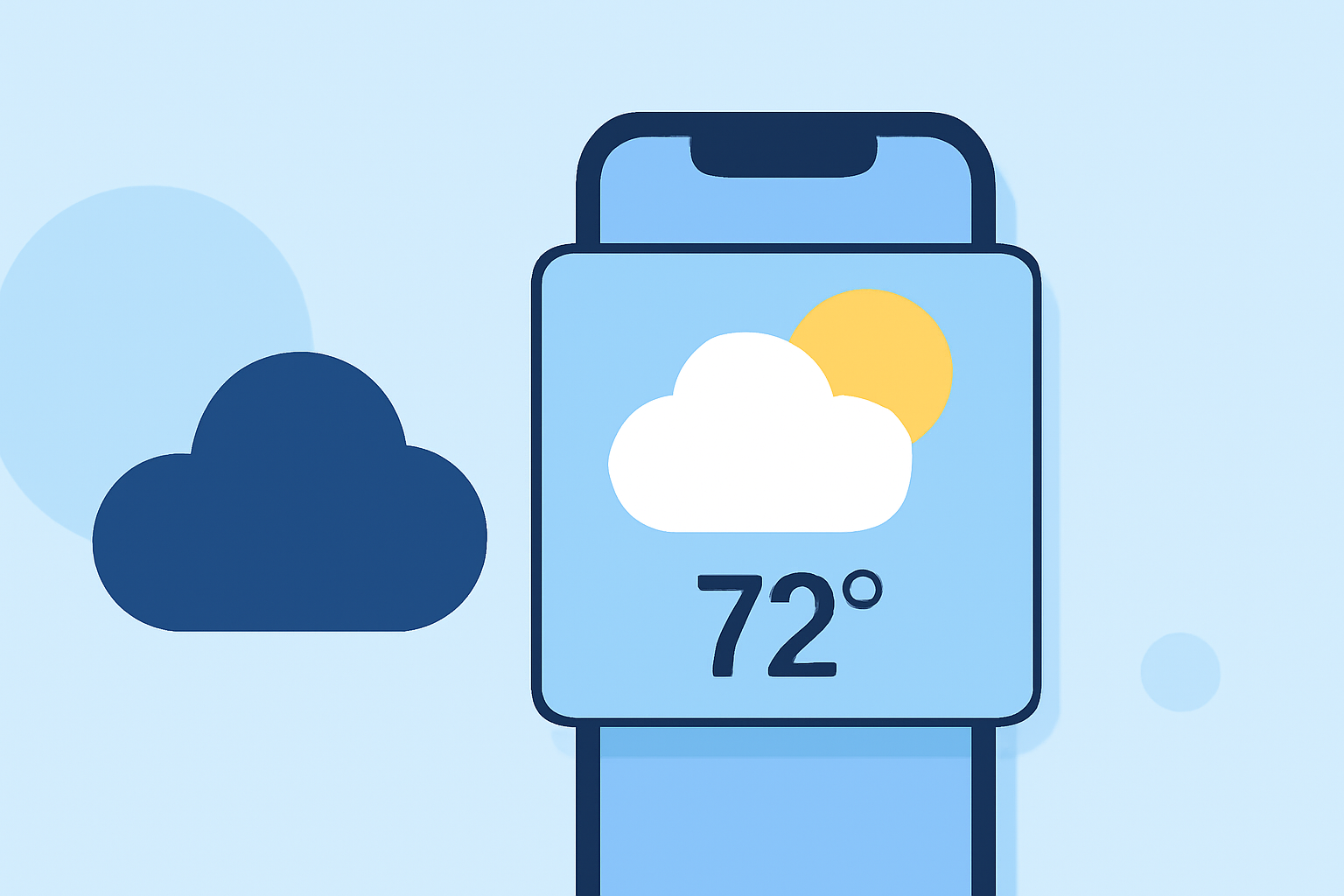
In today's fast-paced world, having immediate access to weather information is essential. Integrating glanceable weather widgets into your home screen allows you to monitor current conditions and forecasts without opening a dedicated app. This guide explores the benefits of weather widgets and highlights top applications that offer customizable and informative widgets.
What Are Weather Widgets and Why Should You Use Them?
Weather widgets are small, interactive elements that display weather information directly on your device's home screen. They provide real-time updates on temperature, humidity, wind speed, and forecasts, allowing you to stay informed at a glance. Utilizing these widgets can enhance your daily planning by providing immediate access to essential weather data.
How to Add Weather Widgets to Your Home Screen
For iPhone Users:
-
Access the Widget Gallery: Long-press on an empty area of your home screen until the apps jiggle. Tap the '+' icon in the top-left corner to open the Widget Gallery.
-
Search for Weather Apps: Scroll through the list or use the search bar to find your preferred weather app that offers widgets.
-
Select and Add the Widget: Choose the widget size and style that suits your preference, then tap 'Add Widget' to place it on your home screen.
For Android Users:
-
Open the App Drawer: Swipe up from the bottom of the screen to access all apps.
-
Access Widgets: Long-press on an empty area of your home screen, then tap 'Widgets' to view available widgets.
-
Choose a Weather Widget: Browse through the list to find a weather widget from your installed apps.
-
Add to Home Screen: Long-press the desired widget, then drag it to your preferred location on the home screen.
Top Weather Apps with Glanceable Widgets
Selecting the right weather app with a glanceable widget can significantly enhance your user experience. Here are some top-rated options:
Clime Rebrand — Just Another Bad Artist Clime Clime offers detailed minute-by-minute forecasts, rain and snow alerts, air quality maps, and wind speeds. Its iOS 14 widget displays predictions like upcoming rain or snow, AQI levels, and health advisories. Multiple locations can be monitored simultaneously, and it integrates with Google Calendar for seamless planning. (guidingtech.com)
Hello Weather – Ooo wee! Hello Weather 3.0 is here HeyWeather HeyWeather provides stylish widgets with customizable icons, colors, and styles. Users can monitor up to 10 cities, with different widget sizes for each location. The app also offers live animations of cloud and rain, along with detailed weather metrics like wind speeds, humidity, UV Index, and visibility. (guidingtech.com)
Weather Line updated with iPhone X support and updated Today widget – The Sweet Setup Weather Line Weather Line offers detailed weather widgets featuring cool temperature graphs showcasing hourly forecasts. Additional information includes real-time conditions, rain predictions, cloud cover, AQI levels, UV Index, wind speeds, sunrise and sunset timings, pressure, and humidity. The app allows customization of app icons, themes, and widget appearances. (guidingtech.com)
Weather Up puts a fully interactive weather app into an iOS widget | TechCrunch Weather Up Weather Up provides interactive home screen widgets and Apple Watch complications, offering at-a-glance weather information. The app features a weather map with radar, clouds, and more, along with beautiful, easy-to-understand icons for all weather conditions. (youtube.com)
1Weather for Android from OneLouder [Android Quick App] | Android Central 1Weather 1Weather offers a variety of widget sizes and configurations, including weather clock widgets. The widgets are customizable, allowing adjustments to text color, background opacity, and live weather themes. The app provides features like hourly, daily, and 10-day forecasts, along with radar and weather tracking for up to 12 cities. (howtogeek.com)
Tips for Customizing Your Weather Widgets
-
Choose the Right Size: Select a widget size that fits your home screen layout and displays the information you need without overcrowding.
-
Customize Appearance: Adjust colors, fonts, and transparency to match your device's theme and personal preferences.
-
Enable Location Services: Allow the app to access your location for accurate, real-time weather updates.
-
Set Up Multiple Locations: Monitor weather conditions in different areas by adding multiple widgets or configuring the app to display multiple locations.
-
Stay Updated: Regularly update the app to access new features, improved accuracy, and enhanced widget functionalities.
Conclusion
Integrating glanceable weather widgets into your home screen provides immediate access to essential weather information, aiding in better daily planning and preparedness. By selecting a weather app that offers customizable and informative widgets, you can tailor your device to meet your specific needs and preferences.
Highlights:
- 6 Best Weather Widget Apps for iPhone, Published on Wednesday, October 21
- The 10 Best Android Weather Widget Apps, Published on Saturday, February 17
- The 7 Best Weather Widgets for Android, Published on Friday, December 13