
Enhancing Your Home Screen with Weather Widgets
June 17, 2026 · The Clime Team
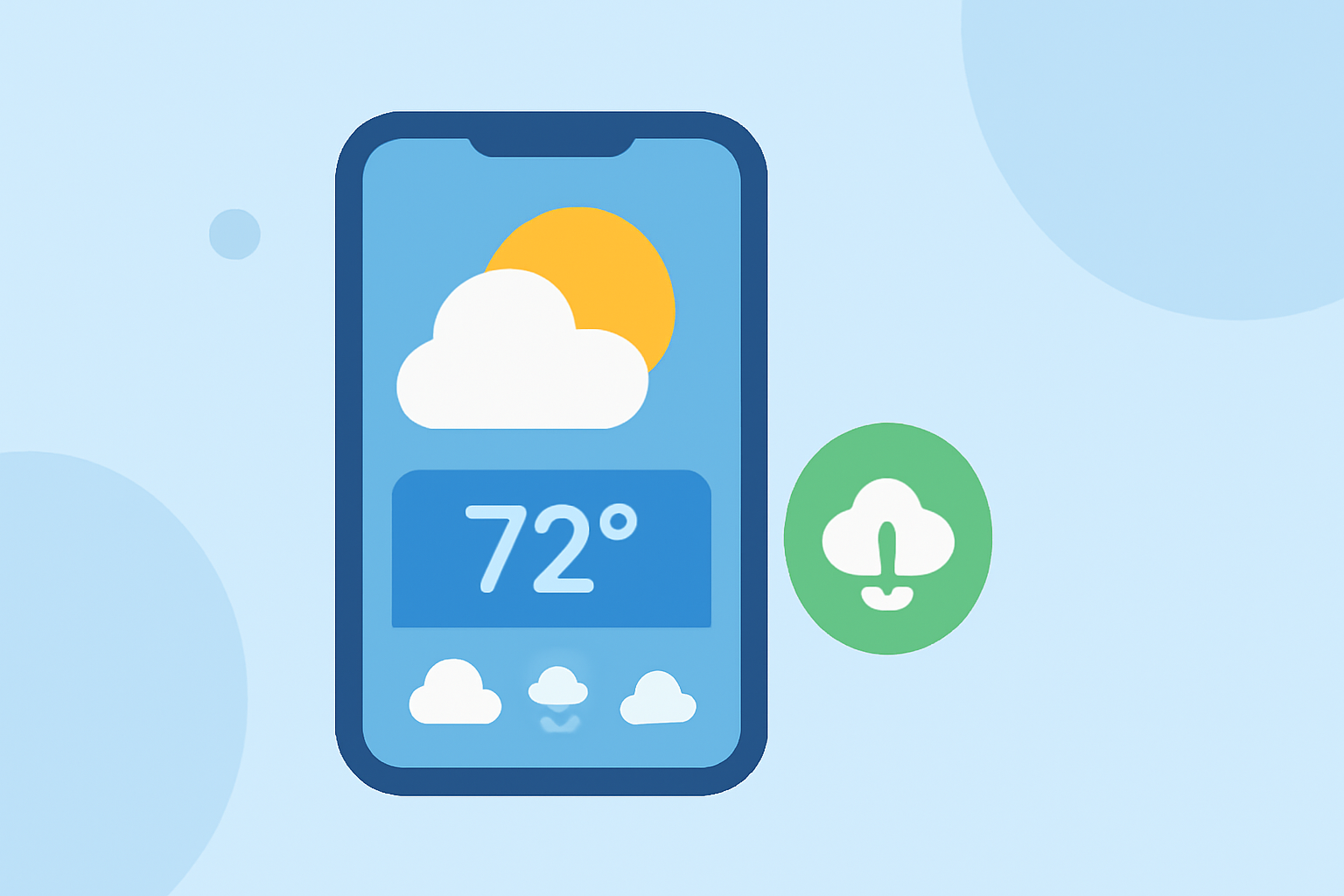
Customizing your device's home screen with weather widgets allows you to access current conditions and forecasts at a glance, enhancing your daily planning and preparedness. Here's how you can add and customize weather widgets on your device:
For iPhone Users:
- Add a Weather Widget:
- Long-press on an empty area of your home screen until the apps start jiggling.
- Tap the + icon in the top-left corner to open the Widget Gallery.
- Scroll through the available widgets or use the search bar to find the Weather widget.
- Choose the desired widget size (small, medium, or large) and tap Add Widget.
- Position the widget on your home screen and tap Done to finalize.
- Customize the Widget:
- Long-press the weather widget and select Edit Widget.
- Choose the location you want the widget to display.
- Adjust other settings as desired, such as temperature units (Celsius or Fahrenheit).
For Android Users:
- Add a Weather Widget:
- Long-press on an empty area of your home screen.
- Tap Widgets from the menu that appears.
- Scroll through the list and select the Weather widget.
- Drag and drop the widget onto your home screen.
- Customize the Widget:
- Long-press the weather widget and select Settings or Configure.
- Set your preferred location, update frequency, and other preferences.
Tips for Effective Widget Use:
- Placement: Position the widget where it's easily accessible, such as the top or center of your home screen.
- Size Selection: Choose a widget size that balances visibility with available screen space.
- Customization: Adjust settings like temperature units and update frequency to suit your needs.
By adding and customizing weather widgets, you can stay informed about current conditions and forecasts without opening a separate app, streamlining your daily routine.