
Enhancing Your iPad with Weather Widgets: A Comprehensive Guide
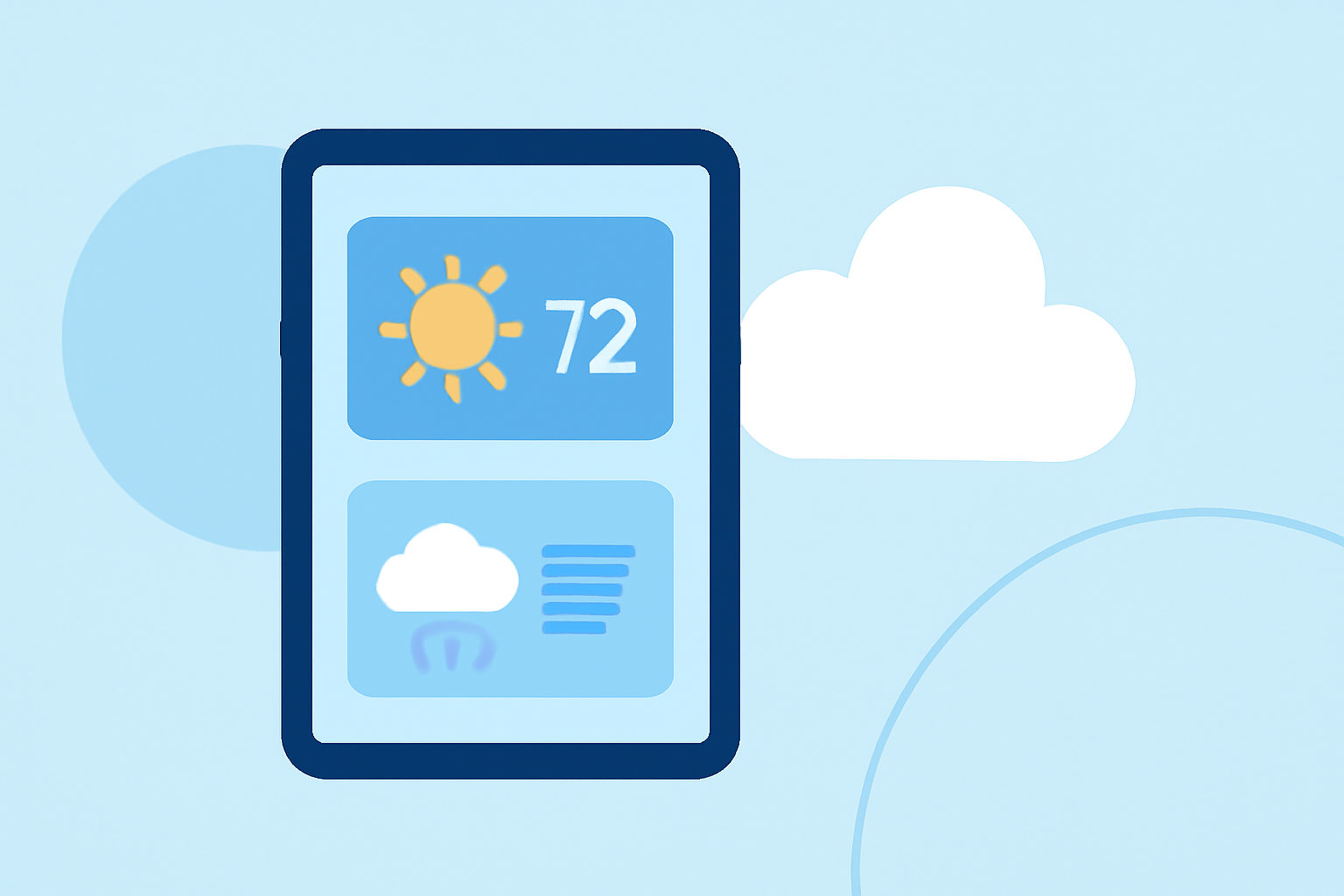
Integrating weather widgets into your iPad's Home Screen offers a convenient way to access real-time weather updates and forecasts. This guide provides step-by-step instructions to help you set up and customize weather widgets, ensuring you stay informed with minimal effort.
What Are Weather Widgets?
Weather widgets are interactive elements that display current weather conditions, forecasts, and other meteorological information directly on your iPad's Home Screen. They provide at-a-glance updates without the need to open a dedicated app.
How to Add a Weather Widget to Your iPad's Home Screen
-
Access the Widget Gallery: Touch and hold an empty area on your Home Screen until the app icons begin to jiggle. Tap the plus (+) button in the top-left corner to open the Widget Gallery.
-
Select the Weather Widget: In the Widget Gallery, scroll down to find the Weather widget. Tap on it to view available widget sizes.
-
Choose a Widget Size: Widgets come in small, medium, and large sizes. The size you choose will determine the amount of information displayed. For instance, the largest widget shows the current conditions and the forecast for the next few days. (macrumors.com)
-
Add the Widget: After selecting the desired size, tap "Add Widget." The widget will appear on your Home Screen. You can drag it to your preferred location. (howtogeek.com)
How to Customize the Weather Widget
-
Edit the Widget: Touch and hold the Weather widget on your Home Screen until a quick actions menu appears. Tap "Edit Widget."
-
Change the Location: In the widget's settings, tap "Location." You can choose "My Location" to display weather updates for your current location or select a specific city by typing its name. (support.apple.com)
-
Adjust Other Settings: Depending on the widget size and available options, you might be able to customize additional settings, such as the displayed information or the widget's appearance.
Creating Widget Stacks
To maximize your Home Screen space and access multiple widgets seamlessly, you can create a widget stack:
-
Add Multiple Widgets: Place two or more widgets of the same size on your Home Screen.
-
Stack the Widgets: Touch and hold one widget, then drag it on top of another widget of the same size. Release to create a stack.
-
Access the Stack: Swipe up or down on the stack to cycle through the widgets. This feature is particularly useful for viewing different weather locations or combining weather updates with other information. (makeuseof.com)
Additional Tips
-
Smart Rotate: Enable the Smart Rotate feature to allow your iPad to automatically display the most relevant widget in the stack based on factors like time of day and usage patterns.
-
Lock Screen Widgets: With iPadOS 16 and later, you can add widgets to your Lock Screen for quick access. Touch and hold the Lock Screen, tap "Customize," then add the desired widgets. (support.apple.com)
By following these steps, you can effectively integrate and customize weather widgets on your iPad, ensuring you have timely access to essential weather information directly from your Home Screen.