
Enhancing Your iPad with Large Weather Widgets
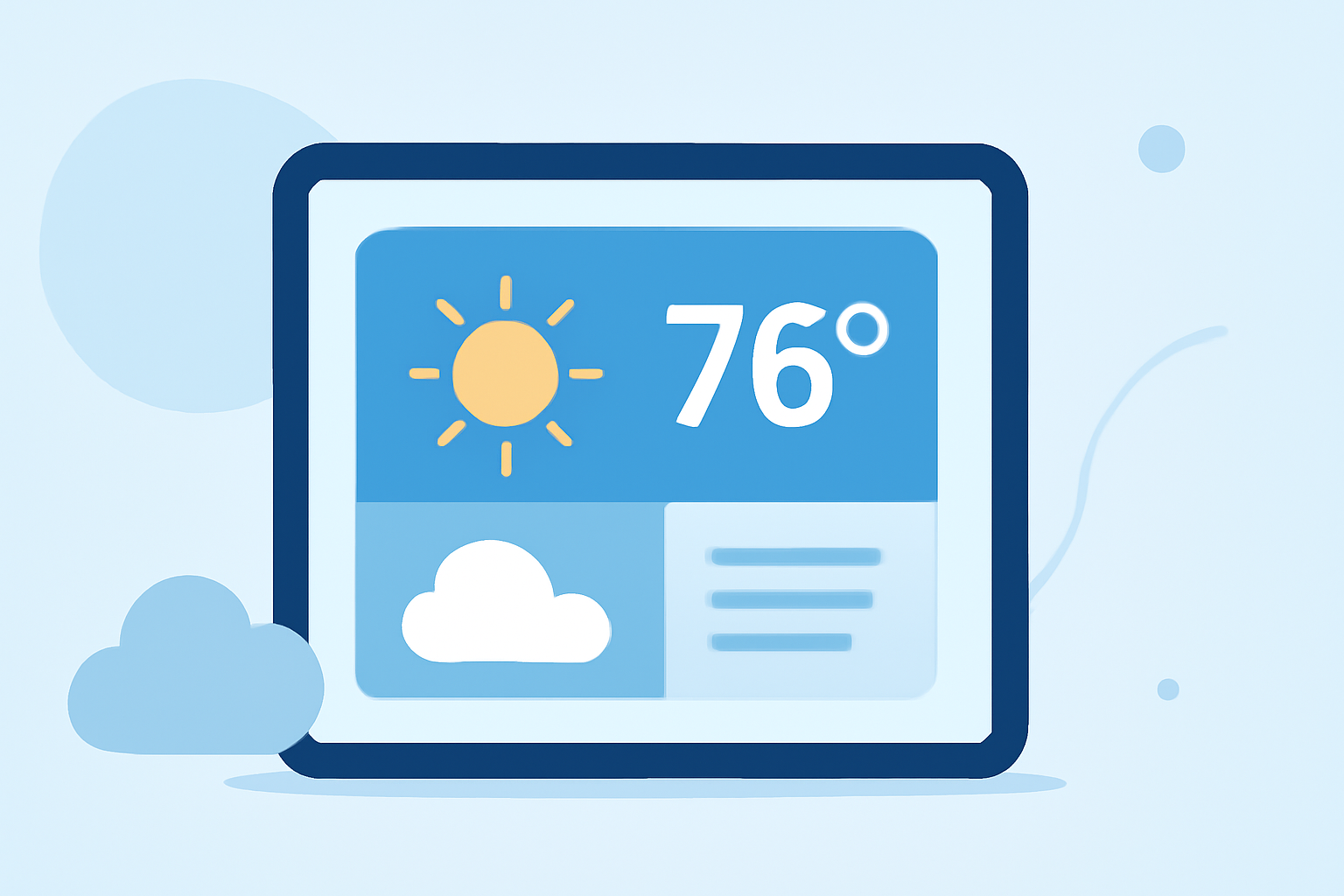
Adding large weather widgets to your iPad's home screen can provide at-a-glance access to current conditions, forecasts, and more. Here's how you can set up and customize these widgets:
1. Ensure Your iPad is Updated
To utilize widgets effectively, your iPad should be running iOS 14 or later. To check for updates, go to Settings > General > Software Update.
2. Add a Large Weather Widget
-
Access the Widget Gallery: Tap and hold an empty area on your home screen until the apps jiggle. Then, tap the + button in the top-left corner.
-
Select the Weather Widget: In the widget gallery, scroll down and tap on Weather.
-
Choose the Large Widget: Swipe through the available widget sizes and select the large one.
-
Add the Widget: Tap Add Widget, then position it on your home screen.
3. Customize the Widget
Some weather apps offer customizable widgets that allow you to display specific information such as hourly forecasts, air quality, or precipitation chances. For instance, the Weather widget can display accurate weather data for your current location, including warnings for thunderstorms, severe weather, and air quality alerts. (makeuseof.com)
4. Explore Third-Party Weather Apps with Widget Support
Several third-party weather apps provide large, customizable widgets for your iPad. These apps often offer additional features and more detailed information. For example, the Weawow app offers highly customizable widgets and provides weather photos from around the world. (apps.apple.com)
5. Maintain Your Widgets
To edit or remove a widget, tap and hold it until a menu appears. From there, you can select Edit Widget to adjust settings or Remove Widget to delete it.
By following these steps, you can enhance your iPad's home screen with large weather widgets, providing quick and convenient access to the latest weather information.