
Enhancing Your iPhone's Lock Screen with Weather Widgets
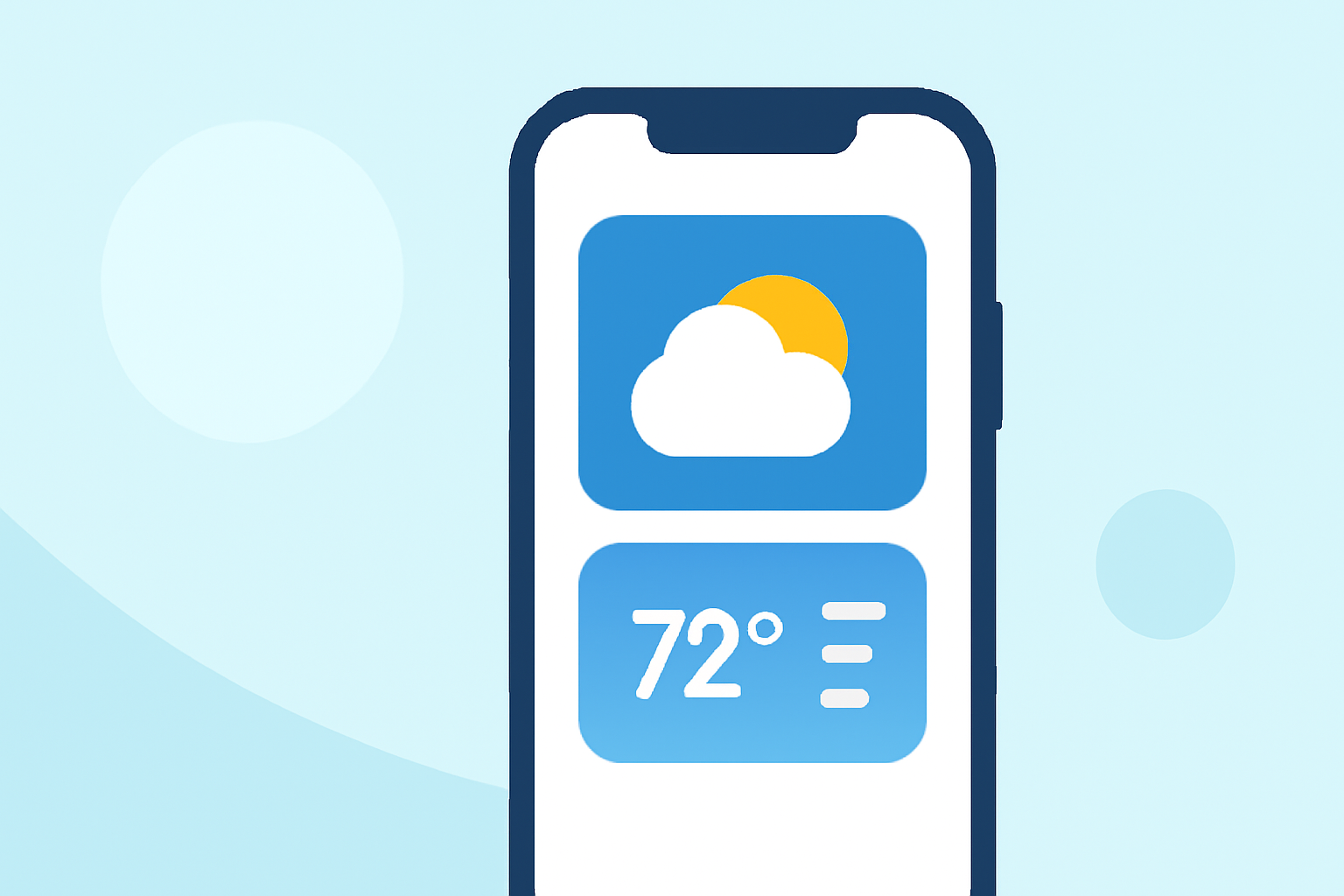
Adding weather widgets to your iPhone's lock screen provides immediate access to current conditions and forecasts without unlocking your device. Here's how to set them up:
1. Update Your iPhone to iOS 16 or Later
Ensure your iPhone is running iOS 16 or a newer version, as lock screen widgets are available starting from iOS 16.
2. Access the Lock Screen Customization
-
Press and hold the lock screen until the customization options appear.
-
Tap the "Customize" button at the bottom of the screen.
3. Add Weather Widgets
-
Tap the area above or below the time to bring up the widget selection.
-
Scroll down and select "Weather" to view available widgets.
-
Choose the desired widget type, such as current conditions, hourly forecast, or daily forecast.
-
Tap the widget to add it to your lock screen.
4. Customize Widget Settings
-
Some widgets allow customization.
-
Tap the widget to adjust settings like location, forecast duration, or display style.
5. Save Your Customization
- After adding and customizing your widgets, tap "Done" to save the changes.
Additional Tips
-
Third-Party Weather Apps: Many third-party weather applications offer additional lock screen widgets with unique features. Explore the App Store for options that suit your preferences.
-
Widget Management: To remove or rearrange widgets, repeat the customization steps and adjust as needed.
By following these steps, you can personalize your iPhone's lock screen to display essential weather information at a glance, enhancing your daily convenience.