
Enhancing Your iPhone Lock Screen with Weather Widgets
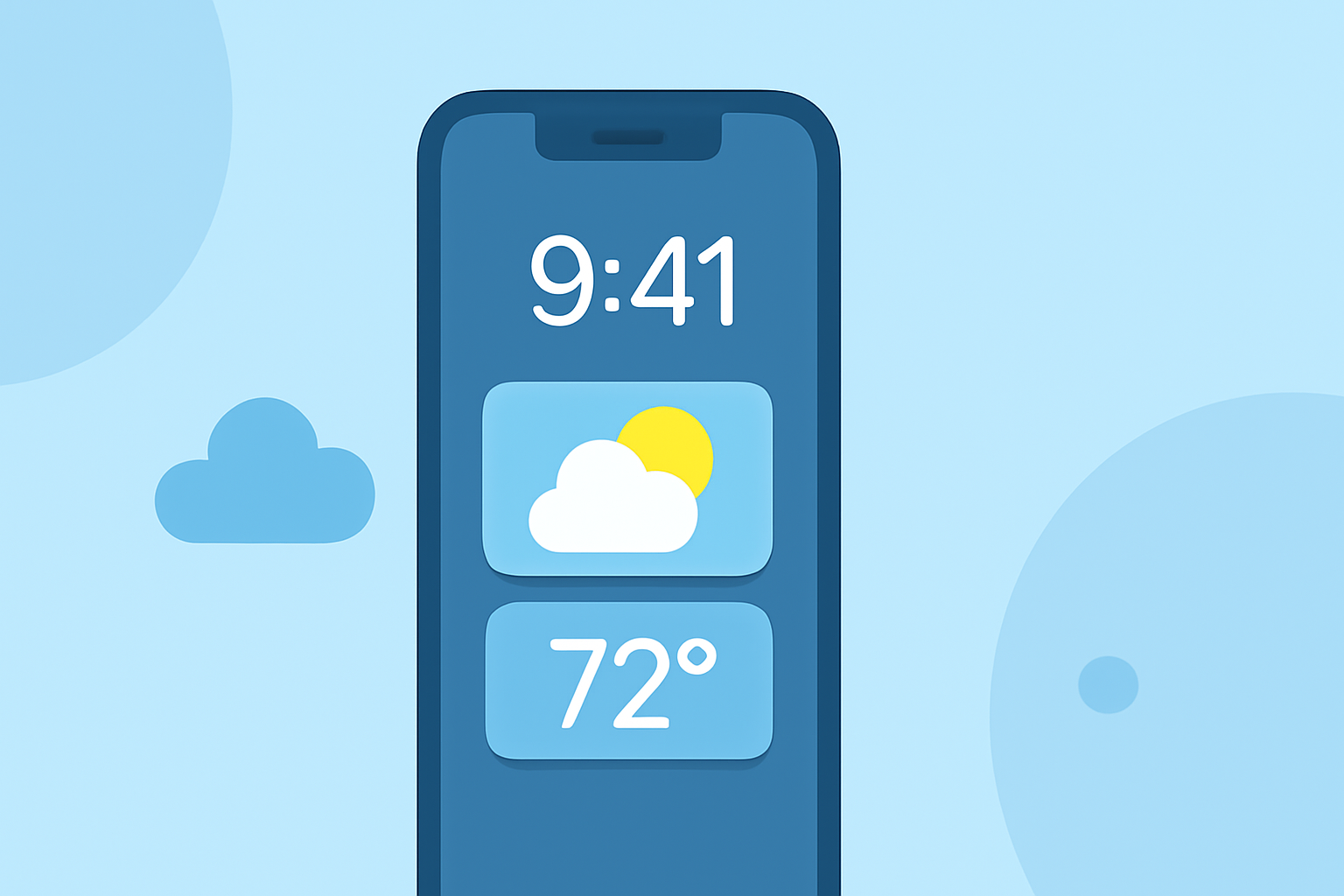
Customizing your iPhone's Lock Screen with weather widgets allows you to access real-time forecasts and conditions without unlocking your device. Here's how to set it up:
1. Accessing Lock Screen Customization
-
Activate Customization Mode: Wake your iPhone and press and hold the Lock Screen until the customization options appear.
-
Enter Edit Mode: Tap the "Customize" button at the bottom of the screen.
2. Adding Weather Widgets
-
Select Widget Area: Tap the area below the clock where widgets can be added.
-
Choose Weather Widgets: Scroll through the available widgets and select the weather-related ones you prefer. Options include current conditions, temperature, precipitation, wind speed, and more.
-
Add Widgets: Tap on the desired widgets to add them to your Lock Screen.
3. Customizing Widget Appearance
-
Rearrange Widgets: Drag and drop widgets to your preferred positions.
-
Adjust Widget Settings: Some widgets allow customization of settings such as location, forecast duration, and display style.
4. Finalizing Customization
- Save Changes: Once satisfied with your widget arrangement and settings, tap "Done" to apply the changes.
Additional Tips
-
Dynamic Weather Wallpapers: iOS 16 introduced dynamic weather wallpapers that adapt to current conditions. To set one:
-
Press and hold the Lock Screen and tap the plus (+) button.
-
Select the "Weather" option to choose a dynamic weather wallpaper.
-
Third-Party Weather Apps: Some third-party weather applications offer additional widgets with unique features. Ensure compatibility with your iOS version before installation.
By customizing your Lock Screen with weather widgets, you can stay informed about current conditions and forecasts without unlocking your iPhone.
For a visual guide on adding weather widgets to your iPhone Lock Screen, you can watch the following tutorial: