
Enhancing Your iPhone with Glanceable Weather Widgets
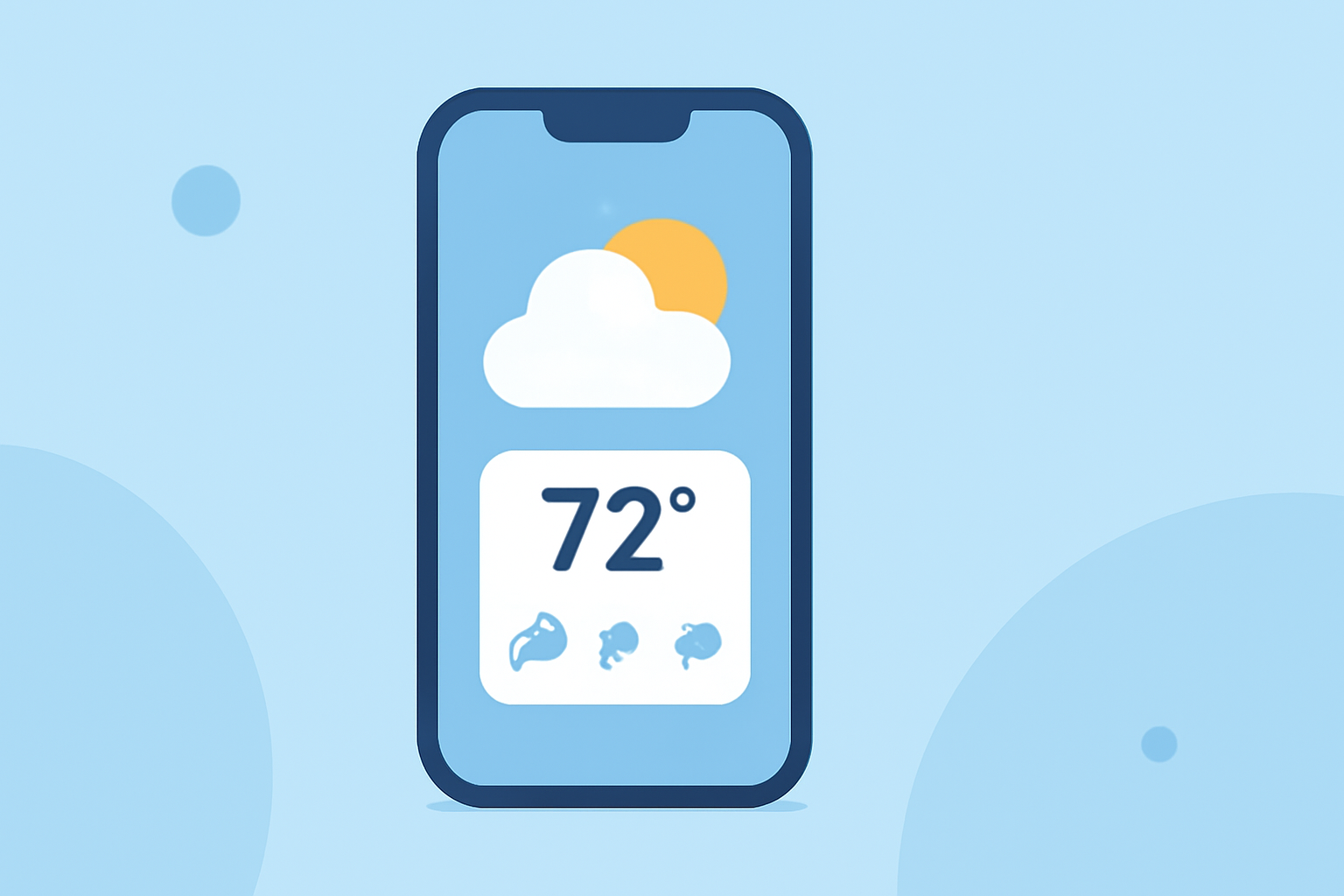
Adding weather widgets to your iPhone Home Screen allows you to access current conditions and forecasts instantly, without opening an app. Here's how to set them up and customize them to your preference.
How Do I Add a Weather Widget to My iPhone Home Screen?
- Enter Jiggle Mode: Touch and hold an empty area on your Home Screen until the apps begin to jiggle.
- Access the Widget Gallery: Tap the "+" button in the top-left corner.
- Select the Weather Widget: Scroll through the widget options and tap on "Weather."
- Choose a Widget Size: Pick from small, medium, or large sizes based on the information you want displayed.
- Add the Widget: Tap "Add Widget," then position it on your Home Screen.
- Exit Jiggle Mode: Tap "Done" in the top-right corner.
Can I Customize the Location Displayed on the Weather Widget?
Yes, you can change the location shown on your Weather widget:
- Enter Jiggle Mode: Touch and hold the Weather widget on your Home Screen.
- Edit the Widget: Tap "Edit Widget."
- Select a Location: Tap "Location," then search for or select the desired city.
- Save Changes: Tap outside the widget to return to your Home Screen.
What Are the Different Widget Sizes and What Do They Display?
- Small Widget: Displays current temperature and weather conditions.
- Medium Widget: Shows current temperature, weather conditions, and a brief hourly forecast.
- Large Widget: Provides current temperature, weather conditions, and a detailed 5-day forecast.
Can I Add Multiple Weather Widgets for Different Locations?
Yes, you can add multiple Weather widgets to monitor conditions in various locations:
- Add Additional Widgets: Repeat the steps to add a new Weather widget.
- Customize Each Widget: Edit each widget to display the desired location.
How Do I Remove a Weather Widget from My Home Screen?
- Enter Jiggle Mode: Touch and hold the Weather widget you want to remove.
- Delete the Widget: Tap the minus sign (-) in the top-left corner of the widget.
- Confirm Deletion: Tap "Remove" to delete the widget.
By customizing your iPhone with glanceable weather widgets, you can stay informed about current conditions and forecasts with ease.