
Enhancing Outdoor Adventures with Weather Widgets: A Comprehensive Guide
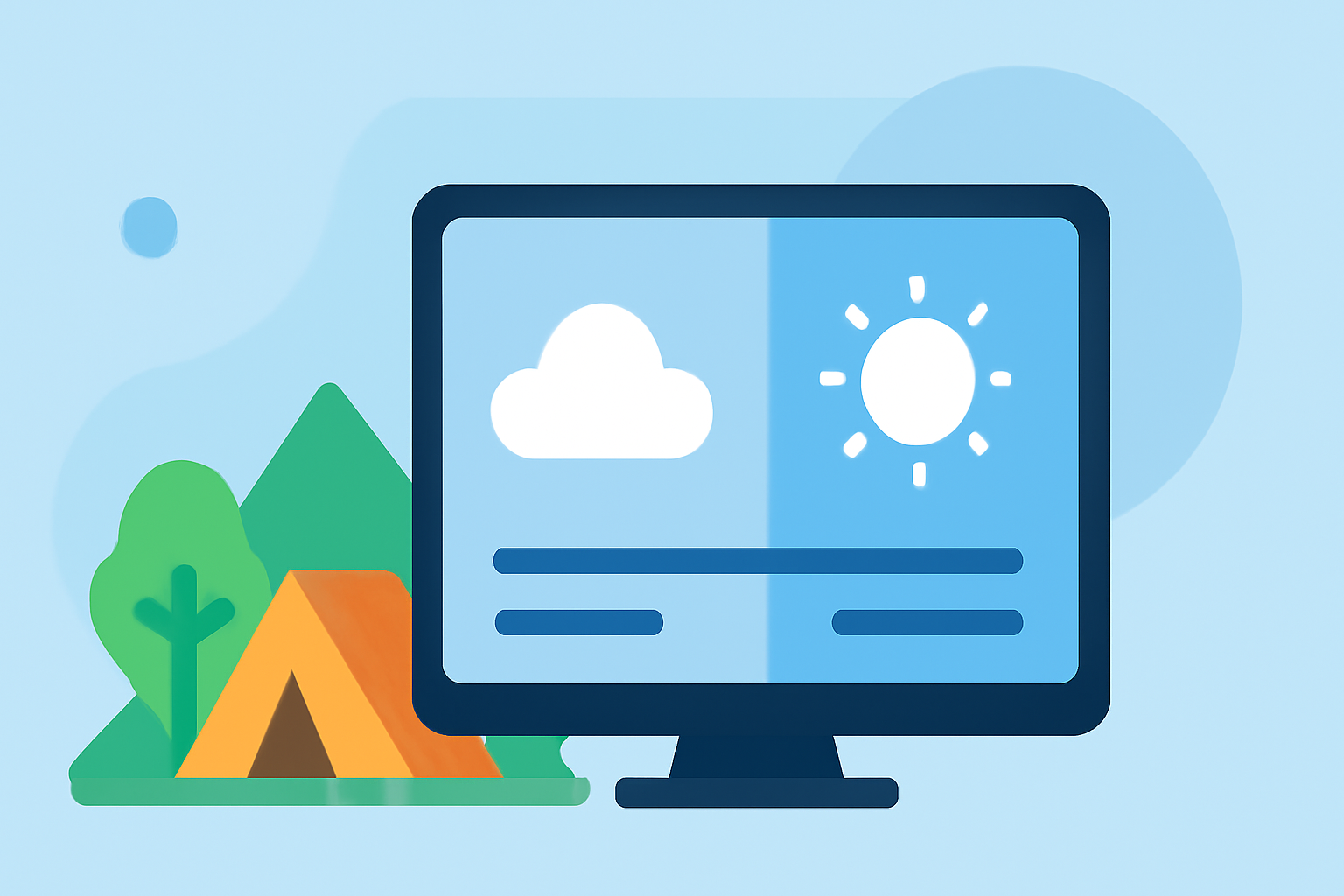
Weather widgets are invaluable tools for outdoor enthusiasts, providing real-time updates on conditions that can significantly impact your activities. By integrating these widgets into your devices, you can make informed decisions and enhance your outdoor experiences.
What Are Weather Widgets?
Weather widgets are small applications that display current weather information directly on your device's home screen or lock screen. They offer quick access to essential data such as temperature, precipitation, wind speed, and forecasts, allowing you to stay updated without opening a full weather app.
Why Should Outdoor Enthusiasts Use Weather Widgets?
For those who engage in outdoor activities like hiking, camping, or cycling, weather conditions are crucial. Weather widgets provide timely updates, helping you:
-
Plan Activities: Choose the best days and times for your adventures based on favorable weather conditions.
-
Ensure Safety: Stay informed about severe weather warnings or sudden changes that could pose risks.
-
Optimize Gear: Select appropriate clothing and equipment tailored to the expected weather.
How to Add and Customize Weather Widgets on Your Device
For iPhone Users:
- Add a Weather Widget:
- Touch and hold an empty area on your Home Screen until the apps jiggle.
- Tap the plus (+) button in the top-left corner.
- Scroll to find the Weather widget and tap it.
- Choose the desired widget size and tap "Add Widget."
- Customize the Widget:
- Touch and hold the Weather widget on your Home Screen.
- Tap "Edit Widget."
- Select the location for which you want to display the weather.
- Adjust other settings as needed.
For Android Users:
- Add a Weather Widget:
- Touch and hold an empty area on your Home Screen.
- Tap "Widgets."
- Scroll to find the Weather widget and drag it to your Home Screen.
- Customize the Widget:
- Touch and hold the Weather widget on your Home Screen.
- Tap "Edit" or "Settings."
- Select the location and adjust other settings as desired.
Integrating Weather Widgets with Other Tools
To further enhance your outdoor planning, consider integrating weather widgets with other tools:
-
Smart Stacks: On iOS devices, you can create a Smart Stack by stacking multiple widgets, including weather widgets for different locations. This allows you to swipe through various weather updates without cluttering your Home Screen. (idownloadblog.com)
-
Third-Party Applications: Some applications allow you to create custom weather widgets using data from services like Weatherstack. By integrating these widgets into your dashboard, you can monitor weather conditions alongside other relevant information. (support.geckoboard.com)
Best Practices for Using Weather Widgets Outdoors
-
Regular Updates: Ensure your device's weather widgets are set to update frequently to provide the most current information.
-
Multiple Locations: If you travel or engage in activities across different areas, set up widgets for multiple locations to stay informed.
-
Combine with Other Tools: Use weather widgets in conjunction with other outdoor planning tools, such as maps and activity trackers, for a comprehensive approach.
Conclusion
Incorporating weather widgets into your devices equips you with real-time weather information, empowering you to make informed decisions and enhance your outdoor adventures. By customizing and integrating these widgets effectively, you can ensure safety, optimize your activities, and fully enjoy your time outdoors.