
Enhancing Your Smart Display with Weather Widgets
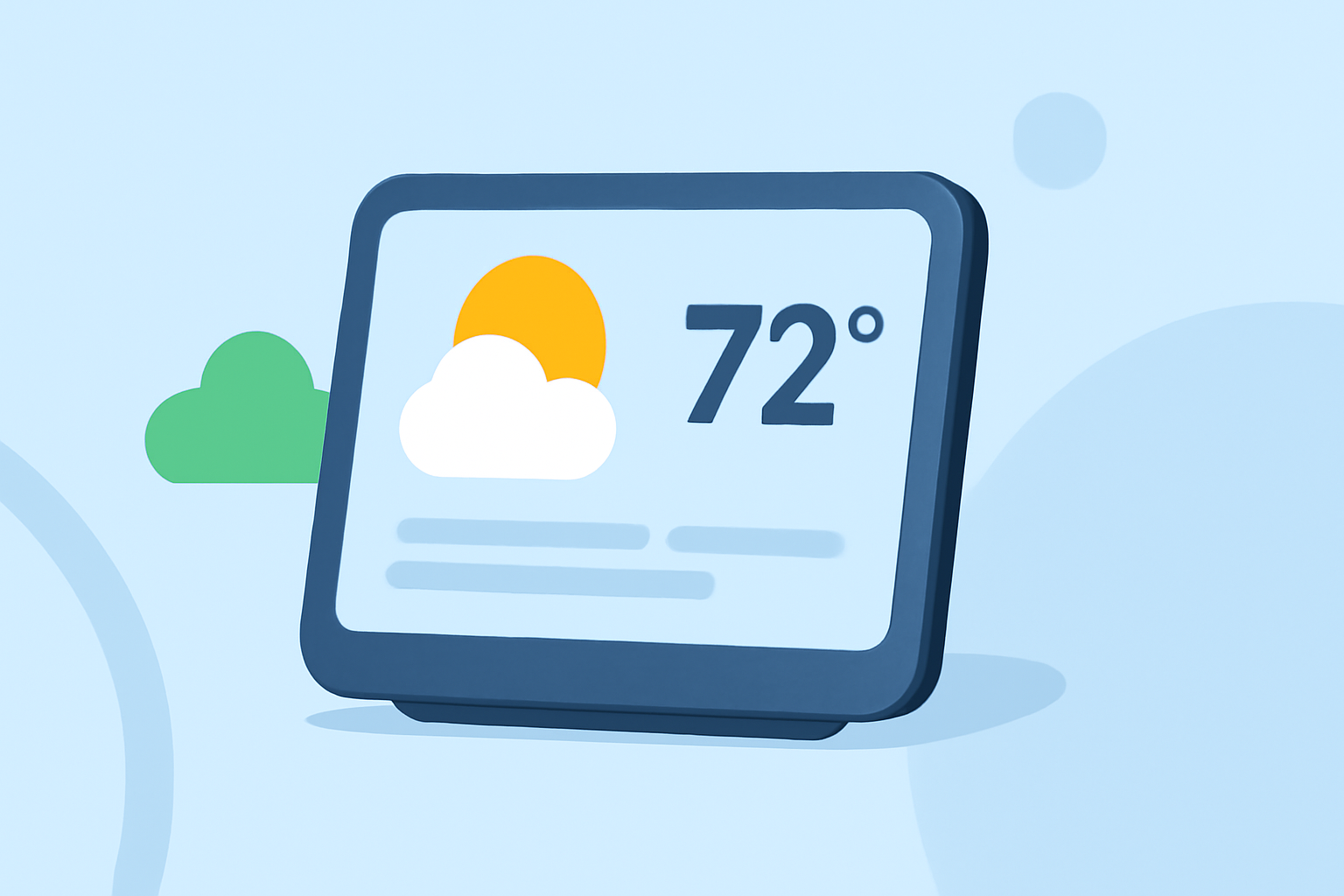
Integrating a weather widget into your smart display provides immediate access to real-time forecasts, helping you plan your day effectively. Here's how to set up and customize a weather widget on your smart display.
What Is a Weather Widget?
A weather widget is a small application that displays current weather conditions and forecasts directly on your device's screen. On smart displays, these widgets offer at-a-glance information, including temperature, humidity, and upcoming weather patterns.
How Do I Add a Weather Widget to My Smart Display?
-
Access Widget Settings: Navigate to your smart display's settings menu and select the 'Widgets' or 'Home Screen' option.
-
Add Widget: Choose the 'Add Widget' or 'Add to Home Screen' option.
-
Select Weather Widget: From the list of available widgets, select the weather widget.
-
Customize Settings: Enter your location to receive accurate weather updates.
-
Save and Exit: Save your settings to display the weather widget on your home screen.
Can I Customize the Appearance of the Weather Widget?
Yes, many smart displays allow customization of widget appearance. You can adjust themes, choose between Fahrenheit or Celsius, and select the information displayed. For instance, some devices offer multiple icon sets and visual themes to personalize your widget.
Are There Third-Party Weather Widgets Available?
Yes, third-party weather widgets can enhance your smart display's functionality. Applications like Weather Clock Widget provide live forecasts and elegant themes for iPhone, iPad, and Apple Watch. These widgets can be added to your home screen for quick access to weather information. (apps.apple.com)
How Do I Remove a Weather Widget from My Smart Display?
-
Access Widget Settings: Go to your smart display's settings menu and select 'Widgets' or 'Home Screen.'
-
Manage Widgets: Choose the 'Manage Widgets' or 'Edit Home Screen' option.
-
Remove Widget: Locate the weather widget and select the 'Remove' or 'Delete' option.
-
Confirm Removal: Confirm the removal to delete the widget from your home screen.
How Accurate Is the Weather Information Provided by the Widget?
The accuracy of weather information depends on the data source used by the widget. Widgets that integrate with reputable weather services provide reliable forecasts. For example, some smart displays offer real-time weather updates based on your zip code, ensuring accuracy regardless of your location. (hearthdisplay.com)
By adding and customizing a weather widget on your smart display, you can stay informed about current conditions and plan your activities accordingly.