
Enhancing Weather Alert Reliability on Wear OS: A Step-by-Step Guide
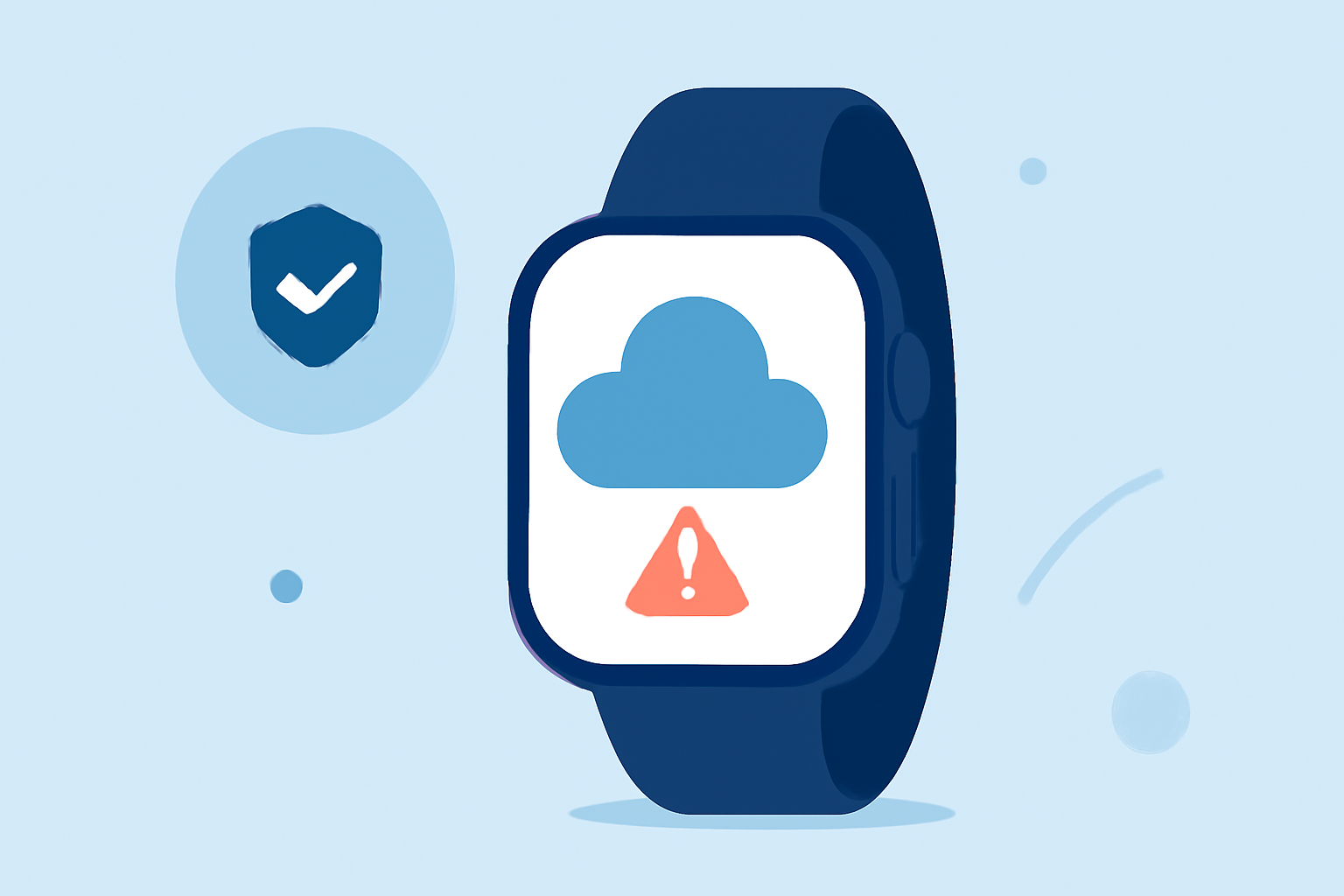
Staying informed about weather conditions is crucial, especially when you're on the go. Wear OS smartwatches offer various features to keep you updated, but ensuring the reliability of weather alerts requires proper setup and maintenance.
1. How Do I Set Up Weather Alerts on My Wear OS Watch?
To receive accurate weather alerts, it's essential to have a reliable weather application installed on your Wear OS device. Many smartwatches come with a default weather app, but if it's not available or you prefer an alternative, you can download one from the Google Play Store.
2. How Do I Enable Weather Notifications?
After installing a weather app, ensure that notifications are enabled:
-
On Your Watch:
-
Swipe down from the top of the screen to access quick settings.
-
Tap the gear icon to open Settings.
-
Navigate to "Apps & Notifications" > "Notifications".
-
Select the weather app and toggle on "Show notifications".
-
On Your Phone:
-
Open the Wear OS app.
-
Tap on "Notifications".
-
Ensure that the weather app is listed and notifications are enabled.
3. How Do I Add a Weather Tile for Quick Access?
Adding a weather tile allows for swift access to weather information:
- On your watch, swipe left or right to access your tiles.
- Press and hold a tile to edit.
- Tap "Add Image" and select the weather tile.
4. How Do I Ensure My Watch Receives Timely Weather Updates?
For timely updates, your watch needs a stable internet connection. Ensure that your watch is connected to Wi-Fi or paired with your phone via Bluetooth. Regularly check for software updates, as updates can improve app performance and fix known issues.
5. How Do I Troubleshoot Weather Alert Issues?
If you're not receiving weather alerts:
-
Check App Permissions:
-
Ensure the weather app has the necessary permissions to access location and send notifications.
-
Verify Location Settings:
-
Ensure that location services are enabled on your watch.
-
Restart Your Watch:
-
A simple restart can resolve many issues.
-
Reinstall the App:
-
Uninstalling and reinstalling the app can fix corrupted files.
6. How Do I Manage Battery Life While Receiving Weather Alerts?
Receiving frequent notifications can drain battery life. To manage this:
-
Limit Notifications:
-
Only enable notifications for essential apps.
-
Adjust Sync Intervals:
-
Some apps allow you to adjust how often they fetch data.
-
Use Power Saving Modes:
-
Activate power-saving modes when necessary.
7. How Do I Stay Updated on Weather Alerts?
Regularly check for app and system updates to ensure optimal performance. Participate in user forums or communities related to your smartwatch to stay informed about best practices and updates.
By following these steps, you can enhance the reliability of weather alerts on your Wear OS smartwatch, ensuring you're always prepared for changing conditions.