
Enhancing Weather Notifications on Wear OS: A Comprehensive Guide
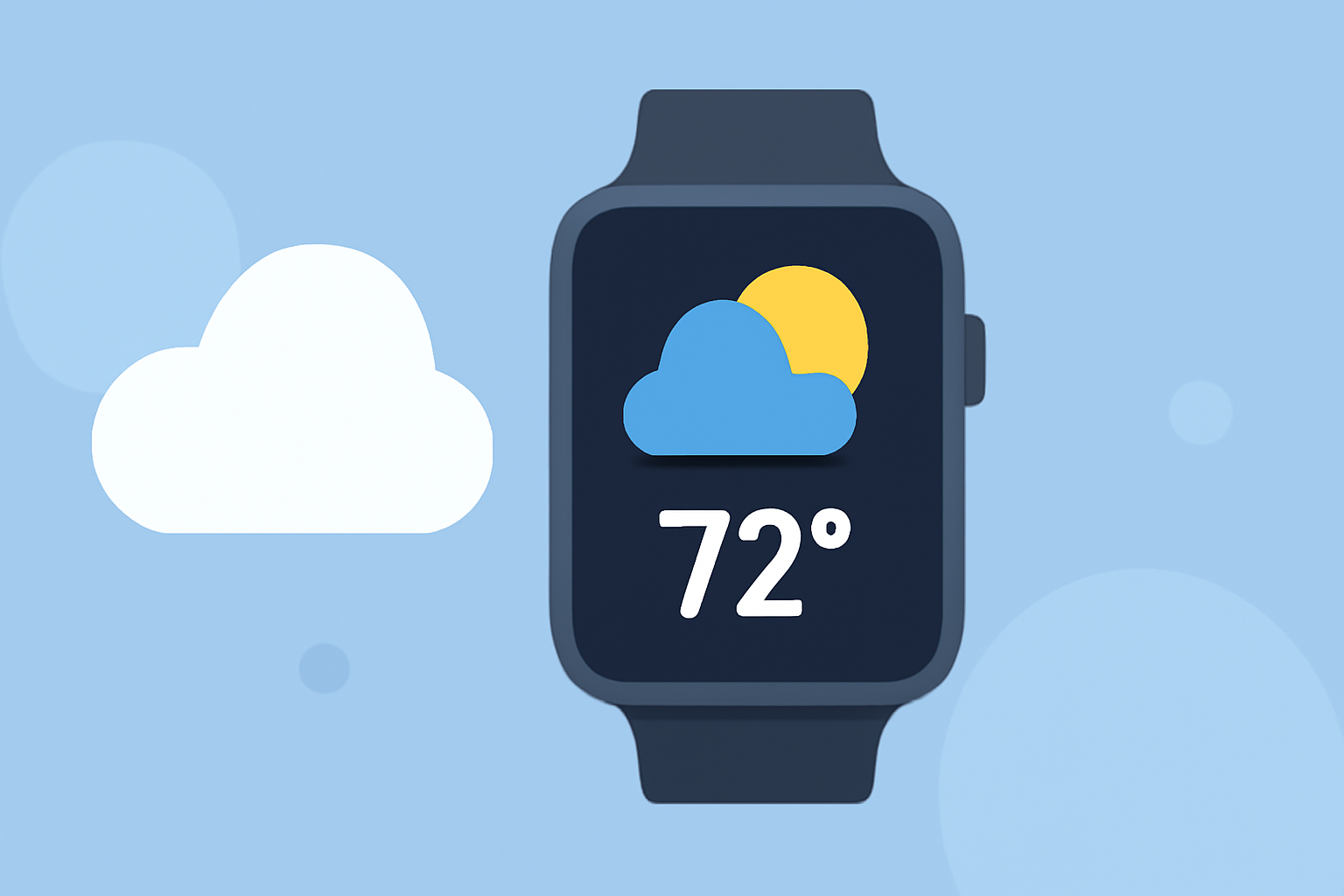
Staying informed about the weather is essential, and with Wear OS smartwatches, you can receive timely updates directly on your wrist. This guide will help you set up and customize weather notifications, ensuring you have the latest information at a glance.
1. How Can I Receive Weather Notifications on My Wear OS Smartwatch?
To get weather updates on your Wear OS device, you can use the built-in weather app or install third-party applications. The built-in app provides current conditions, forecasts, and alerts. To access it, open the Weather app on your smartwatch. For more detailed information, you can add the Weather Tile or complications to your watch face. To do this, swipe left or right to access your tiles, press and hold the desired tile, and select "Add Image" to add the Weather or UV Index Tile. (support.google.com)
2. How Do I Customize My Watch Face to Display Weather Information?
Customizing your watch face allows you to view weather information at a glance. Many Wear OS watch faces support complications that display weather data. To customize your watch face:
- Touch and hold the current watch face.
- Swipe right to access the complications menu.
- Select the complication you want to change and choose a weather-related option.
This setup ensures that weather updates are readily available without navigating through apps.
3. Are There Third-Party Apps That Offer Enhanced Weather Notifications?
Yes, several third-party apps provide advanced weather notifications and features. For instance, SkyHalo Weather offers continuous forecasts up to 48 hours, daily and hourly forecasts for up to 5 days, and NWS weather alerts. It also includes rain/snow forecasts, barometer and wind displays, sun/moon rise/set times, and moon phases. These features are accessible through customizable complications on your watch face. (play.google.com)
4. How Can I Manage Weather Notifications to Avoid Overload?
To prevent notification overload, customize your notification settings:
- Open the Settings app on your smartwatch.
- Navigate to "Apps & notifications."
- Select "Notifications."
- Choose the weather app and adjust the notification preferences, such as enabling or disabling specific alerts.
This approach ensures you receive only the most relevant weather updates.
5. How Do I Ensure My Wear OS Device Receives Timely Weather Updates?
To keep your weather information current:
- Enable Background Data: Ensure that your weather app has permission to use background data for real-time updates.
- Maintain Connectivity: Keep your smartwatch connected to Wi-Fi or your smartphone to receive the latest weather data.
- Regularly Refresh Data: Manually refresh the weather app by scrolling to the bottom and tapping the refresh button to fetch the latest data. (support.google.com)
By following these steps, you can effectively manage and customize weather notifications on your Wear OS smartwatch, ensuring you stay informed about the latest conditions and forecasts.