
Enhancing Your Tablet's Weather Widget with Custom Color Themes
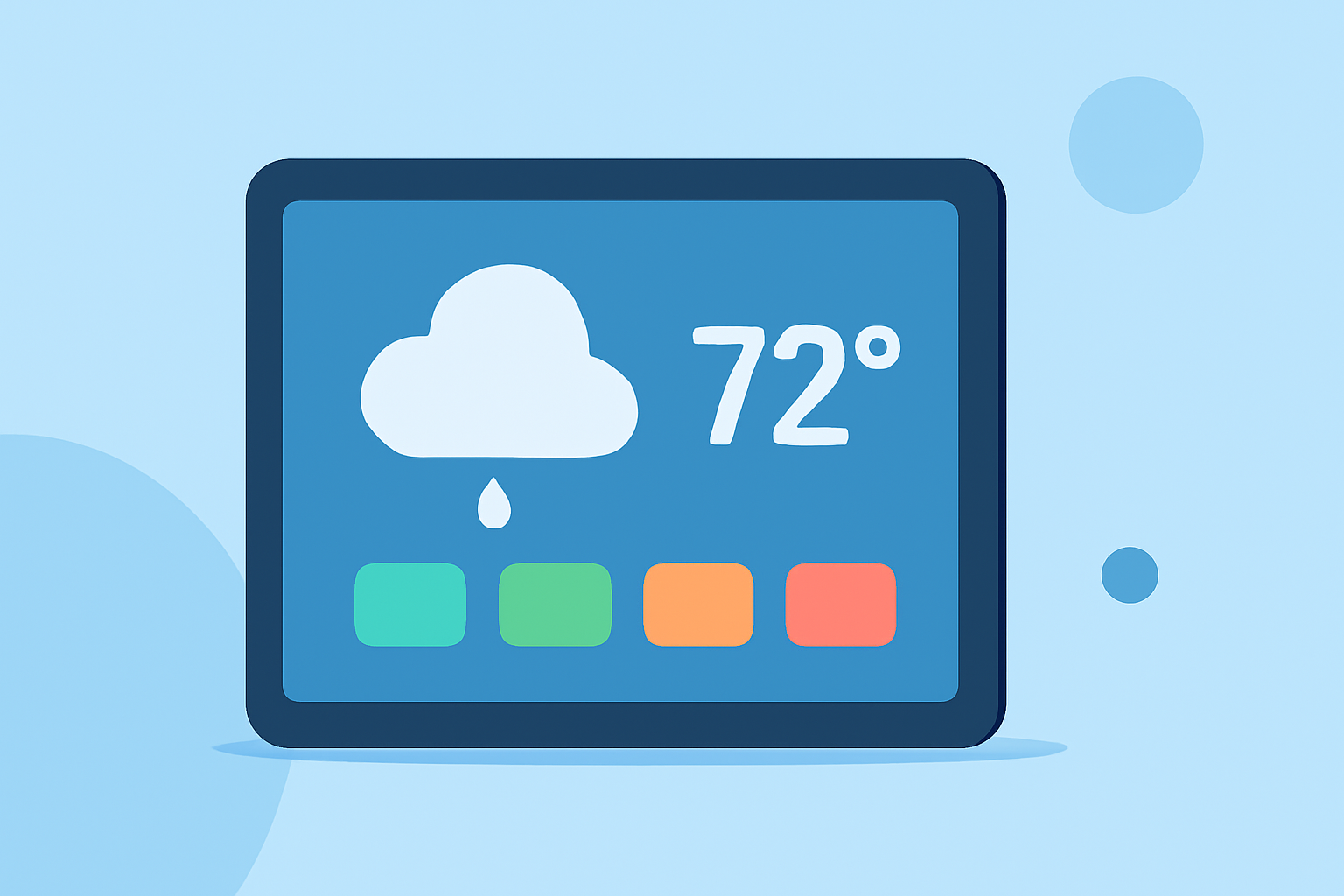
Personalizing your tablet's weather widget with custom color themes can enhance both its functionality and aesthetic appeal. Here's how you can achieve this:
1. Choose a Weather Widget App with Customizable Themes
Select a weather widget app that offers a variety of themes and color customization options. Many apps provide features that allow you to tailor the widget's appearance to your liking.
2. Install the App and Add the Widget
After selecting your preferred app, install it from your device's app store. Once installed, add the weather widget to your home screen by following the app's instructions.
3. Access Widget Customization Settings
Tap and hold the widget on your home screen to access its customization settings. This action typically brings up options to modify the widget's appearance.
4. Select a Color Theme
Within the customization settings, choose from the available color themes. Some apps offer themes that change dynamically based on current weather conditions, providing a more immersive experience.
5. Adjust Additional Settings
Beyond color themes, explore other customization options such as icon packs, transparency levels, and layout adjustments to further personalize your widget.
6. Save and Apply Changes
Once satisfied with your customizations, save and apply the changes. Your tablet's weather widget will now reflect your personalized color theme and settings.
By following these steps, you can create a weather widget that not only provides accurate information but also complements your tablet's overall design.