
Getting Started with Large Weather Widgets on Wear OS
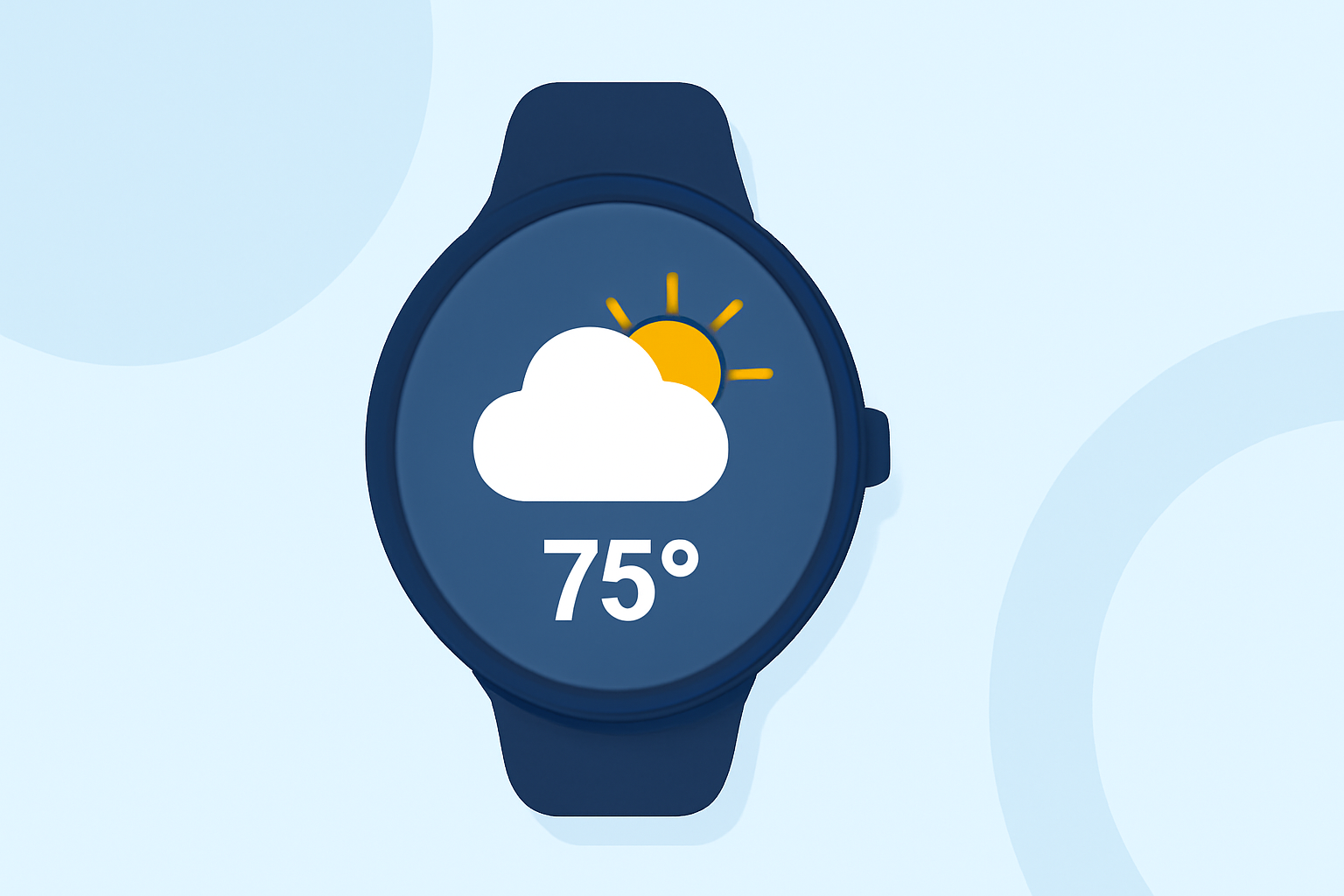
Enhancing your Wear OS smartwatch with large weather widgets allows you to access current conditions and forecasts at a glance. Here's how to set them up:
1. Add the Weather Tile to Your Watch
Tiles are interactive widgets that provide quick access to various features on your smartwatch. To add the Weather Tile:
-
Access Tiles: Swipe left or right on your watch face to view your current tiles.
-
Add Weather Tile: Press and hold on an empty space within the tiles view, then tap "Add Image" to select the Weather Tile.
This tile will display current weather conditions and forecasts directly on your watch face. (support.google.com)
2. Customize Your Watch Face with Weather Complications
Complications are elements on your watch face that display additional information, such as weather updates. To add a weather complication:
-
Select Watch Face: Touch and hold your current watch face to enter customization mode.
-
Edit Complications: Swipe right to access the complications menu.
-
Choose Weather Complication: Scroll through the list and select a weather-related complication to add to your watch face.
This allows you to view weather information without navigating away from your main watch face. (support.google.com)
3. Utilize Third-Party Weather Watch Faces
For more detailed weather information, consider using third-party watch faces designed for Wear OS:
-
Weather Watch Face W5: This watch face features large, realistic weather icons and provides a 6-day forecast. It also displays heart rate, steps, and distance traveled. Note that weather information requires a paid subscription. (play.google.com)
-
Weather W5.5: An updated version offering similar features with enhanced graphics and additional customization options. (futorum.com)
4. Explore Wearable Widgets for Customization
If you prefer a more personalized approach, the Wearable Widgets app allows you to display Android widgets on your smartwatch:
-
Install the App: Download and install Wearable Widgets on both your smartphone and smartwatch.
-
Configure Widgets: Set up the desired weather widgets to appear on your watch, providing real-time updates and forecasts. (wearablewidgets.com)
5. Stay Updated with Wear OS Developments
Be aware that Google has phased out its default Weather app for Wear OS 6 and newer devices. Users are encouraged to use weather apps provided by their smartwatch manufacturer or third-party apps from the Play Store. (androidcentral.com)
By following these steps, you can effectively add and customize large weather widgets on your Wear OS smartwatch, ensuring you have timely and accessible weather information throughout your day.