
Getting Started with Small Weather Widgets in Under 5 Minutes
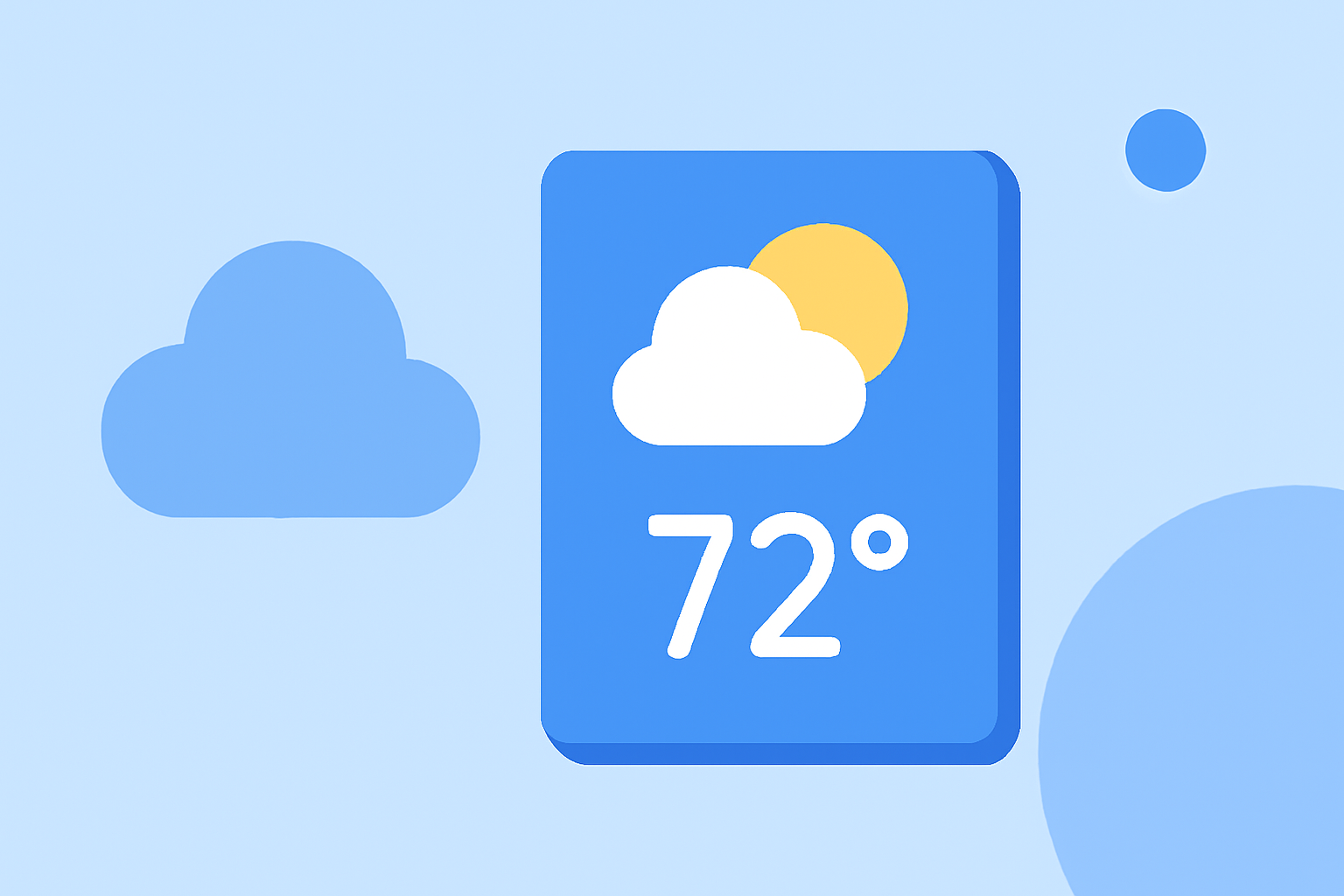
Adding a small weather widget to your iPhone's Home Screen is a quick and straightforward process that provides instant access to current weather conditions. Here's how you can set it up in under five minutes:
1. Access Jiggle Mode
Begin by entering Jiggle Mode:
- Touch and hold an empty area on your Home Screen until the app icons start to jiggle.
2. Open the Widget Gallery
With Jiggle Mode active:
- Tap the Add (+) button located in the top-left corner of the screen. This will open the Widget Gallery.
3. Select the Weather Widget
In the Widget Gallery:
- Scroll down or use the search bar to find the Weather widget.
4. Choose Widget Size
The Weather widget comes in different sizes:
-
Swipe left or right to preview the small, medium, and large sizes.
-
For a compact display, select the small widget.
5. Add the Widget to Your Home Screen
After selecting the desired size:
- Tap Add Widget to place it on your Home Screen.
6. Position the Widget
Once added:
-
Drag the widget to your preferred location on the screen.
-
Tap Done in the top-right corner to exit Jiggle Mode.
7. Customize the Widget (Optional)
To tailor the widget to your preferences:
-
Touch and hold the Weather widget until a menu appears.
-
Tap Edit Widget.
-
Here, you can:
-
Change the location displayed.
-
Adjust other settings as available.
By following these steps, you can quickly set up a small weather widget on your iPhone's Home Screen, ensuring you have timely access to current weather information at a glance.
For a visual guide on adding the Weather widget to your iPhone Home Screen, you can watch the following video: